Rule System
The rule system is a Premium feature. To see rule conflicts and configure rules, you need a Premium subscription.
The rule system helps you avoid scheduling errors. It automatically detects conflicts such as double bookings, shifts during absences, or violations of working hours – and warns you before problems arise.
Finding the Feature
You can find the rule settings in the location settings:
- Go to Manage in the main menu
- Select Locations
- Click on a location
- Switch to the Rules tab
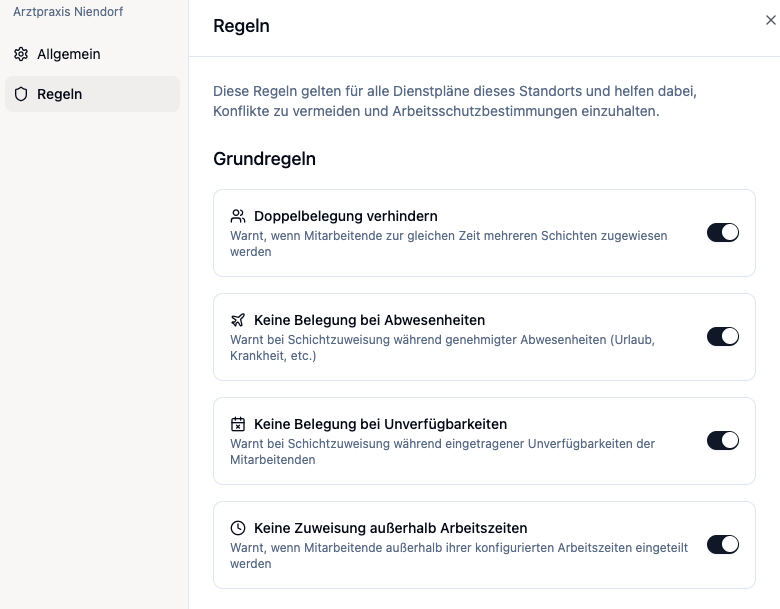
Available Rules
The rule system checks various conflict types. Each rule can be individually enabled or disabled.
| Rule | Description |
|---|---|
| Prevent double booking | Warns when an employee is already assigned to another shift at the same time |
| Check absences | Warns when an employee is scheduled during an absence (vacation, sick leave) |
| Check unavailabilities | Warns when an employee is scheduled during a self-reported unavailability |
| Check working hours | Warns when a shift falls outside an employee's fixed working hours |
| Minimum rest time | Warns when there is less than the configured rest time between two shifts |
Not every rule is useful for every business. You can disable individual rules if they're not relevant to your situation – e.g., the working hours check for flexible work models.
Recognizing Conflicts in the Shift Plan
Rule conflicts are warnings – you can still create shifts with conflicts and assign employees. The conflicts are simply displayed to keep you informed so you can react if needed.
Warning symbol on shifts
Shifts with rule conflicts are marked with a red warning symbol (triangle) in the upper corner.
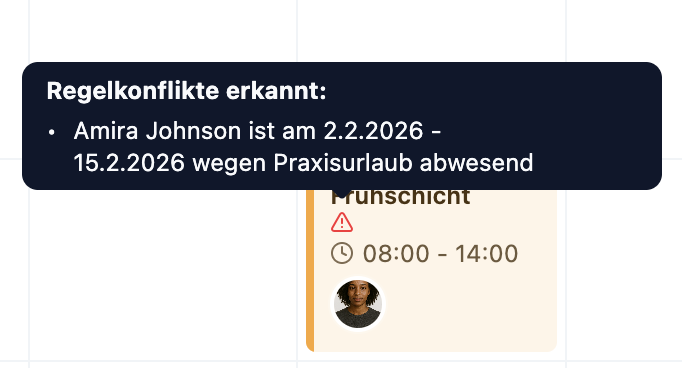
To see details:
- Hover over the warning symbol
- A tooltip shows you the exact conflict
Weekly overview
Additionally, a warning symbol is displayed next to the date when there are rule conflicts in the current week.
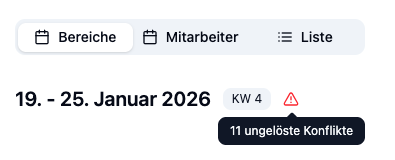
Clicking the warning symbol opens the Automatic Conflict Resolver, which helps you work through all conflicts in the week.
Conflicts with Weekly Templates
When applying a weekly template, conflicts are automatically detected and displayed in a dialog. Learn more at Resolving Conflicts with Weekly Templates.
Practical Examples
Situation: You're planning next week and want to avoid scheduling employees during their vacation.
Steps:
- Create your shifts and assign employees
- Look for the red warning symbol on shifts
- Hover over the symbol
- The tooltip shows: "Lisa Schmidt is absent from January 15-19 due to vacation"
- Remove Lisa and assign another employee
Result: Your shift plan contains no employees who are actually absent.
Situation: You want to assign Max to both the morning shift and the afternoon shift on the same day.
Warning appears:
- "Max Mustermann is already assigned at the same time: Morning shift (06:00-14:00)"
Options:
- Choose a different employee for one of the shifts
- If intended: Ignore the warning (for deliberate double shifts)
Situation: Thomas finishes his late shift at 10:00 PM and is supposed to start the early shift at 6:00 AM the next day.
With 11-hour rule configured:
- Warning: "Only 8 hours between late shift and early shift (minimum: 11)"
Solution:
- Assign a different employee for the early shift
- Or: Consciously ignore the rule if justifiable in this case
Frequently Asked Questions
Why don't I see any rule conflicts?
The rule system is a Premium feature. In the Basic and Plus plans, no conflicts are displayed. You can still plan shifts, but you won't see warnings.
Do rules block shift assignments?
No. Rules are warnings, not hard blocks. You can assign employees even with conflicts – you'll just be notified. This way, you maintain full control.
Do rules apply to all locations?
No. Each location has its own rule settings. You can enable different rules for different locations.
What happens when I disable a rule?
Disabled rules are no longer checked. Existing conflicts disappear from the display, but the underlying situations (e.g., double booking) remain.
Summary
| Aspect | Details |
|---|---|
| Available rules | Double booking, absences, unavailabilities, working hours, rest time |
| Configuration | Per location in location settings |
| Display | Red warning symbol on affected shifts |
| Behavior | Warnings, no blocking |
| Templates | Automatic conflict detection with resolution dialog |
| Availability | Premium plan |
Enable at least the rules for double booking and absences. These two checks prevent the most common scheduling errors and save time on corrections.