Locations
In medishift, you can manage multiple locations. Each location has its own settings, employees, and holidays.
Finding the Feature
- Go to Manage in the main menu
- Click on Locations

The Manage section is only visible to administrators.
Editing a Location
Click on a location to open its settings. You can configure the following areas:
| Area | Description |
|---|---|
| General | Name, address and holidays of the location |
| Rules | Location-specific rules for shift planning |
Location Settings
General Information
Here you can enter basic information about the location:
| Field | Description |
|---|---|
| Name | Name of the location |
| Address | Address of the location |
| Country | Country of the location (e.g., Germany, Austria, Switzerland) |
| Region | Region/state/canton of the location |
Holidays
When you select the Country and Region and save, the holidays for this location are automatically created.
Effects on Other Features
Shift Plan: Holidays are displayed in the shift plan for this location. This allows you to see at a glance which days are holidays.
Vacation Day Calculation: Holidays are automatically considered in the vacation day calculation for employees at this location. When an employee takes vacation and a holiday falls within the period, that day is not counted as a vacation day.
Rules
In the Rules tab, you can configure location-specific rules for shift planning. These rules help identify conflicts during shift planning.
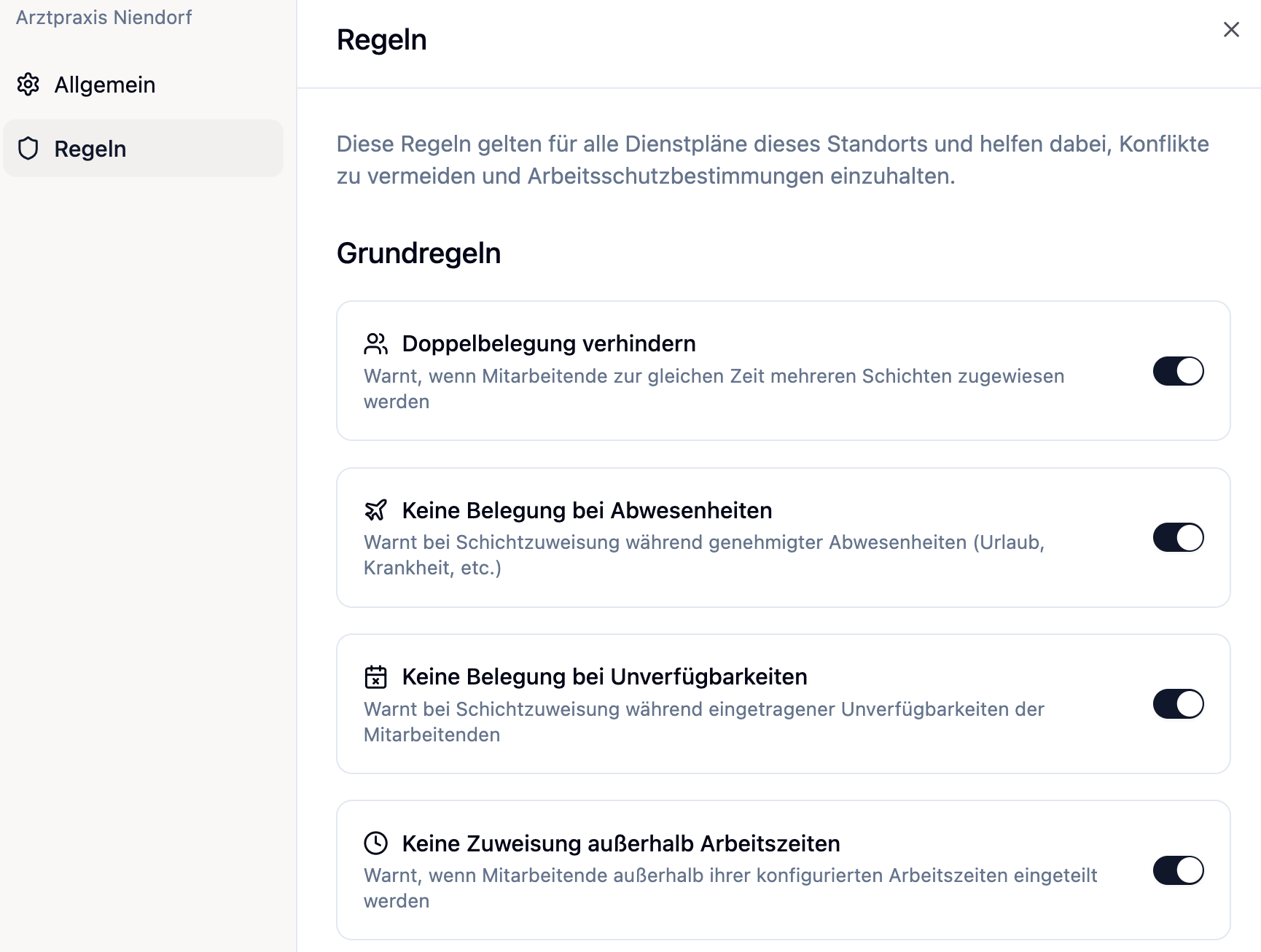
Available Rules
| Rule | Description |
|---|---|
| Maximum working hours per day | Warns when an employee works more than the specified hours in a day |
| Minimum rest time between shifts | Warns when there is less than the specified rest time between two shifts |
| Maximum consecutive working days | Warns when an employee works too many days in a row |
| Fixed working hours | Warns when shifts are scheduled outside an employee's fixed working hours |
Enabling/Disabling Rules
Each rule can be enabled or disabled individually. When rules are enabled, warnings are displayed in the shift plan when a rule is violated.
Rules generate warnings, not hard blocks. You can still assign shifts even if a rule is violated.
Frequently Asked Questions
Can I have multiple locations?
Yes, you can create any number of locations. Each location can have its own settings, holidays, and absence categories.
What happens if I delete a location?
A location can only be deleted if no employees are assigned to it. First delete all employees assigned to this location.
How do I assign an employee to a location?
The location is selected when creating the employee and cannot be changed afterwards. This is the employee's home location — but they can still be scheduled at other locations (see the next question).
Can an employee work at other locations?
Yes. The home location only defines where the employee is "based" — it is not a restriction for shift planning. You can schedule any employee in the shift plan of any location, for example as a floater or to fill in. The home location does not change as a result.
However, such an employee only appears in the other location's shift plan once you assign them a shift there — before that they are not shown. They then appear in the "Employees from other locations" section with an icon showing their home location. medishift also warns you when someone is already scheduled elsewhere:
- "Shift at another location" — the employee is already assigned in a published shift plan of another location.
- "Already assigned from …" — the employee already has a shift on the same day (warning about a time overlap).
Summary
| Aspect | Description |
|---|---|
| Locations | Each location has its own settings |
| Holidays | Configurable per location, affect vacation calculation |
| Rules | Location-specific rules for shift planning |
| Employees | Have a home location but can be scheduled at other locations |
Create a separate entry for each physical location of your company. This allows you to manage location-specific holidays and settings.