Absence Categories
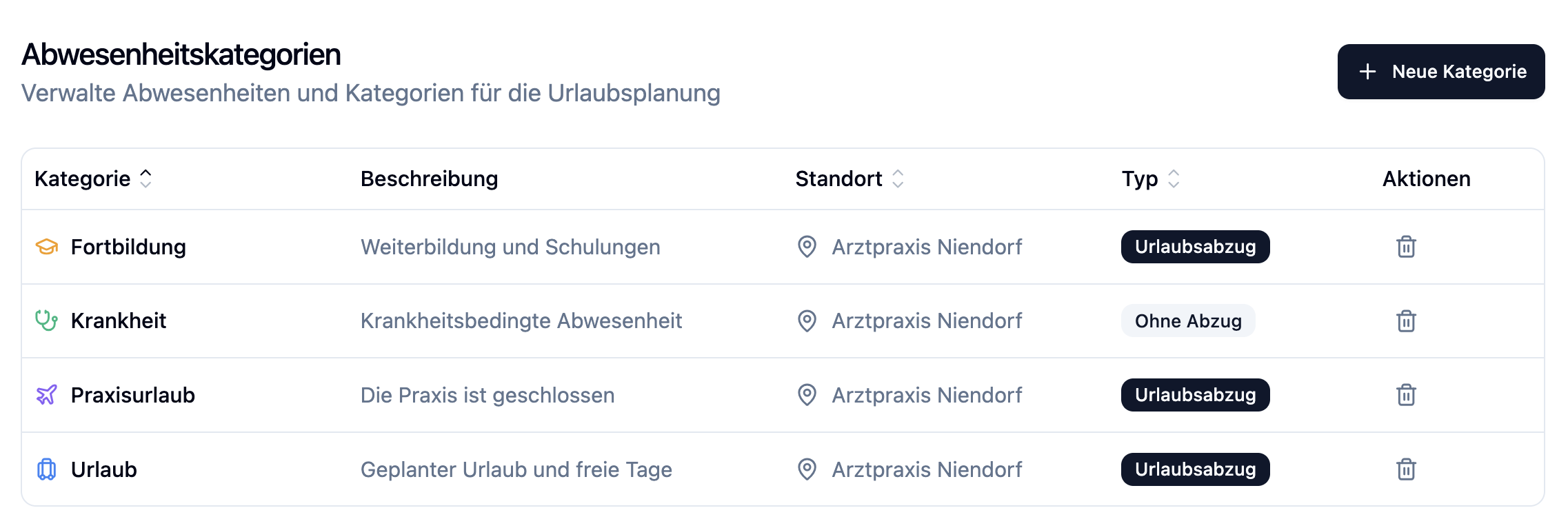
Absence categories define the types of absences that employees can request (e.g., vacation, sick leave, training, practice leave). The category determines whether vacation days are deducted from the vacation account and whether the absence counts as working time in the overtime account.
Finding the Feature
- Go to Manage in the main menu
- Click on Absence Categories
The Manage section is only visible to administrators.
Categories Overview
The overview shows all absence categories with the following information:
| Column | Description |
|---|---|
| Name | Name of the category |
| Color | Color coding in the calendar |
| Icon | Symbol for quick recognition |
| Deduct vacation days | Indicates whether vacation days are deducted |
| Counts as working time | Indicates whether the absence counts as working time in the overtime account |
| Location | Location for which the category applies |
Creating a New Category
- Click + Category
- Fill in the fields:
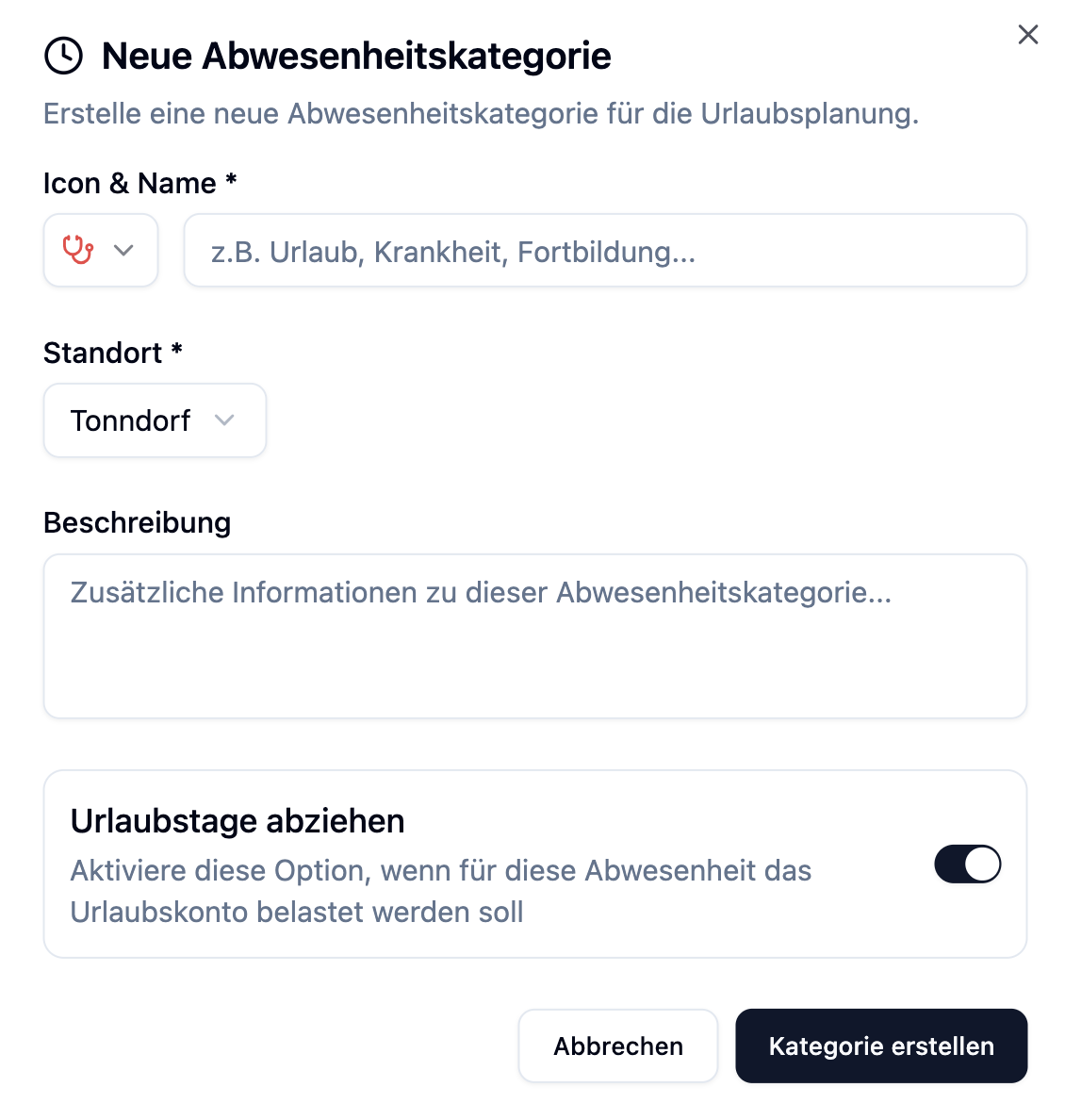
| Field | Description |
|---|---|
| Name | Name of the category (e.g., "Vacation", "Sick Leave") |
| Location | Select the location for which the category applies |
| Description | Optional explanation of the category |
| Color | Color for display in calendar and lists |
| Icon | Symbol for quick recognition |
| Deduct vacation days | Determines whether vacation days are deducted from the vacation account |
| Counts as working time | Determines whether the absence counts as working time in the overtime account |
Deduct Vacation Days
The Deduct vacation days setting is crucial for vacation day calculation:
| Setting | Effect |
|---|---|
| Yes | Vacation days are deducted from the employee's vacation account |
| No | No effect on the vacation account |
Counts as Working Time
The Counts as working time setting determines whether an absence is credited as working time in the overtime account. When enabled, the target hours for that day are credited as actual hours worked — so no undertime is generated by the absence.
| Setting | Effect on overtime account |
|---|---|
| Yes | Target hours for the day are credited as working time (delta = 0) |
| No | No hours are credited (undertime is generated) |
| Category | Deduct vacation days | Counts as working time |
|---|---|---|
| Vacation | Yes | Yes |
| Sick Leave | No | Yes |
| Training | Yes | Yes |
| Practice Leave | No | Yes |
| Special Leave | No | Yes |
| Parental Leave | No | No |
Editing a Category
- Click on an existing category in the list
- Adjust the settings
- Save the changes
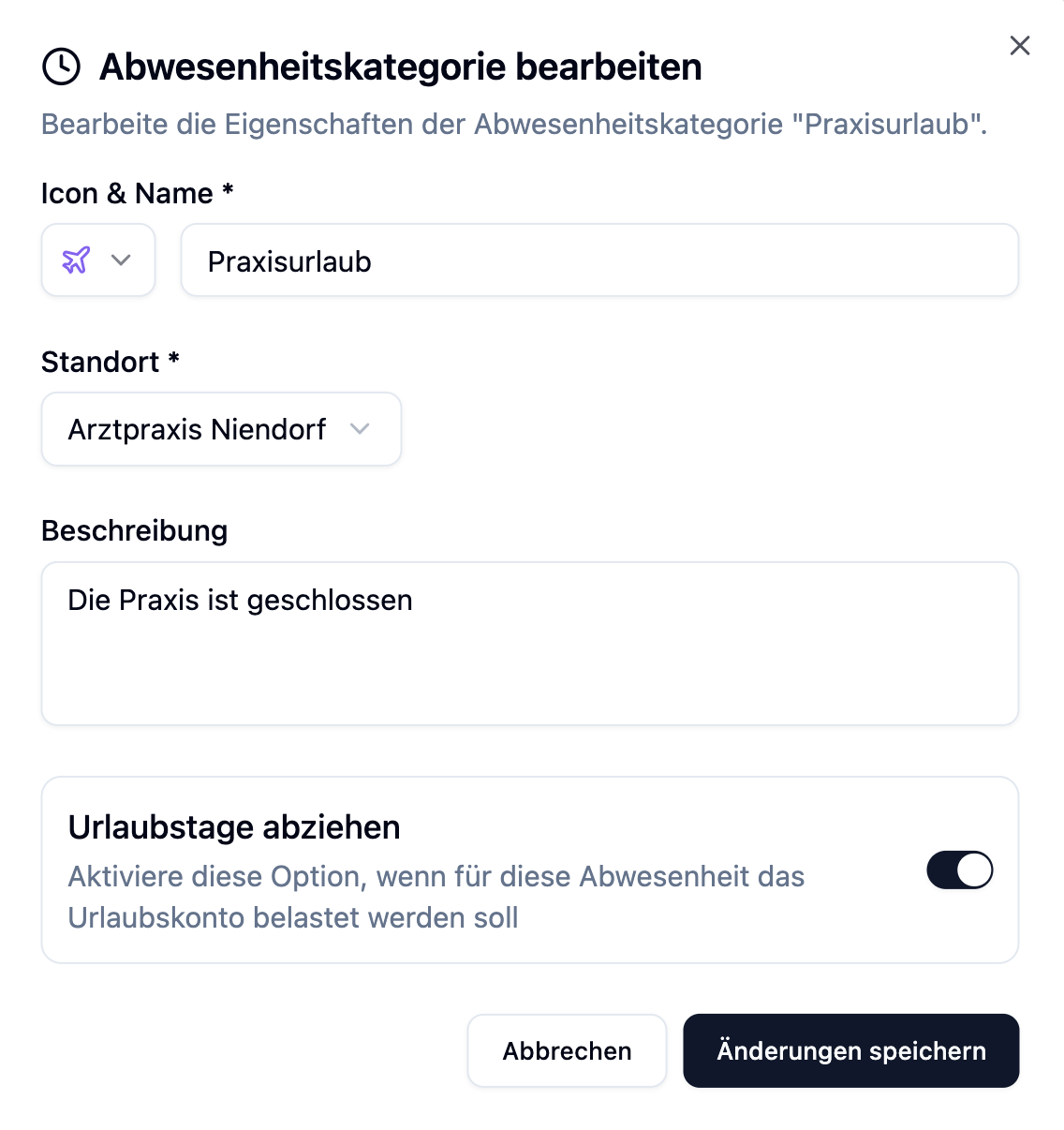
Changes to a category do not apply retroactively to already created absences. Only new absences use the updated settings.
Deleting a Category
- Click on the three-dot menu (⋮) next to the category
- Select Delete
A category can only be deleted if no absences are linked to it. Existing absences must first be assigned to another category or deleted.
Categories per Location
Each location has its own absence categories. This allows for different configurations based on location requirements.
If you have multiple locations, you need to create the required categories for each location separately.
Frequently Asked Questions
Which categories should I create at minimum?
We recommend at least:
- Vacation (vacation days are deducted)
- Sick Leave (vacation days are not deducted)
Other common categories are Training, Practice Leave, Special Leave, and Parental Leave.
Why don't I see a specific category when creating an absence?
The category must be configured for the employee's location. Check if the category exists for the corresponding location.
What happens if I change the "Deduct vacation days" setting?
Existing absences retain their original calculation. Only new absences are calculated with the changed setting.
Can I use categories across multiple locations?
No, each location has its own absence categories. You need to create the categories for each location separately.
Summary
| Aspect | Description |
|---|---|
| Categories | Define the types of absences |
| Deduct vacation days | Determines whether vacation days are deducted |
| Counts as working time | Determines whether hours are credited in the overtime account |
| Location-bound | Each location has its own categories |
| Colors & Icons | Help with quick recognition in the calendar |
| Changes | Only affect new absences |
Set up all required absence categories at the beginning and carefully configure the "Deduct vacation days" setting. This ensures that vacation accounts are maintained correctly.