Overtime Account
The overtime account is a premium feature. To use it, you need a premium subscription.
The overtime account automatically tracks how many hours an employee has worked more or less than agreed. medishift compares the daily target hours with the actual hours worked, day by day.
Requirements
To give an employee an overtime account, they must have daily target hours configured.
Setting Up the Overtime Account
- Go to Overtime Account
- Click Set up overtime account
- Select the employees you want an account for
- Optionally enter a starting balance (positive or negative hours)
- Click Create
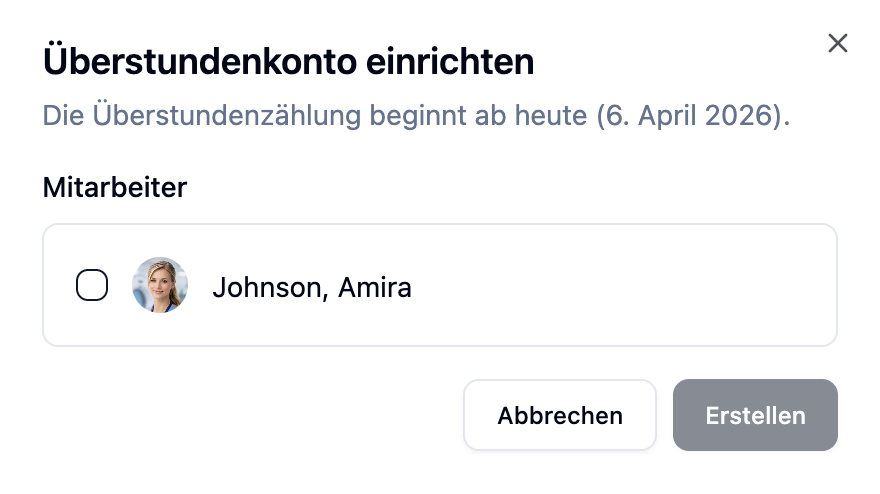
Overtime tracking always begins from the day of setup. Time before that date is not considered — use the starting balance for that.
Starting Balance
Use the starting balance to carry over an existing balance from another system. Examples:
| Situation | Starting balance |
|---|---|
| Employee has 12 hours overtime from the old system | +12.0 h |
| Employee has 5.5 hours undertime | −5.5 h |
| Account starts with no history | 0 h |
The value can be entered in half hours.
How It's Calculated
For each day since account start, medishift calculates:
Difference (day) = Actual hours − Target hours (day)
Actual hours are made up of:
| Source | How it's counted |
|---|---|
| Published shifts | Shift duration (start to end) |
| Absences (as working time) | Daily target hours — full day, or half for half-day absences |
| Holidays on workdays | Daily target hours |
Whether an absence type counts as working time is configured per absence category via the "Counts as working time" option.
Monthly delta = sum of all daily differences in the month.
Total balance = starting balance + sum of all monthly deltas + manual adjustments.
Open and Closed Months
Older months are automatically closed:
| Month | Status | Behavior |
|---|---|---|
| Current month | Open | Recalculated on every change |
| Last month | Open | Recalculated on every change |
| All older months | Closed | Stored values remain unchanged |
If you later change a shift plan from a closed month, it will no longer affect the overtime account. The overtime/undertime for that month remains unchanged.
When Is It Recalculated?
The overtime account updates automatically when:
- A shift is published
- A published shift is modified or deleted
- An absence is approved
- Daily target hours are changed
- A manual adjustment is made
Where Do I See the Balance?
You'll find the current balance and monthly history under Overtime Account.
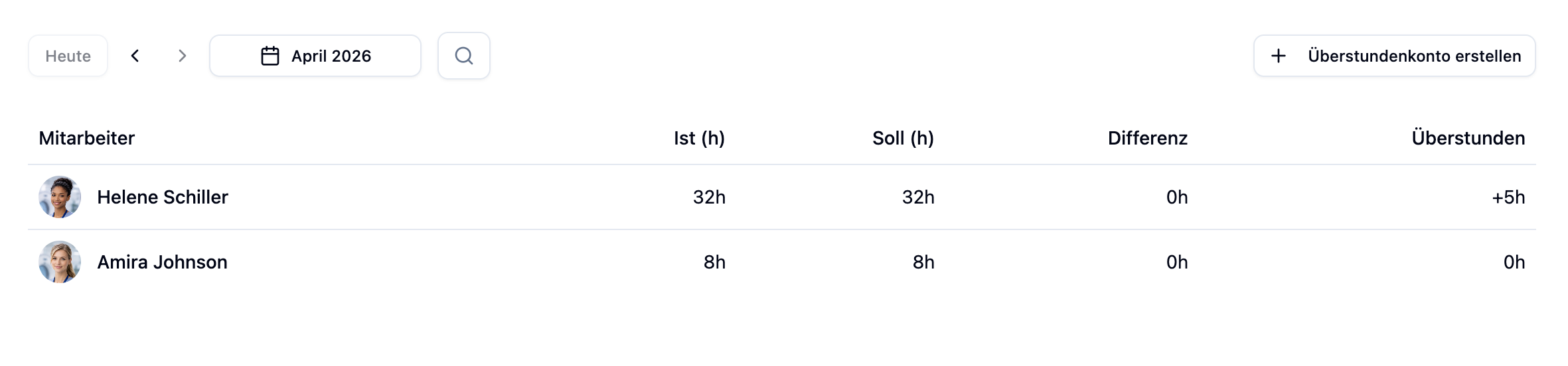
For each employee you see:
| Column | Meaning |
|---|---|
| Target | Target hours in the selected month |
| Actual | Actual hours worked in the month |
| Difference | Monthly difference (± hours) |
| Total | Current balance across all months |
Detail View
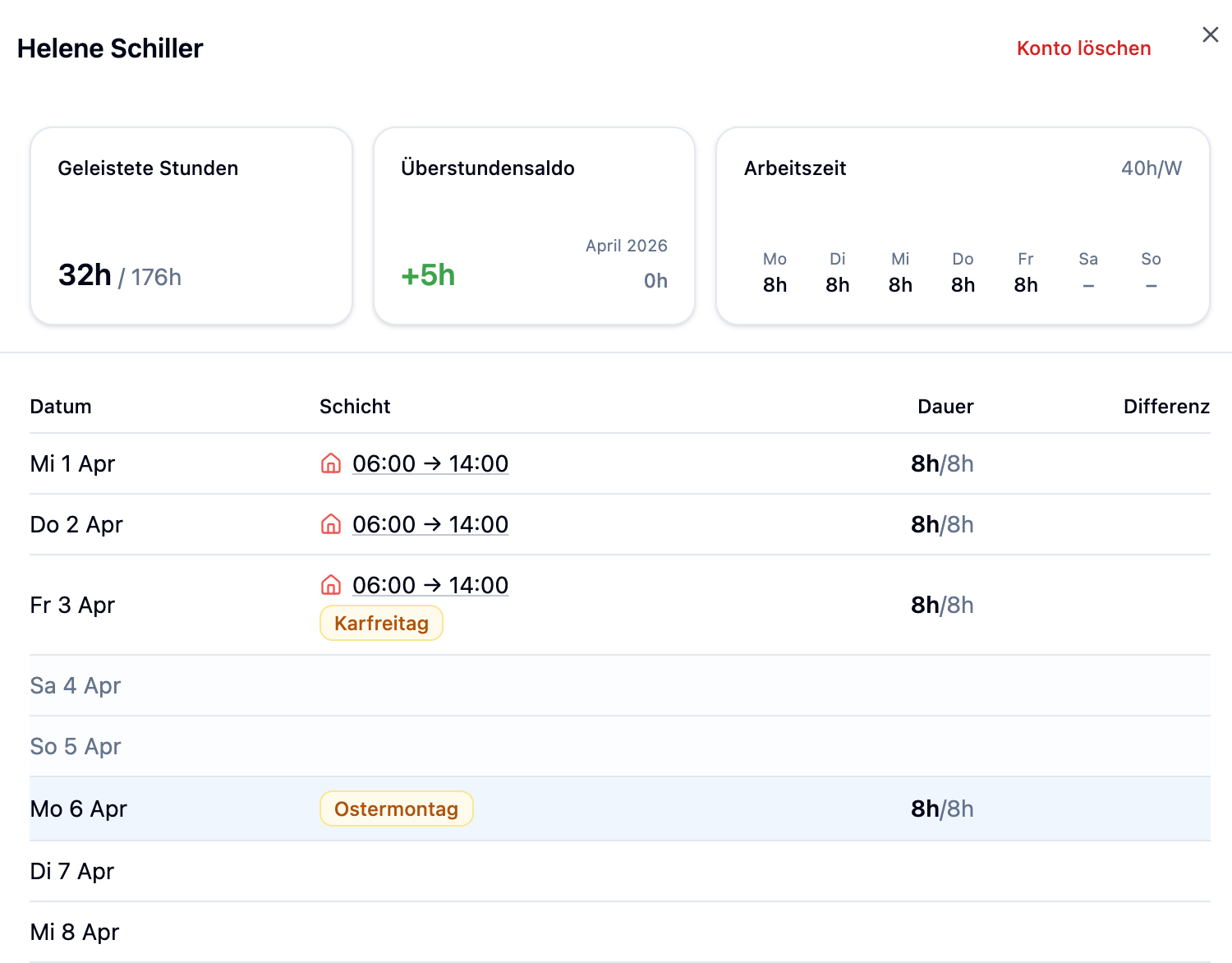
Clicking on an employee opens the detail view with a day-by-day breakdown.
Balance Overview
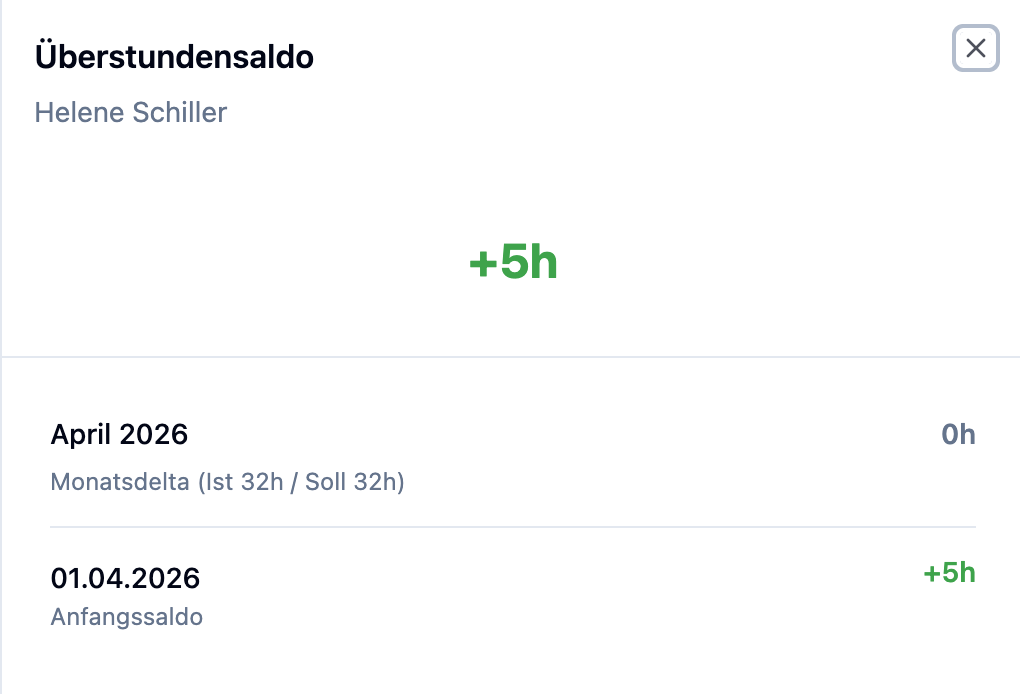
Clicking on the overtime balance card in the detail view shows the monthly breakdown of the total balance: for each month you can see the overtime or undertime as well as all manual adjustments that led to the current balance.
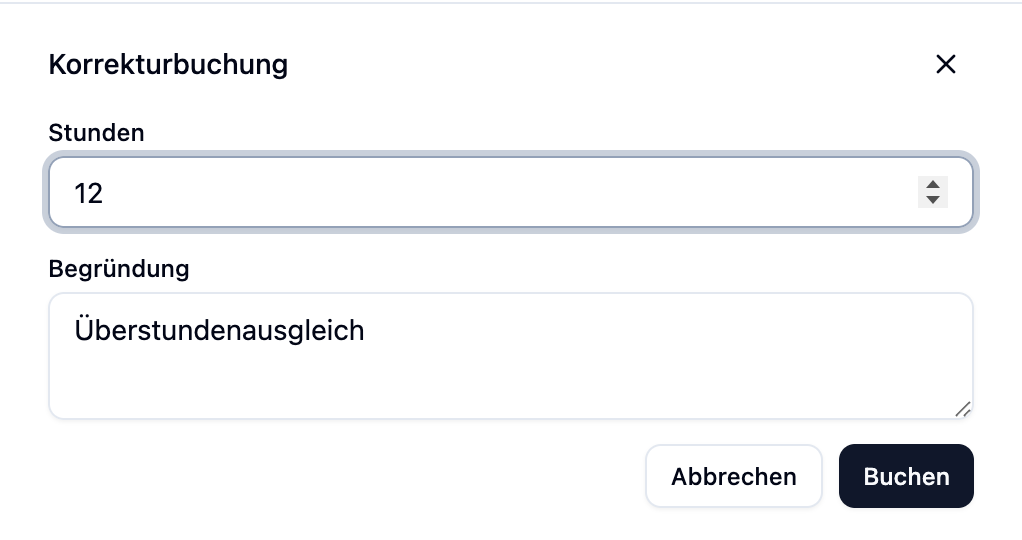
Manual Adjustments
For special cases you can manually add or subtract hours — for example:
- Overtime from special projects not captured via shifts
- Corrections for closed months
- Payouts (negative entry)
- Expiring overtime (negative entry at year end)
Each adjustment has a date, an hour value (positive or negative), and a reason.
Practical Examples
Jan has 6 h target hours on Monday. He works an 8-hour shift.
- Target hours (Monday): 6 h
- Actual hours: 8 h
- Delta (Monday): +2 h
Clara has 8 h target hours on Wednesday and is sick that day. Sickness counts as working time.
- Target hours (Wednesday): 8 h
- Actual hours (sickness): 8 h (credited automatically)
- Delta (Wednesday): 0 h
David has 8 h target hours on Friday. This Friday is a public holiday, he does not work.
- Target hours (Friday): 8 h
- Actual hours (holiday): 8 h (credited automatically)
- Delta (Friday): 0 h
Max has 8 h target hours on Friday. This Friday is a public holiday, but he works an 8-hour shift anyway.
- Target hours (Friday): 8 h
- Actual hours (shift): 8 h
- Delta (Friday): 0 h
The holiday is not credited additionally when a shift was already worked on that day.
Frequently Asked Questions
Can I delete an overtime account?
Yes. When you delete an account, all monthly balances and manual adjustments are removed. The underlying shifts and absences remain unchanged.
Why is my monthly delta higher/lower than expected?
Check the detail view:
- Are all shifts published? Drafts don't count.
- Do the entered absence types count as working time?
- Are there holidays that fall on workdays?
How do I correct an incorrect balance from an old month?
Use a manual adjustment with the matching date. Closed months are not recalculated automatically.
What happens when switching from part-time to full-time?
Simply change the daily target hours — the new version applies from the day you save it. Past days are not recalculated, the new target hours are used from today onwards.
Summary
| Aspect | Meaning |
|---|---|
| Requirement | Daily target hours + Premium plan |
| Start | From the day of setup, optionally with starting balance |
| Calculation | Actual hours − target hours, per day |
| Open months | Current + last month |
| Closed months | Fixed, only changeable via manual adjustment |
| Display | Overtime Account |
Set up the overtime account at the start of a month and enter the correct balance as the starting balance. That way monthly totals line up directly with your previous records.