Managing Employees
After you have created an employee, you can edit their profile at any time. The employee profile is divided into several sections: Personal Data, Working Hours, Annual Vacation, and Vacation Account.
Opening the Employee Profile
- Go to Employees in the main menu
- Click on the name of the employee you want to edit
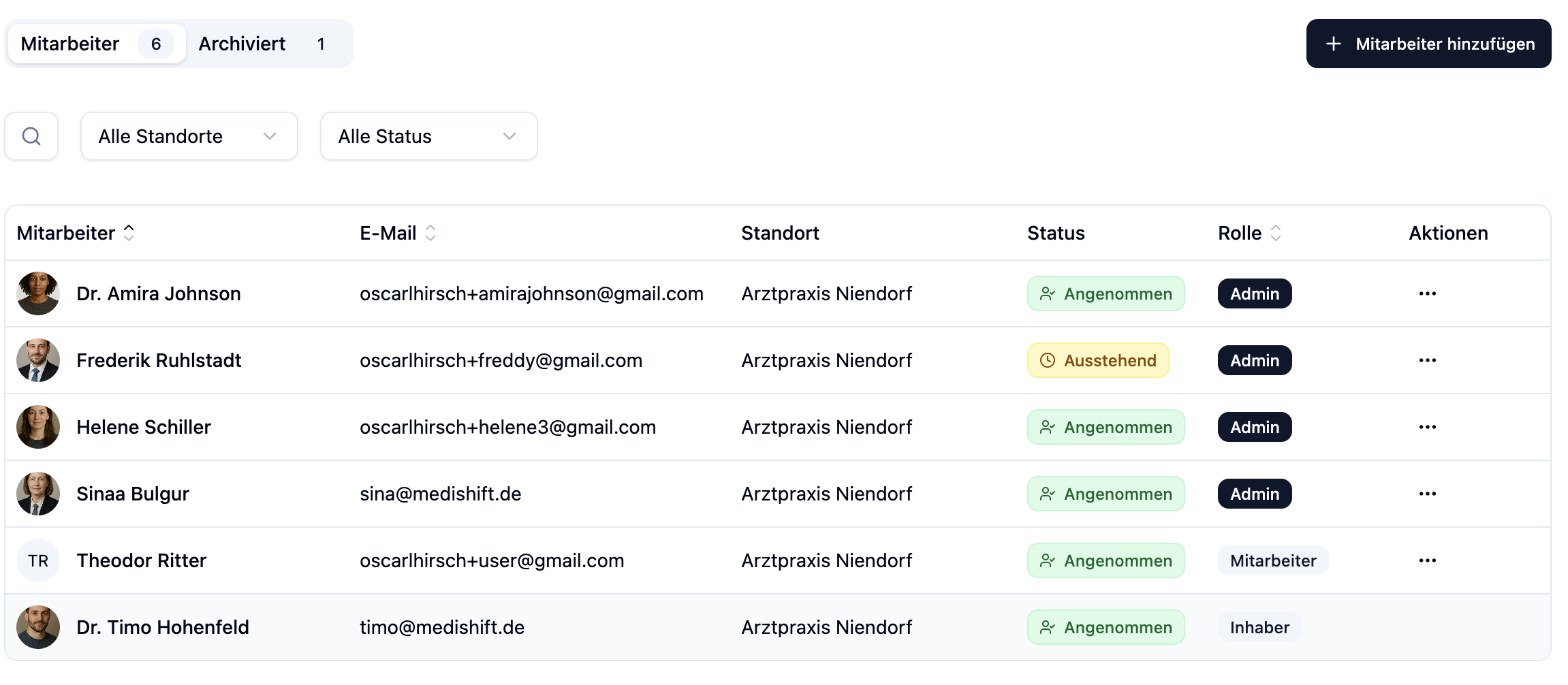
The employee profile opens with navigation on the left side (desktop) or as tabs at the top (mobile).
Personal Data
In the Personal Data tab, you will find the employee's personal information.
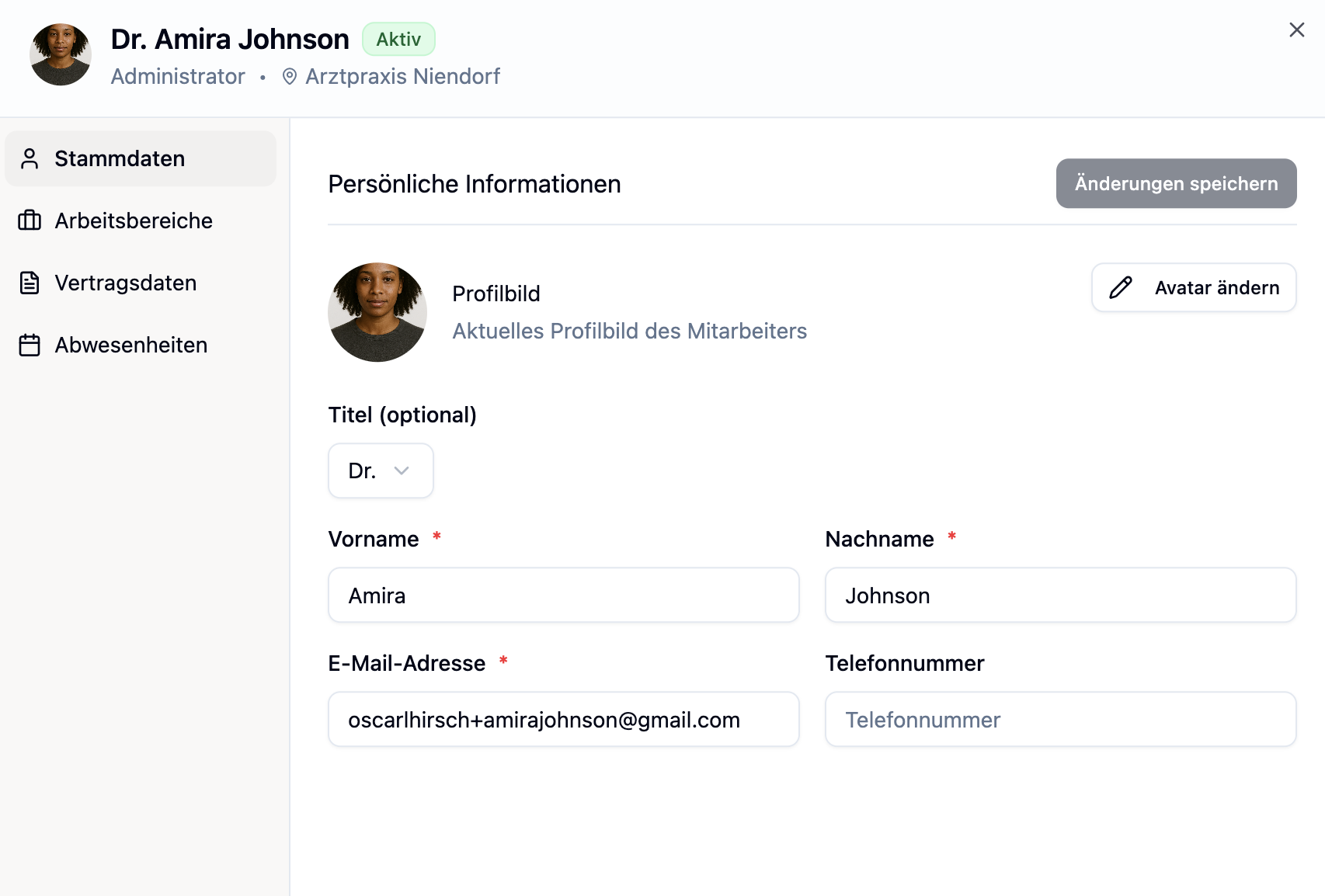
Editable Fields
| Field | Description | Required |
|---|---|---|
| Profile Picture | Employee's avatar – can be uploaded | No |
| Title | Academic title (No title, Dr., Prof. Dr.) | No |
| First Name | Employee's first name | Yes |
| Last Name | Employee's last name | Yes |
| Email Address | Email for login and notifications | Yes |
| Phone Number | Employee's contact number | No |
Saving Changes
- Edit the desired fields
- The Save button becomes active as soon as there are changes
- Click Save to apply the changes
If an employee has already received an invitation (status "Pending"), the email address can no longer be changed. You would need to archive the employee and create a new one.
Working Hours
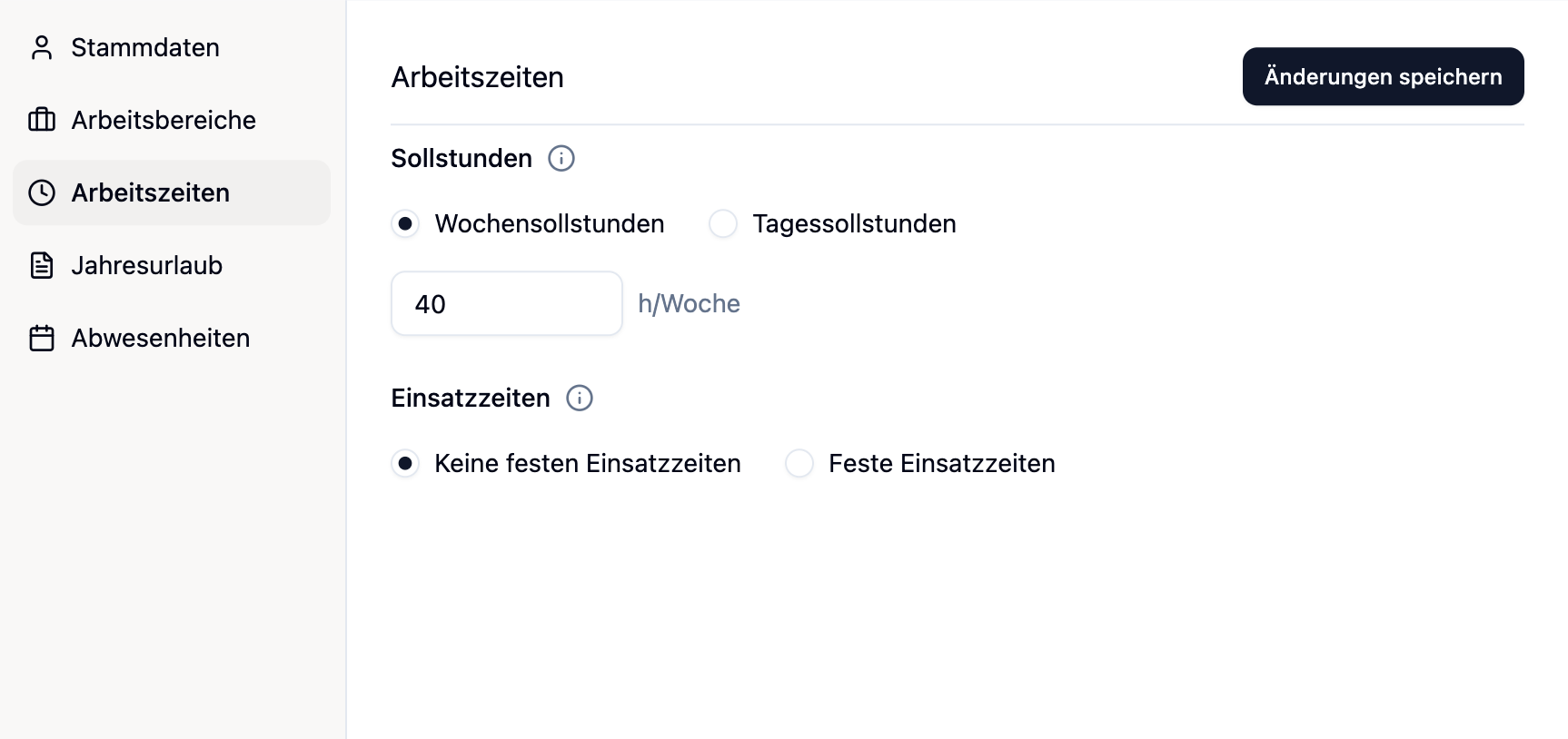
In the Working Hours tab you'll find two settings:
- Target hours – How many hours per week or per day should be worked. Daily target hours are a prerequisite for the overtime account.
- Deployment times – On which days and during which time window the employee works. Used for the rule system in the shift plan and vacation calculation.
Annual Vacation
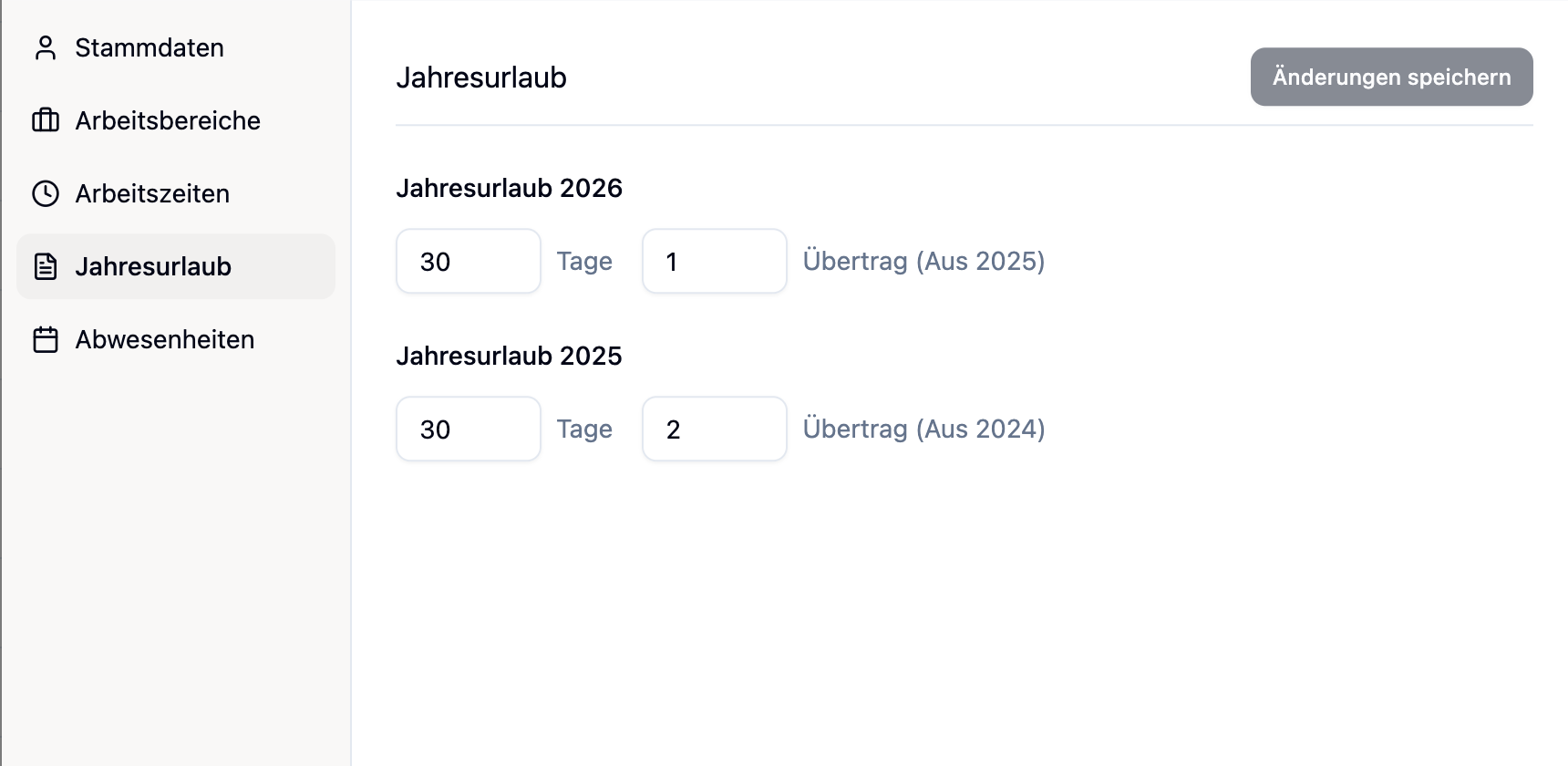
In the Annual Vacation tab, you configure the employee's vacation days:
| Option | Description |
|---|---|
| Annual Vacation Days | Number of vacation days per year (1-50 days) |
| Carryover from Previous Year | Remaining vacation carried over from the previous year (0-15 days) |
The vacation days and carryover entered here flow directly into the employee's vacation account and determine how many days are available in total.
Vacation Account
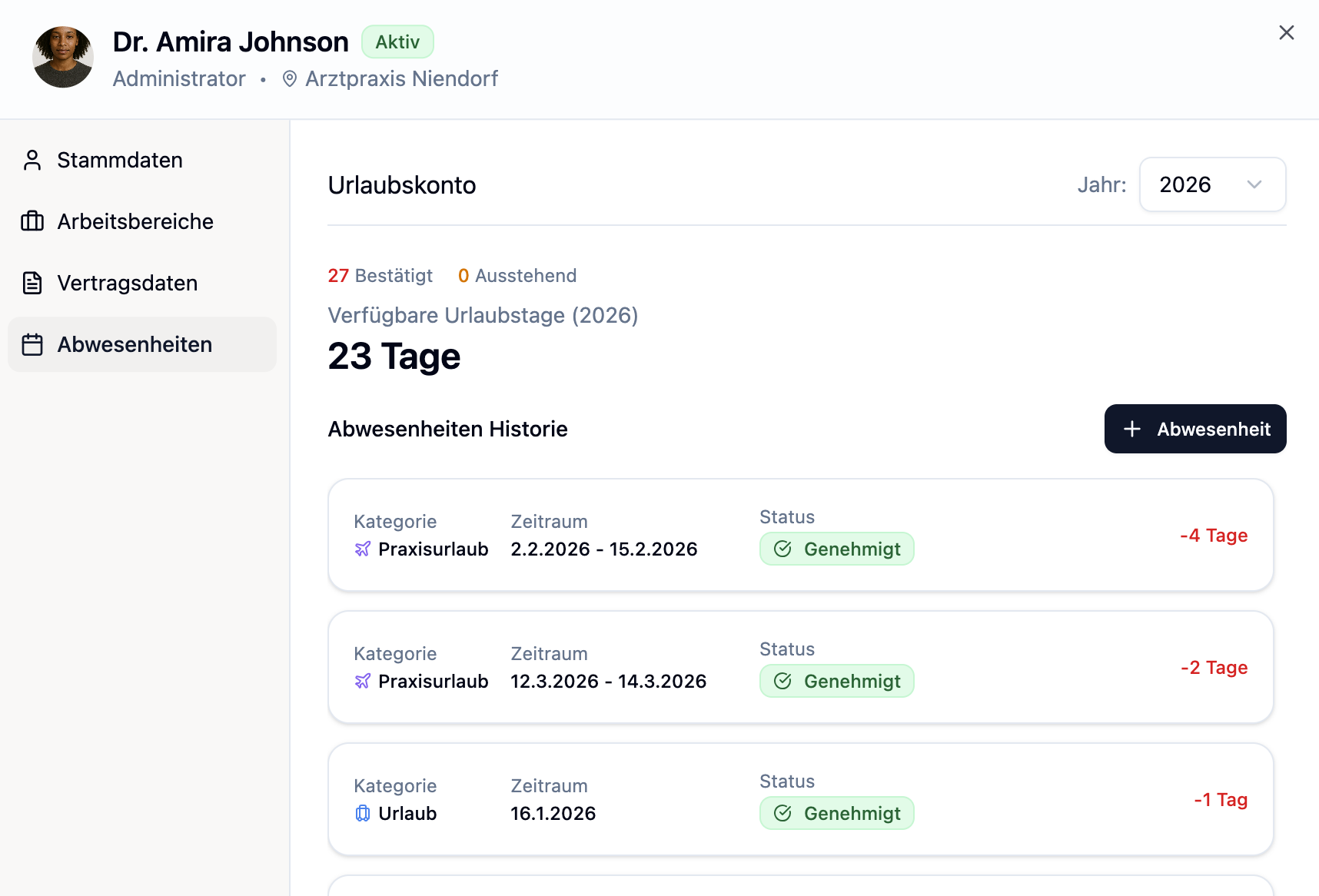
In the employee profile, you will find an overview of the vacation account. Here you can see at a glance how many vacation days are available, which have already been taken, and how many are left.
Finding the Vacation Account
- Open the employee profile
- Switch to the Absences tab
Displayed Information
The vacation account shows you the following values:
| Value | Description |
|---|---|
| Available Vacation Days | Number of remaining days (displayed prominently) |
| Confirmed | Already approved and taken vacation days |
| Pending | Requested but not yet approved vacation days |
Available vacation days are calculated as follows:
Available = Annual Vacation + Carryover − Confirmed Days
Pending (not yet approved) requests are not deducted from available days.
Year Selection
Using the dropdown next to "Vacation Account", you can switch between different years. This allows you to view vacation accounts from previous years as well.
- Default: The current year is displayed
- Previous years: Select another year from the dropdown
Absences List
Below the vacation account overview, you can see all absences for the employee for the selected year:
| Column | Description |
|---|---|
| Category | Type of absence (e.g., Vacation, Sick) with colored icon |
| Period | Start and end date of the absence |
| Status | Pending, Approved, or Rejected |
| Vacation Days | Number of vacation days counted |
Interaction with Annual Vacation
The values in the vacation account are based on the settings in the Annual Vacation tab:
- Annual Vacation Days (under Annual Vacation) determine the base entitlement
- Carryover from Previous Year (under Annual Vacation) is added to the entitlement
- Approved absences are automatically deducted
If you want to change the annual vacation days or carryover, go to the Annual Vacation tab and adjust the values in the "Vacation Days and Carryover" section.
Practical Examples
Max Miller is reducing his working time to 30 hours per week.
Procedure:
- Open the profile of Max Miller
- Switch to the Working Hours tab
- Adjust the target hours (e.g. to 30 h/week or as daily target hours)
- Optional: Adjust the deployment times if Max has certain days off
- Click Save changes
Result: The new target hours are stored. If you additionally configure deployment times, vacation days will be calculated correctly.
Lisa Weber receives 30 vacation days and still has 3 days of remaining vacation from the previous year.
Procedure:
- Open the profile of Lisa Weber
- Switch to the Annual Vacation tab
- Scroll to the Vacation Days section
- Enter "30" for Annual Vacation Days
- Enter "3" for Carryover from Previous Year
- Click Save
Result: Lisa has a total of 33 vacation days available. Usage is automatically tracked in the vacation account (Absences tab).
Frequently Asked Questions
Can I edit multiple employees at once?
No, currently each employee must be edited individually.
How do working hours affect scheduling?
Target hours define how many hours per week/day should be worked. Deployment times define the exact time window and are used by the rule system to display warnings for conflicts.
Can I undo changes?
As long as you haven't clicked Save, you can close the profile and the changes will be discarded. After saving, you would need to manually change the values back.
Summary
| Section | What You Can Edit |
|---|---|
| Personal Data | Name, title, email, phone, profile picture |
| Working Hours | Target hours and deployment times |
| Annual Vacation | Vacation days + carryover from previous year |
| Vacation Account | Overview of available, taken, and remaining vacation days |
Configure at least the target hours for each employee. For part-time employees or employees with fixed work patterns, we also recommend setting up deployment times – this ensures more precise vacation calculations and helpful warnings during shift planning.