Archive/Delete Employees
When an employee leaves your organization, you can archive or delete their account. Archiving deactivates the employee while preserving all data. Deleting permanently removes all data.
Finding the Feature
Archive an Employee
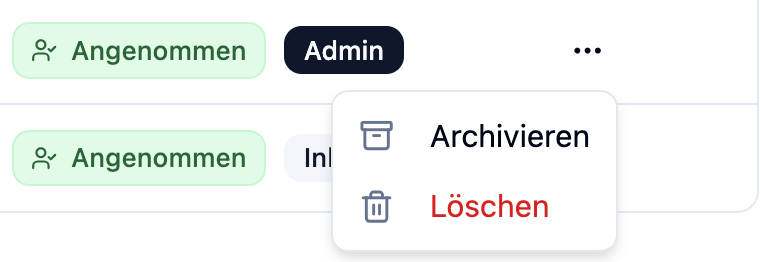
You can find the archive function in the employee overview:
- Go to Employees in the main menu
- Find the employee you want to archive
- Click the ⋮ three-dot menu on the right side of the row
- Select Archive from the dropdown menu
Delete an Employee
You can delete employees in two ways:
Option 1: Via the three-dot menu (active employees)
- Go to Employees in the main menu
- Find the employee you want to delete
- Click the ⋮ three-dot menu on the right side of the row
- Select Delete from the dropdown menu
Option 2: Via the Archived tab
- Go to Employees in the main menu
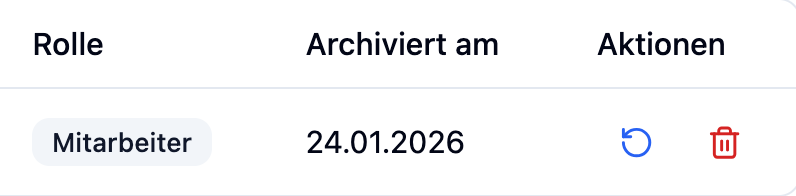
- Click on the Archived tab
- Find the employee you want to delete
- Click the Delete button (trash icon)
Archiving an Employee
What Happens When Archiving
| Action | Description |
|---|---|
| Status | Set to "archived" |
| Login | The employee can no longer sign in |
| Future shifts | Existing shift assignments remain |
| Work areas | Assignment remains, but employee can no longer be scheduled |
| New shifts | Employee no longer appears when creating new shifts |
| Historical data | All data is fully preserved |
| Editing | Employee data can no longer be edited |
For security reasons, you cannot archive your own account. Please ask another administrator to do this.
Viewing Archived Employees
Archived employees are displayed in a separate tab:
- Go to Employees in the main menu
- Click on the Archived tab

Displayed Information
| Column | Description |
|---|---|
| Name | Full name of the employee |
| Email address | |
| Location | Former location |
| Role | Last role (Employee/Administrator) |
| Archived on | Date of archiving |
Reactivating an Employee
You can reactivate archived employees at any time, for example, when a former employee returns.
Step-by-Step
- Go to Employees → Archived tab
- Find the employee you want to reactivate
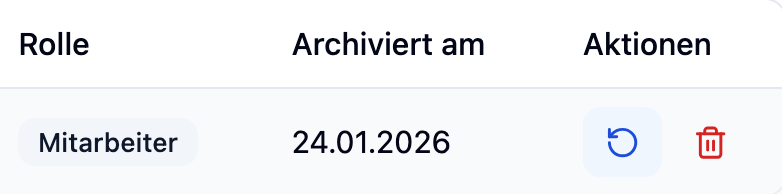
- Click the Reactivate button (arrow icon)
- Confirm in the dialog by clicking Reactivate
What Happens During Reactivation
| Action | Description |
|---|---|
| Status | Set to "active" |
| Employees tab | Employee appears in the active tab again |
| Login | Employee can sign in again |
| Work areas | Remain assigned and employee can be scheduled again |
| Shifts | Existing shift assignments remain |
Requirement: Available Seats
Reactivation is only possible if your subscription has available seats. If all seats are occupied, an error message will appear with a link to settings to adjust your subscription.
Permanently Deleting an Employee
Archived employees can also be permanently deleted. This action cannot be undone.
Step-by-Step
- Go to Employees → Archived tab
- Find the employee you want to delete
- Click the Delete button (trash icon)
- Confirm the deletion in the dialog
What Happens When Deleting
| Action | Description |
|---|---|
| Shift assignments | All shift assignments are removed |
| Work areas | All work area assignments are removed |
| Employee data | All employee data is permanently deleted |
| Recovery | Not possible – data cannot be restored |
When permanently deleting, all employee data is irrevocably removed. This action cannot be undone. Double-check that you have selected the correct employee.
Practical Examples
Dr. Thomas Miller is retiring at the end of the month.
Procedure:
- Wait until the last working day
- Open Employees in the main menu
- Click the ⋮ menu next to Dr. Thomas Miller
- Select Archive
- Confirm in the dialog
Result:
- Thomas can no longer sign in
- He can no longer be scheduled for new shifts
- All historical data remains available for reports
Lisa Weber is going on parental leave for 12 months and will return afterward.
At the start of parental leave:
- Archive Lisa – she can no longer be scheduled
- Her seat becomes available in the subscription again
Upon return:
- Go to Employees → Archived
- Reactivate Lisa
- Lisa can immediately be scheduled again
Benefit: All data and assignments are preserved.
Test Employee was created for testing and should now be completely removed.
Procedure:
- Archive the employee first
- Go to Employees → Archived
- Click the Delete button (trash icon)
- Confirm permanent deletion
Result: All data is irrevocably deleted.
Frequently Asked Questions
What is the difference between archiving and deleting?
| Action | Archiving | Permanent Deletion |
|---|---|---|
| Reversible | Yes, through reactivation | No, irreversible |
| Shift assignments | Preserved | Deleted |
| Work areas | Preserved | Deleted |
| Historical data | Preserved | Deleted |
Are vacation days deleted when archiving?
No. All absence data (vacation, sick leave, etc.) is preserved. Upon reactivation, this data is available again.
Can I see an archived employee in the schedule?
Archived employees no longer appear when assigning shifts. However, existing shift assignments remain visible in the schedule.
Can I create absence requests for an archived employee?
No, absence requests cannot be created for archived employees.
Why can't I reactivate an employee?
Your subscription has reached the maximum number of employees. Upgrade your subscription in settings to unlock more seats.
Summary
| Aspect | Archiving | Deleting |
|---|---|---|
| Employee data | Preserved | Deleted |
| Shift assignments | Preserved | Deleted |
| Work areas | Preserved | Deleted |
| Reactivation | Possible at any time | Not possible |
| User slot | Freed up | Freed up |
Archive employees instead of deleting them. This preserves historical data for reports and statistics, and allows you to easily reactivate employees if needed.