Work Areas
With work areas, you structure your organization into different departments or teams. Each work area can have its own shifts, and employees are assigned to the areas where they can work.
Finding the Feature
- Go to Administration in the main menu (left sidebar)
- Click on the Work Areas card
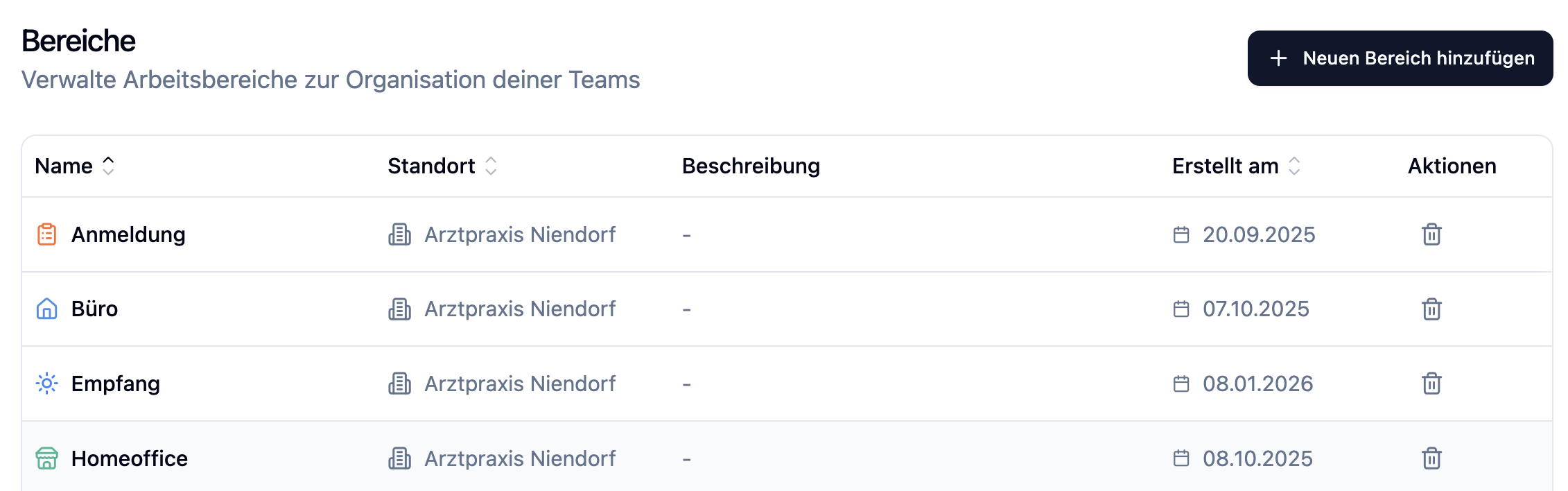
The Administration section is only visible to administrators.
Creating a Work Area
- Click + Work Area in the top right
- Fill in the fields in the dialog
- Click Create
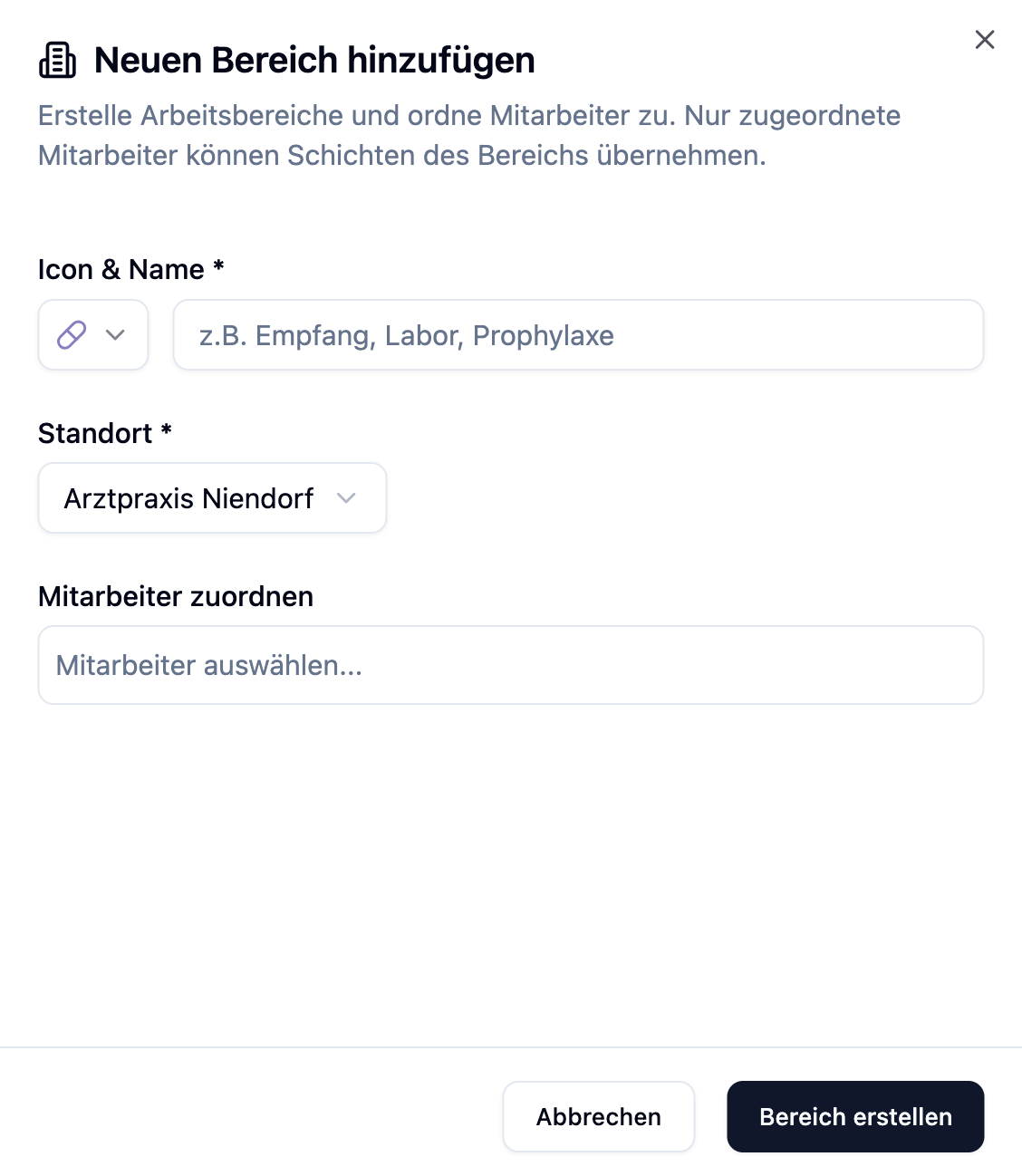
Work Area Fields
| Field | Description | Required |
|---|---|---|
| Name | Name of the area (e.g., "Reception", "Lab", "Hygiene") | Yes |
| Location | The location this area belongs to | Yes |
| Color | Visual color for distinction in the shift schedule | Yes |
| Icon | Symbol for quick recognition | No |
| Description | Optional description of the area | No |
The system automatically suggests colors and icons that are not yet used by other work areas. This ensures optimal visual distinction.
Available Icons
You can choose from various icon categories:
| Category | Examples |
|---|---|
| Medicine & Health | Syringe, Pill, Thermometer, Stethoscope, Bandage |
| Buildings & Rooms | Building, Hospital, Reception, Storage |
| Teams & People | Team, Person, Group, Administration |
| Time & Shifts | Day Shift, Night Shift, Early Shift, Late Shift |
Editing a Work Area
- Click on a work area in the list
- A settings panel opens on the right side
- Switch between the General and Employees tabs
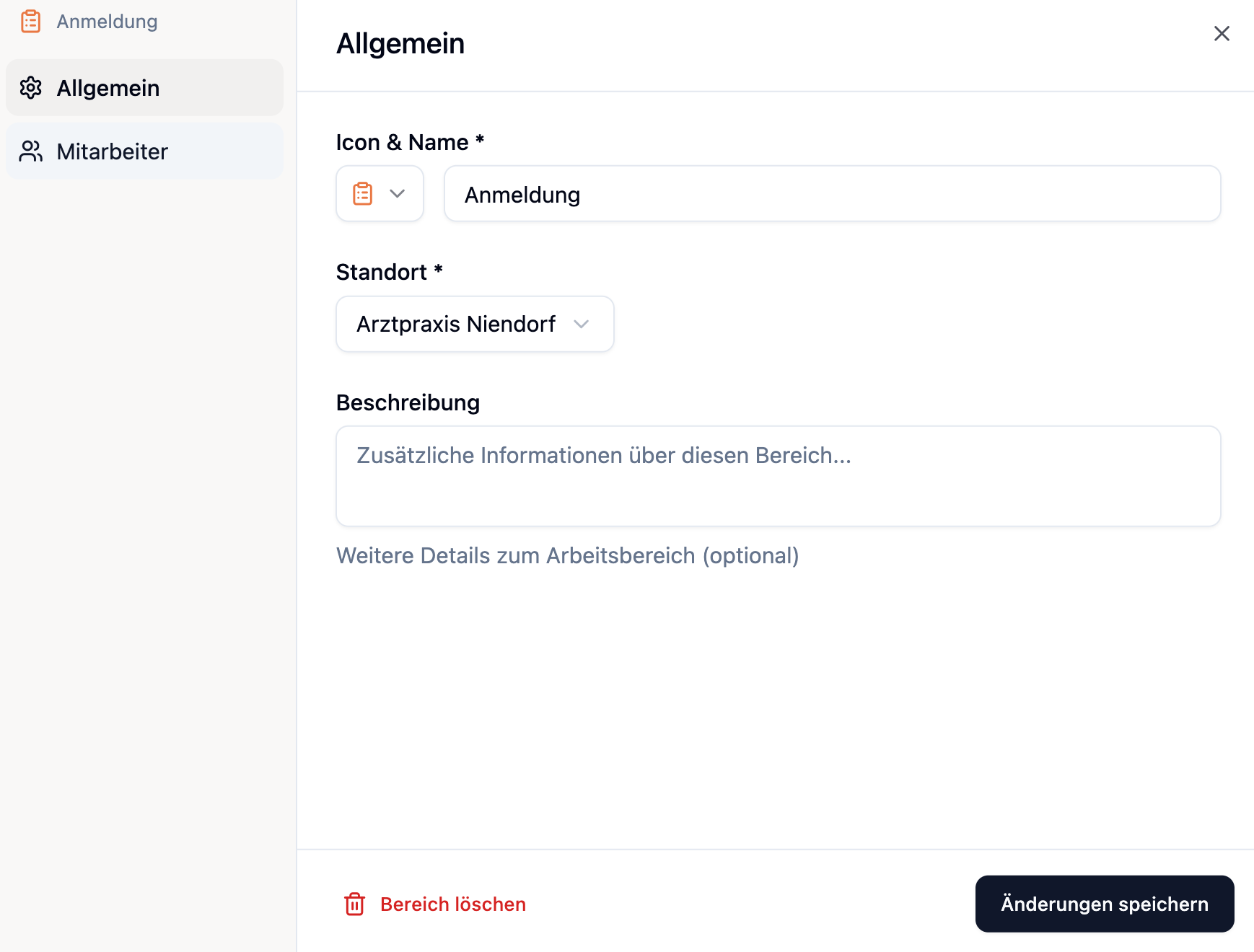
Tab: General
Here you can change the name, color, icon, and description.
The location of a work area can only be changed if no shifts exist in this area. Delete all shifts first before changing the location.
Tab: Employees
Here you assign employees to the work area. More on this in the next section.
Assigning Employees
Employees must be assigned to a work area to be able to take shifts there.
Assignment via Work Area
- Open the settings of a work area
- Switch to the Employees tab
- Select the employees who should work in this area
- Click Save
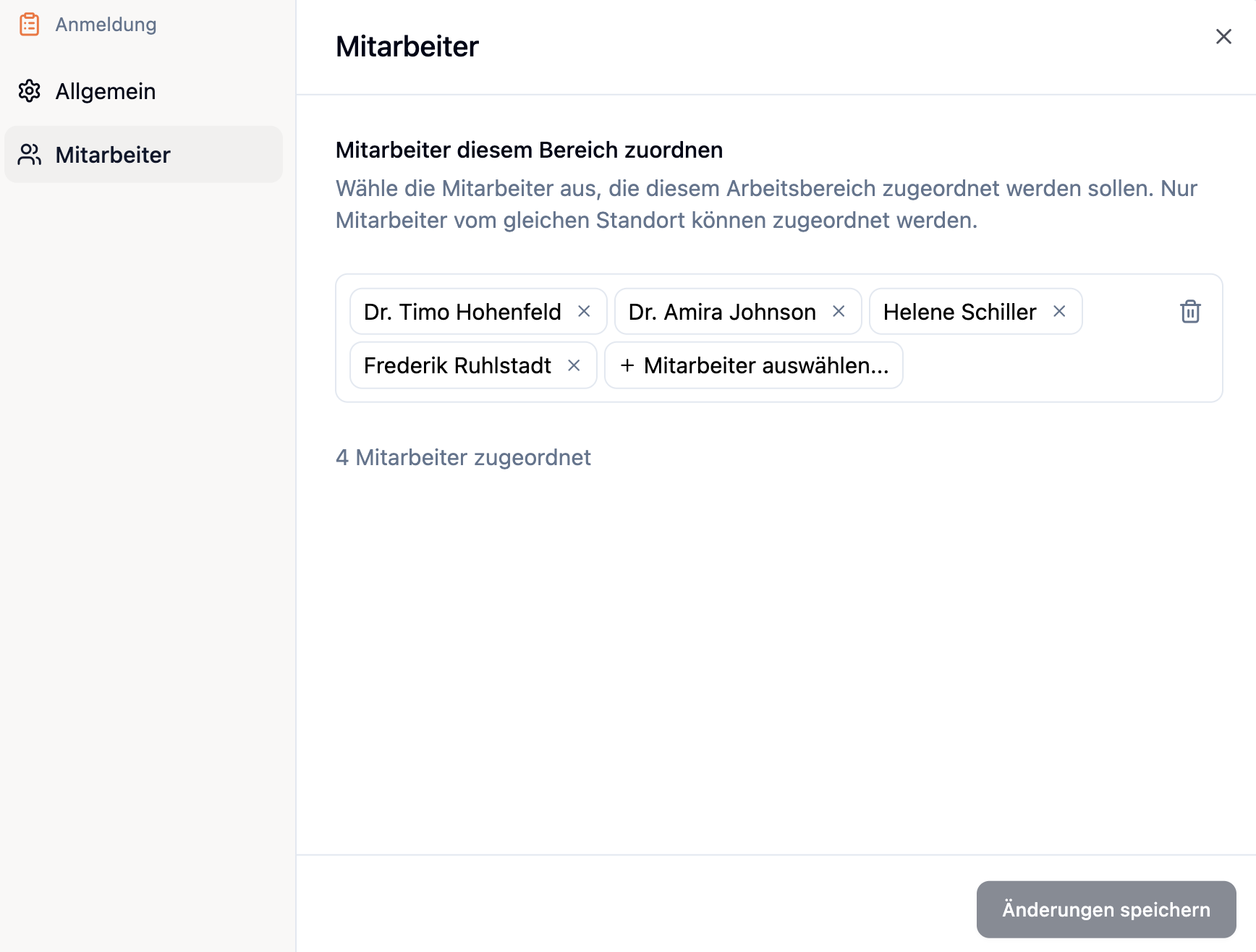
Restrictions
| Rule | Description |
|---|---|
| Across locations | Employees from other locations can be assigned too; they appear in the work area as guests (grouped by location) |
| Active Employees Only | Archived employees cannot be assigned |
Impact on Shift Planning
Work areas are central to shift planning. Here are the key impacts:
Creating Shifts
When creating a shift, you can select a work area; the shift then appears in the corresponding area of the shift schedule. You can also create a shift without a work area – it then appears in the "No department" section and applies to the whole practice.
Assigning Employees
Only employees who are assigned to the work area can take shifts in that area.
In the employee dropdown when staffing shifts, you only see employees who are assigned to the area.
Removing Employees from Area
When you remove an employee from a work area, all their shift assignments in that area are automatically deleted. The shifts remain but are no longer staffed.
Deleting a Work Area
- Click on the three-dot menu (⋮) next to the work area
- Select Delete
- Confirm in the dialog
When deleting a work area, all associated shifts are also deleted. This action cannot be undone.
Frequently Asked Questions
How many work areas can I create?
There is no limit. You can create as many work areas as you need for your organization.
Can an employee work in multiple work areas?
Yes, employees can be assigned to multiple work areas. This is ideal for flexible employees who can be deployed in different areas.
Why can't I change the location?
The location can only be changed if no shifts exist in this work area. Delete all shifts first or move them to another area.
What happens to shifts when I remove an employee from the area?
The employee's shift assignments in that area are automatically deleted. The shifts remain but are no longer staffed and need to be reassigned.
Do I have to create work areas?
No. You can also create shifts without a work area – they then apply to the whole practice. Work areas do, however, help you structure the shift plan and assign shifts to specific teams.
Summary
| Aspect | Description |
|---|---|
| Access | Administration → Work Areas (administrators only) |
| Required Fields | Name, Location, Color |
| Employees | Can be assigned to multiple areas |
| Across locations | Employees from other locations can be assigned too; they appear in the work area as guests (grouped by location) |
| Shift Planning | Only assigned employees can take shifts |
| Deletion | Also removes all associated shifts |
Create work areas according to your actual organizational structure. Typical examples are: Reception, Lab, Treatment, Hygiene, Administration. Assign employees to all areas where they can actually be deployed - this gives you maximum flexibility in shift planning.