Unavailabilities
Unavailabilities are a Plus feature. To use this feature, you need a Plus subscription or higher.
With unavailabilities, employees can mark time periods when they cannot be scheduled for shifts. These are displayed in red on the shift plan and help planners avoid scheduling conflicts.
Unavailabilities can only be created by employees themselves – not by admins. This way, employees maintain control over their own availability.
Finding the Feature
As an employee, you can find unavailabilities like this:
- Go to Shift Plan in the main menu
- Open a shift plan
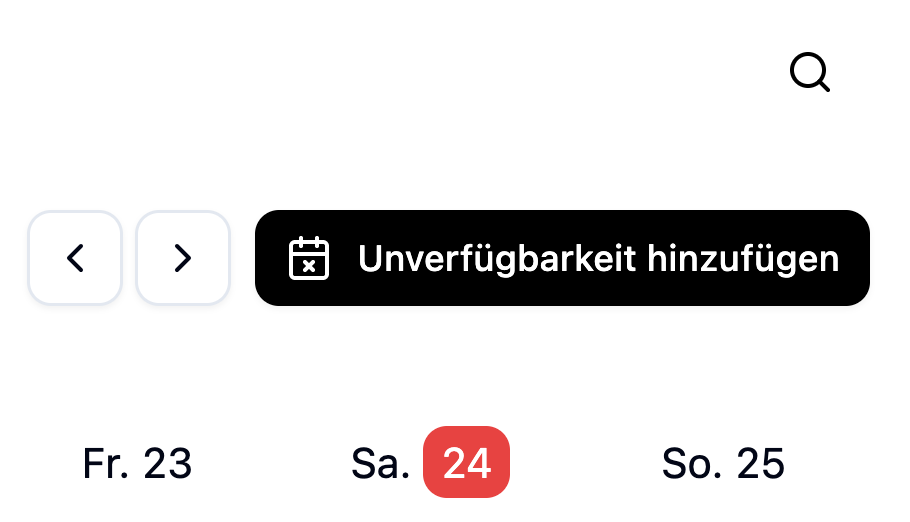
- On the right side, you'll see the Unavailabilities button
Creating an Unavailability
As an employee, you can create an unavailability directly in the calendar:
- Click on a day in the calendar view
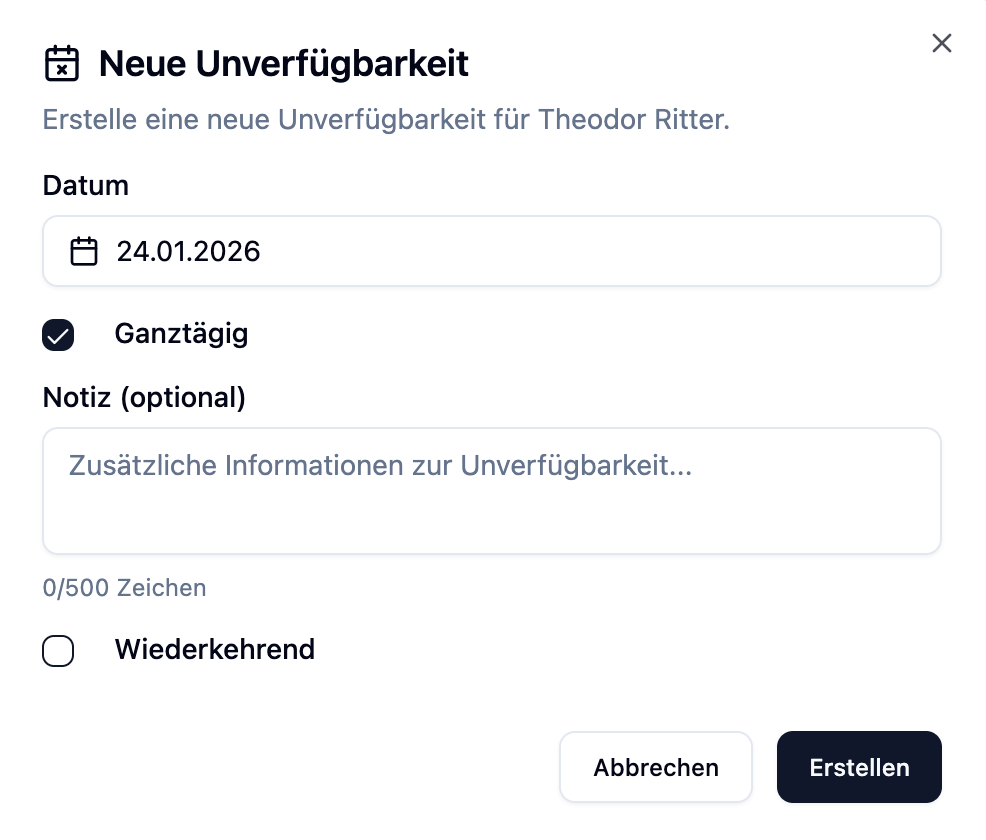
- The "Create Unavailability" dialog opens
- Fill in the desired fields
- Click Save
Available Options
| Option | Description |
|---|---|
| Date | Start and end date of the unavailability |
| All Day | When enabled, the unavailability applies for the entire day (00:00 - 23:59) |
| Start Time | For partial unavailability: When does the unavailability begin? |
| End Time | For partial unavailability: When does the unavailability end? |
| Note | Optional description (max. 500 characters) |
| Recurring | Enables the repeat function |
You don't always have to block an entire day. Disable "All Day" and specify start and end times to block only certain hours – for example, if you have a doctor's appointment in the afternoon.
Recurring Unavailabilities
For regular commitments, you can create recurring unavailabilities:
- Enable the "Recurring" option in the creation dialog
- Select the repeat pattern
Available Repeat Patterns
| Pattern | Description | Number of Entries |
|---|---|---|
| Daily | Every day at the same time | 30 entries |
| Weekly | Every week on the same day | 12 entries |
| Monthly | Every month on the same date | 12 entries |
Anna attends a language course every Wednesday evening from 6:00 PM - 8:00 PM.
Configuration:
| Option | Value |
|---|---|
| Day | Wednesday |
| All Day | No |
| Start Time | 6:00 PM |
| End Time | 8:00 PM |
| Recurring | Yes |
| Repeat | Weekly |
Result: 12 unavailabilities are automatically created for the next 12 weeks.
Recognizing Recurring Unavailabilities
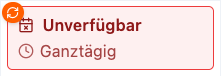
In the calendar, you can recognize recurring unavailabilities by an orange badge with a repeat symbol.
Deleting an Unavailability
To delete an unavailability:
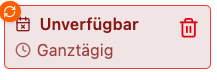
- Hover over the unavailability card in the calendar
- Click the delete icon (trash can)
- Confirm the deletion
Deleting Recurring Unavailabilities
For recurring unavailabilities, you have three options:
| Option | Description |
|---|---|
| Only this one | Deletes only this single entry, all others remain |
| This and future | Deletes this entry and all future ones in the series |
| All | Deletes the entire series (all entries) |
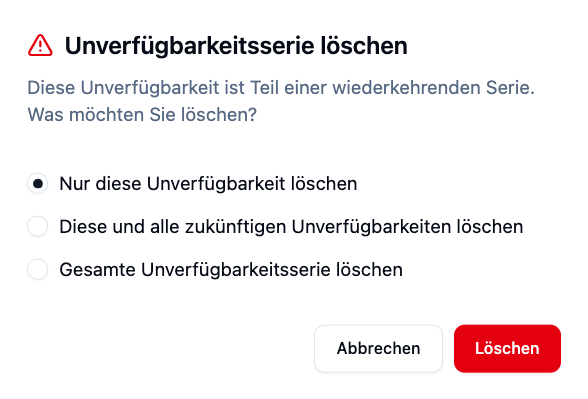
If you happen to be available for a recurring unavailability (e.g., course is canceled), select "Only this one" – this way, the remaining appointments stay in place.
Impact on Shift Planning
Unavailabilities directly affect shift planning:
In the Calendar
- Unavailabilities are displayed as red cards
- They are clearly distinguishable from absences (vacation, sick leave)
During Shift Assignment
When a planner tries to assign a shift to an employee who is unavailable at that time:
- The employee is marked as not available in the dropdown
- The assignment is still possible (warning, not a block)
Scenario: Max has an unavailability on Tuesday from 2:00 PM - 6:00 PM.
Planner tries: To schedule Max for the late shift (2:00 PM - 10:00 PM).
Result:
- Warning appears: "Max is unavailable from 2:00 PM - 6:00 PM"
- Planner can decide whether to proceed with the assignment anyway
Practical Examples
Lisa has a doctor's appointment every other Thursday from 10:00 AM - 12:00 PM.
Solution:
- Create a weekly unavailability for Thursday 10:00 AM - 12:00 PM
- Manually delete the entries where no appointment takes place
Effects:
- Planners automatically see that Lisa cannot be scheduled Thursday mornings
- No morning shift assignment without warning possible
Tom works at another job every Saturday.
Solution:
- Create a weekly all-day unavailability for Saturday
Effects:
- Saturdays are automatically marked as unavailable
- Planned 12 weeks in advance
Sarah has a car inspection on March 15th (whole day).
Solution:
- Create a one-time all-day unavailability for March 15th
- Don't enable recurring
Effects:
- Only this single day is blocked
Frequently Asked Questions
Can admins create unavailabilities for me?
No, unavailabilities can only be created by employees themselves. This way, you maintain control over your availability. However, admins can see your unavailabilities in the calendar.
What's the difference between an unavailability and an absence?
| Aspect | Unavailability | Absence (Vacation, Sick Leave) |
|---|---|---|
| Created by | Employee themselves | Admin or employee (with approval) |
| Approval | None required | For vacation: Approval needed |
| Calendar color | Red | Depends on type (e.g., green for vacation) |
| Effect on leave balance | None | Vacation days are deducted |
| Repeatable | Yes | No |
How far in advance are recurring unavailabilities created?
- Daily: 30 days in advance
- Weekly: 12 weeks in advance
- Monthly: 12 months in advance
Can I edit a single recurring unavailability?
Currently, you can only delete individual entries, not edit them. To change the time, delete the entry and create a new one.
What happens if I'm scheduled despite an unavailability?
The shift will still be displayed. Unavailabilities are warnings for planners, not hard blocks. Talk to your planner if there's a conflict.
Summary
| Aspect | Description |
|---|---|
| Who can create | Only employees (not admins) |
| Repetitions | Daily (30x), Weekly (12x), Monthly (12x) |
| Time options | All day or with start/end time |
| Visibility | Visible to all planners in the calendar |
| Shift planning | Warnings for conflicts, no hard blocks |
| Deleting | Single, future, or all (for series) |
Use unavailabilities for regular personal commitments such as courses, side jobs, or fixed appointments. This way, planners can plan with your actual availability from the start – and you don't have to communicate every week.