Shift Templates
Shift templates are a Plus feature. They are not available in the Basic plan. With Plus or Premium, you can create unlimited templates.
With shift templates, you can save frequently used shift configurations as templates. Instead of setting up each shift from scratch, simply select a template – complete with all settings like times, work area, and employee assignments.
Finding the Feature
- Open the three-dot menu (⋯) in the week view
- Click on Manage Templates
- Switch to the Shift Templates tab
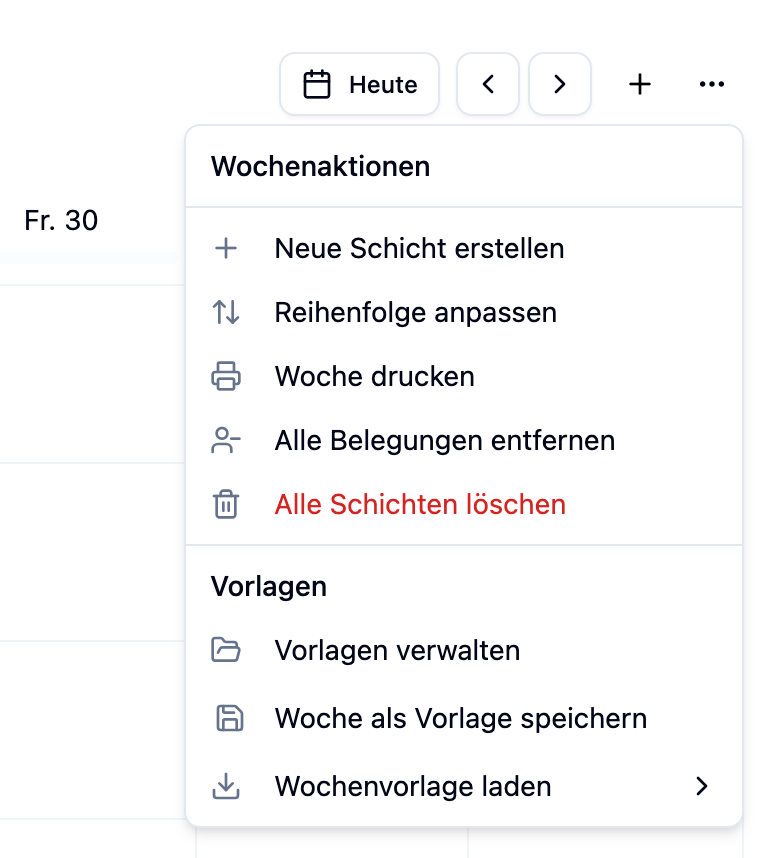
Creating a Shift Template
- Create a new shift
- Configure all details (times, work area, employees, etc.)
- Click Save as Template
- The shift title + time is automatically used as the template name
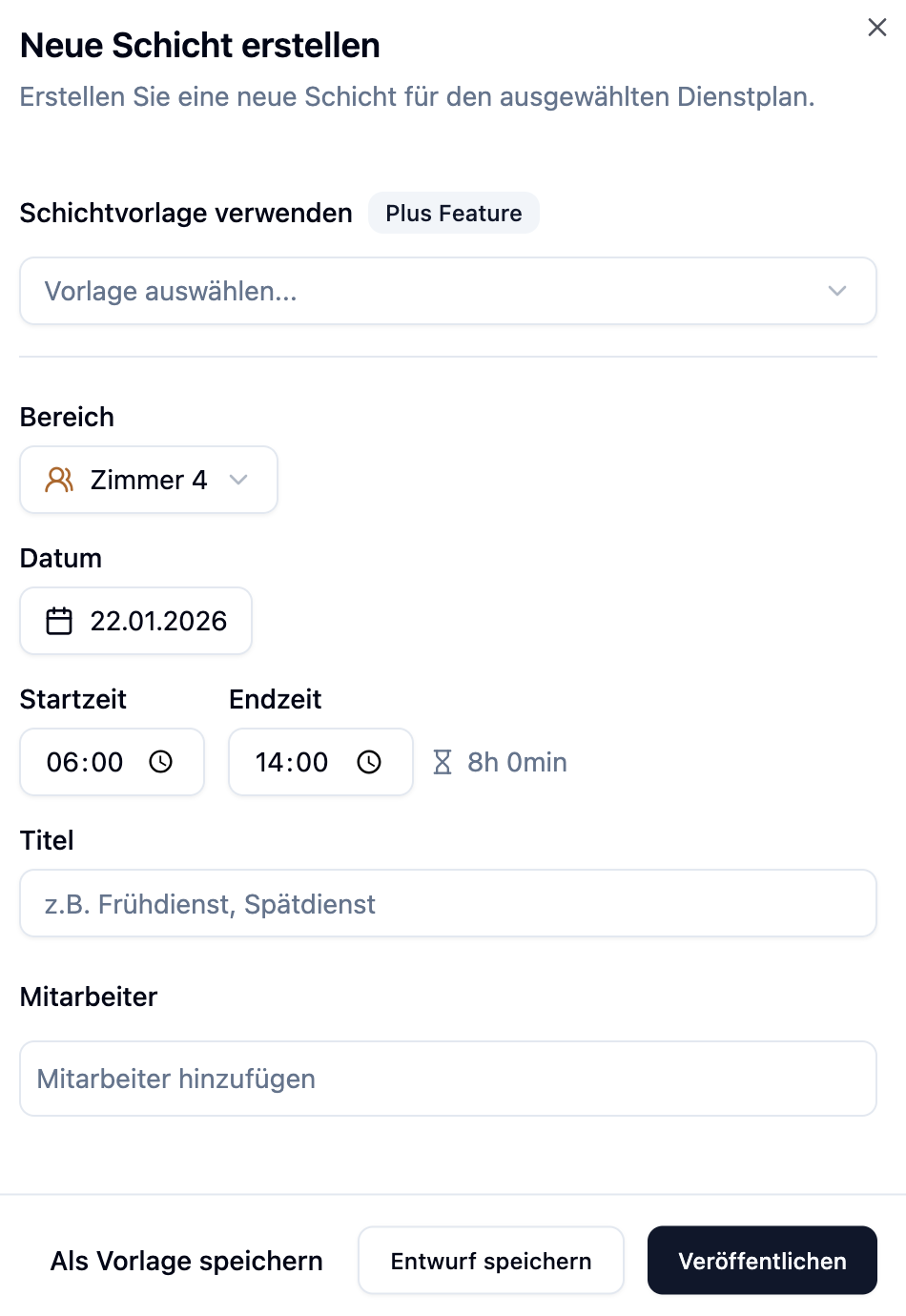
What Gets Saved in a Template?
| Element | Description |
|---|---|
| Name | Unique name for the template (e.g., "Morning Shift Nursing") |
| Start and End Time | The working hours of the shift |
| Shift Title | Optional title displayed on the shift |
| Description | Optional notes or instructions |
| Work Area | The assigned department/station |
| Open Shift | Whether the shift is marked as "open" |
Applying a Shift Template
When Creating a New Shift
- Click on an empty cell in the calendar or the + button to create a new shift
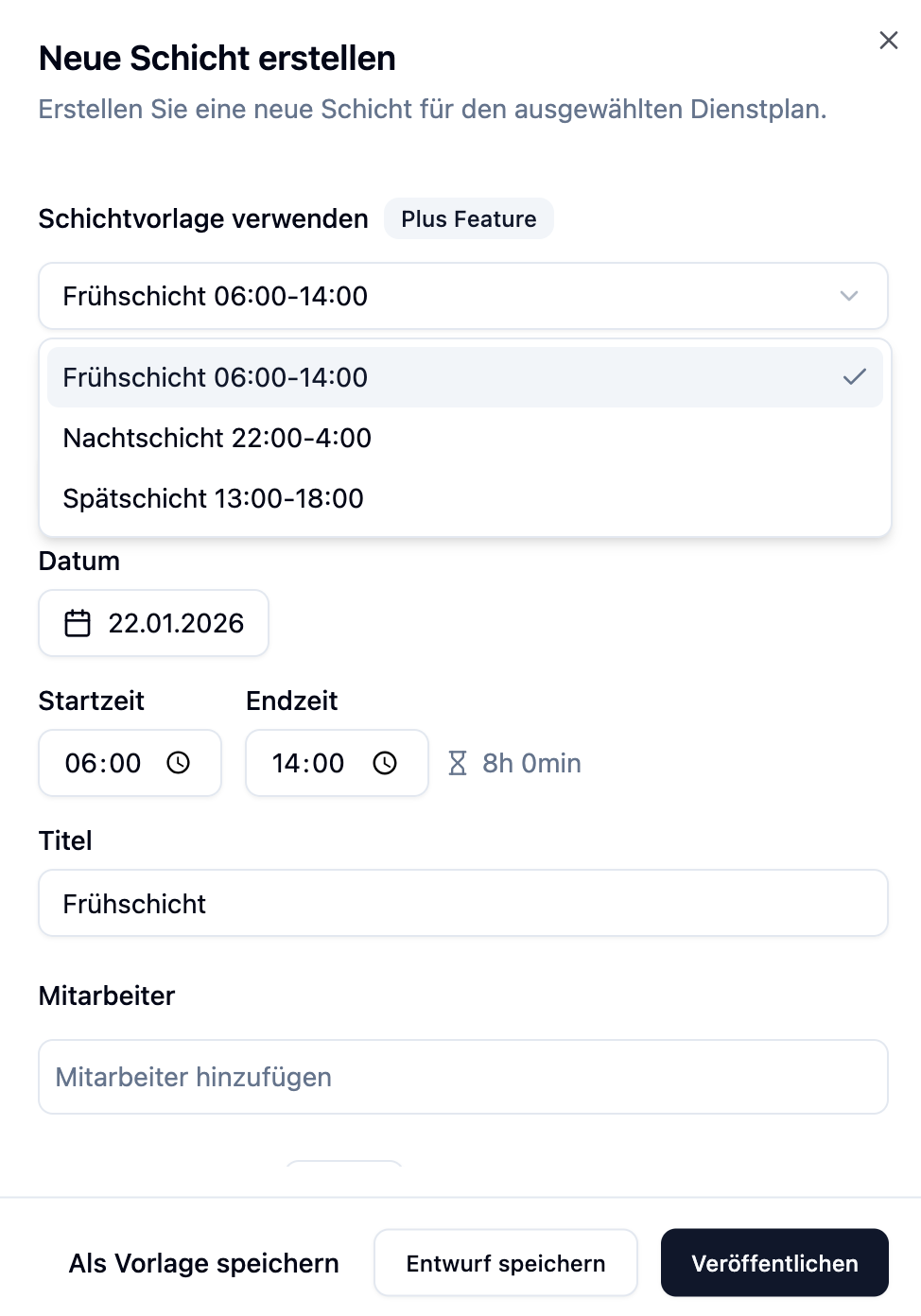
- At the top of the shift dialog you'll see two tabs: Shift details and Templates
- Switch to the Templates tab
- Click on the template you want to use
- The values are filled into the Shift details tab automatically and the dialog switches back
- Adjust individual values if needed and click Create Shift
The Templates tab is only available when creating a new shift. Opening an existing shift shows the Shift history tab instead (admin-only).
Quick Access via Context Menu
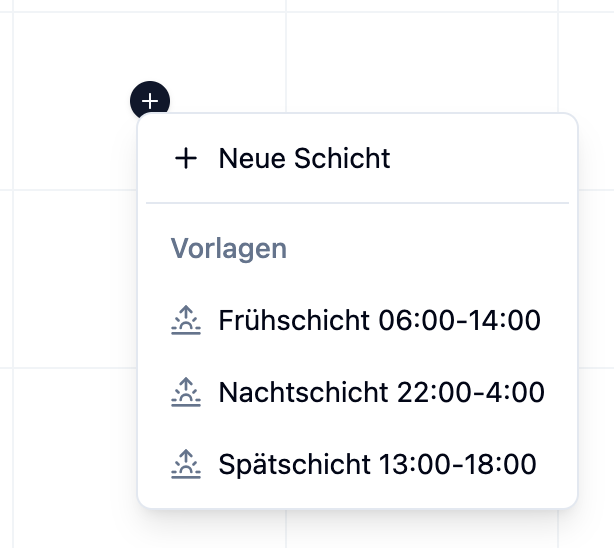
You can also apply a template directly by right-clicking on an empty cell:
- Right-click on an empty cell in the calendar
- Select Shift from Template in the context menu
- Click on the desired template
- The shift is created immediately
The template only fills in default values. You can still modify any field before saving – for example, assigning different employees or slightly adjusting the times.
Shifts created from a template are loaded in draft mode. This allows you to review and adjust the shift before finally saving it.
Work Area Behavior
The assigned work area depends on where you apply the template:
| View | Work Area |
|---|---|
| Employee view | The work area saved in the template is used |
| Work area view | The work area where you create the shift is used |
Managing Shift Templates
Editing the Name
You can change the name of a template:
- Open the week menu (⋯) → Manage Templates
- Switch to the Shift Templates tab
- Click the Edit icon (pencil) next to the template
- Change the name
- Click Save
The shift settings of a template (times, work area, employees, etc.) cannot be edited directly. To modify a template:
- Create a new shift with the desired settings
- Save it as a new template
- Delete the old template
Deleting Templates
- Open Manage Templates → Shift Templates tab
- Click the Delete icon (trash can) next to the template
- Confirm deletion in the dialog
Deleting a template cannot be undone. However, shifts that were already created from this template will remain unchanged.
Difference: Shift Templates vs. Weekly Templates
medishift offers two types of templates – for different use cases:
| Aspect | Shift Templates | Weekly Templates |
|---|---|---|
| Scope | A single shift | An entire week |
| Application | When creating a new shift | Applied to an entire calendar week |
| What's Saved | Times, work area | All shifts + assignments for the week |
| Ideal For | Recurring shift types | Recurring weekly schedules |
| Feature Gate | Plus | Plus |
- Shift Templates: When you frequently create the same type of shift on different days (e.g., "Morning Shift", "Evening Shift", "Night Shift")
- Weekly Templates: When you have the same schedule every week and want to load the entire week at once
Learn more about weekly templates at Weekly Templates.
Practical Examples
Dr. Miller's Practice has the same three shift types every day.
Templates to create:
| Template Name | Start Time | End Time | Work Area |
|---|---|---|---|
| Morning Shift Reception | 07:00 | 13:00 | Reception |
| Afternoon Shift Reception | 12:00 | 18:00 | Reception |
| Doctor's Hours | 08:00 | 17:00 | Treatment |
Application:
- Via the + button (top right): Select date and employees – all other settings come from the template
- Click directly on a day: The date is automatically set – just add employees
Sunny Care Home has different staffing requirements depending on the day.
Templates:
| Template Name | Required Staff | Description |
|---|---|---|
| Night Shift Standard | 2 | Regular staffing |
| Night Shift Weekend | 3 | Increased staffing |
Approach:
- Weekdays: Use "Night Shift Standard"
- Weekends: Use "Night Shift Weekend"
- Adjust employees based on availability
Mountain View Clinic has a template "Day Shift" saved with work area "Ward A".
Scenario 1: Applying the template in employee view
- Sarah is working today and needs a shift
- You open the employee view and create a shift for Sarah
- You select the "Day Shift" template
- Result: The shift is created with work area "Ward A" (from the template)
Scenario 2: Applying the template in work area view
- You are in the "Ward B" view
- You create a new shift and select the "Day Shift" template
- Result: The shift is created with work area "Ward B" (current area)
Conclusion: In the work area view, the current area overrides the saved work area from the template.
Frequently Asked Questions
How many shift templates can I create?
- Basic: None (feature not available)
- Plus: Unlimited
- Premium: Unlimited
Can I use a template across multiple shift plans?
No. Shift templates are always tied to a specific shift plan. If you need the same template in another shift plan, you'll need to create it there as well.
Are changes to a template applied to existing shifts?
No. Changes to a template only affect newly created shifts. Existing shifts remain unchanged.
Can I duplicate a template?
Not directly. To create a similar template:
- Create a shift from the existing template
- Adjust the values
- Save as a new template with a different name
Summary
| Aspect | Details |
|---|---|
| Create Template | Configure shift → "Save as Template" or via "Manage Templates" |
| Apply Template | Open the Templates tab in the shift dialog, or right-click → "Shift from Template" |
| Saved Data | Name, times, title, description, work area |
| Edit | Only name can be changed – for other changes: create new template, delete old one |
| Delete | Manage Templates → Shift Templates → Delete icon |
| Limits | Basic: not available, Plus/Premium: unlimited |
| Plan-specific | Yes, templates only apply to one shift plan |
Create a separate template for each frequently used shift type. Use clear, descriptive names (e.g., "Morning Shift Station A" instead of just "Morning"). This helps you quickly find the right template and saves valuable time with every new shift.