Automatic Conflict Resolver
The Automatic Conflict Resolver is part of the Rule System and a Premium feature.
The Automatic Conflict Resolver shows all rule conflicts of a week in one place and resolves them automatically at the click of a button. This lets you finalize your shift plan cleanly before publishing it, without having to open every single shift.
Finding the Feature
The Automatic Conflict Resolver is accessed from the shift plan's week view:
- Open the Shift Plan
- If the current week has rule conflicts, a red warning button (triangle icon) appears in the week header
- Click the warning button to open the Automatic Conflict Resolver
The warning button only appears when all of these conditions are met:
- You have a Premium subscription
- At least one rule is activated in the location settings
- The current week contains at least one rule conflict
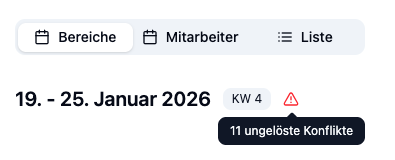
Working with the Automatic Conflict Resolver
The Automatic Conflict Resolver opens as a side panel on the right edge of the screen. At the top you'll see the number of conflicts, followed by a list grouped by conflict type.
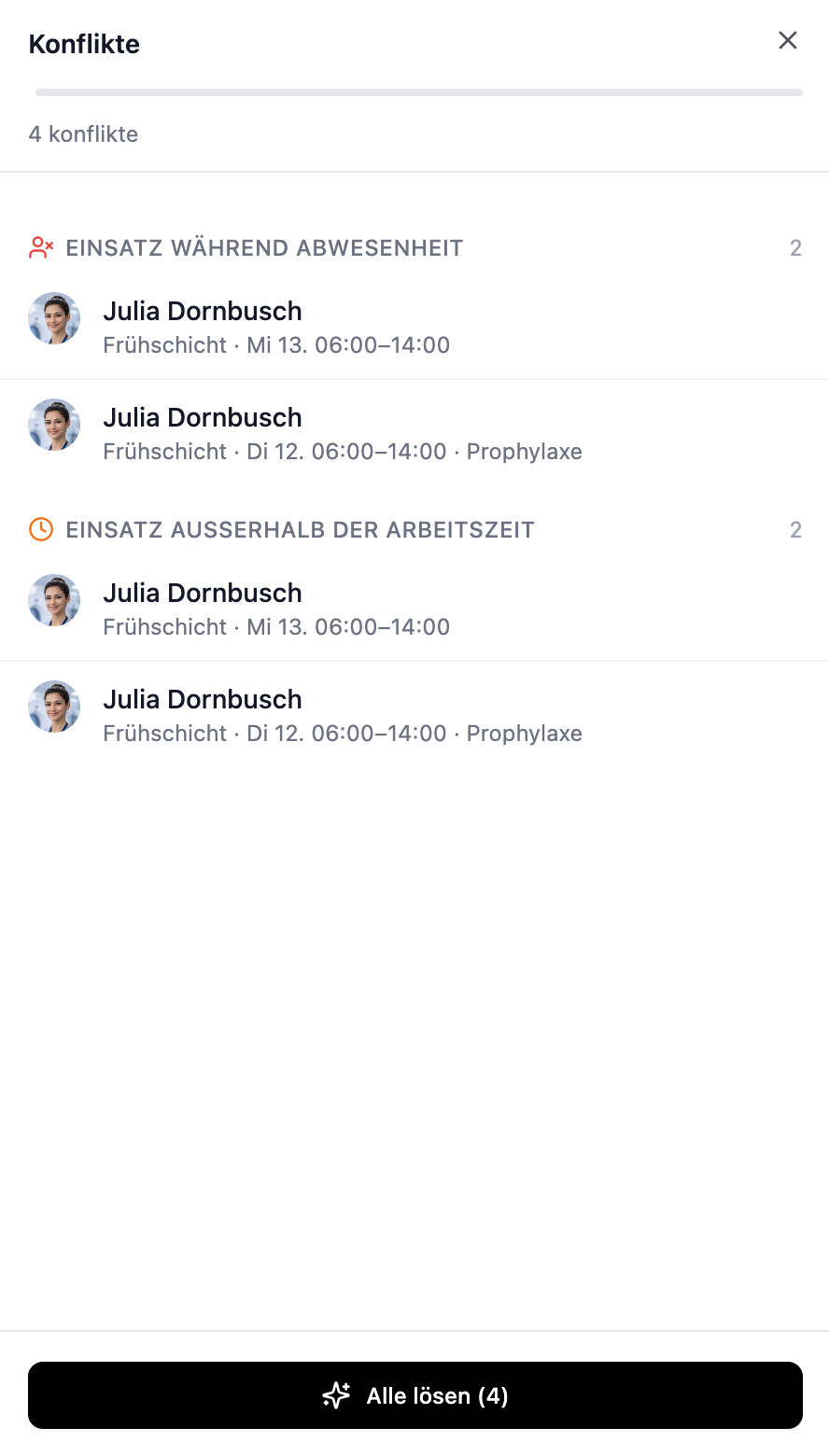
Structure of the Conflict List
Each conflict is displayed as its own row and contains:
| Element | Description |
|---|---|
| Employee | Avatar and name of the affected employee |
| Shift | Date, time, and work area of the conflicting shift |
| Partner shift | For double bookings: the second colliding shift |
| Conflict type | Icon and label (e.g., Double Booking, Absence) |
Conflict Types That Can Be Resolved Automatically
| Conflict Type | Trigger |
|---|---|
| Double booking | Employee is assigned to another shift at the same time |
| Absence | Employee is absent during the shift (vacation, sick leave) |
| Unavailability | Employee marked themselves as unavailable for the time slot |
| Working hours | Shift falls outside the employee's fixed working hours |
Resolving Conflicts
At the bottom of the Automatic Conflict Resolver you'll find two buttons:
| Button | Action |
|---|---|
| Remove all ▾ | Dropdown with two options: Remove assignments or Delete shifts (see below). |
| Solve all | Automatically finds an available replacement for each conflict and assigns them. |
Selecting individual conflicts
When you have multiple conflicts, they are all selected by default (checkboxes checked). You can deselect individual conflicts by clicking them – the button actions will then only apply to the selected conflicts. The button text adjusts automatically (e.g., "Solve (2)" instead of "Solve all (4)").
Solve all (automatic replacement)
Clicking Solve all makes the resolver look for an available replacement for each selected conflict – an employee who has no conflict of their own in the same time slot – and assign them automatically. Resolved conflicts are marked with a green check and briefly show who takes over the shift – for example "Maria takes over the morning shift 06:00–14:00".
If the resolver can't find an available replacement for a conflict, the conflict stays in the list unchanged. The original employee is not removed automatically – you decide how to handle it.
Remove assignments (without replacement)
Click Remove all ▾ → Remove assignments. The affected employees are removed from the shifts – no automatic replacement is assigned. The shifts stay in the plan but remain unassigned.
Delete shifts
Click Remove all ▾ → Delete shifts. The conflicting shifts are permanently and irreversibly deleted – not just the assignment, the entire shift disappears from the plan. A confirmation dialog shows the number of affected shifts before deletion.
Deleted shifts cannot be restored. Only use this option when you truly no longer need the shifts.
- Solve all – the resolver automatically finds a replacement.
- Remove assignments – employees are removed, shifts remain unassigned (manual replacement).
- Delete shifts – the entire shifts disappear, e.g., when a whole week was planned incorrectly.
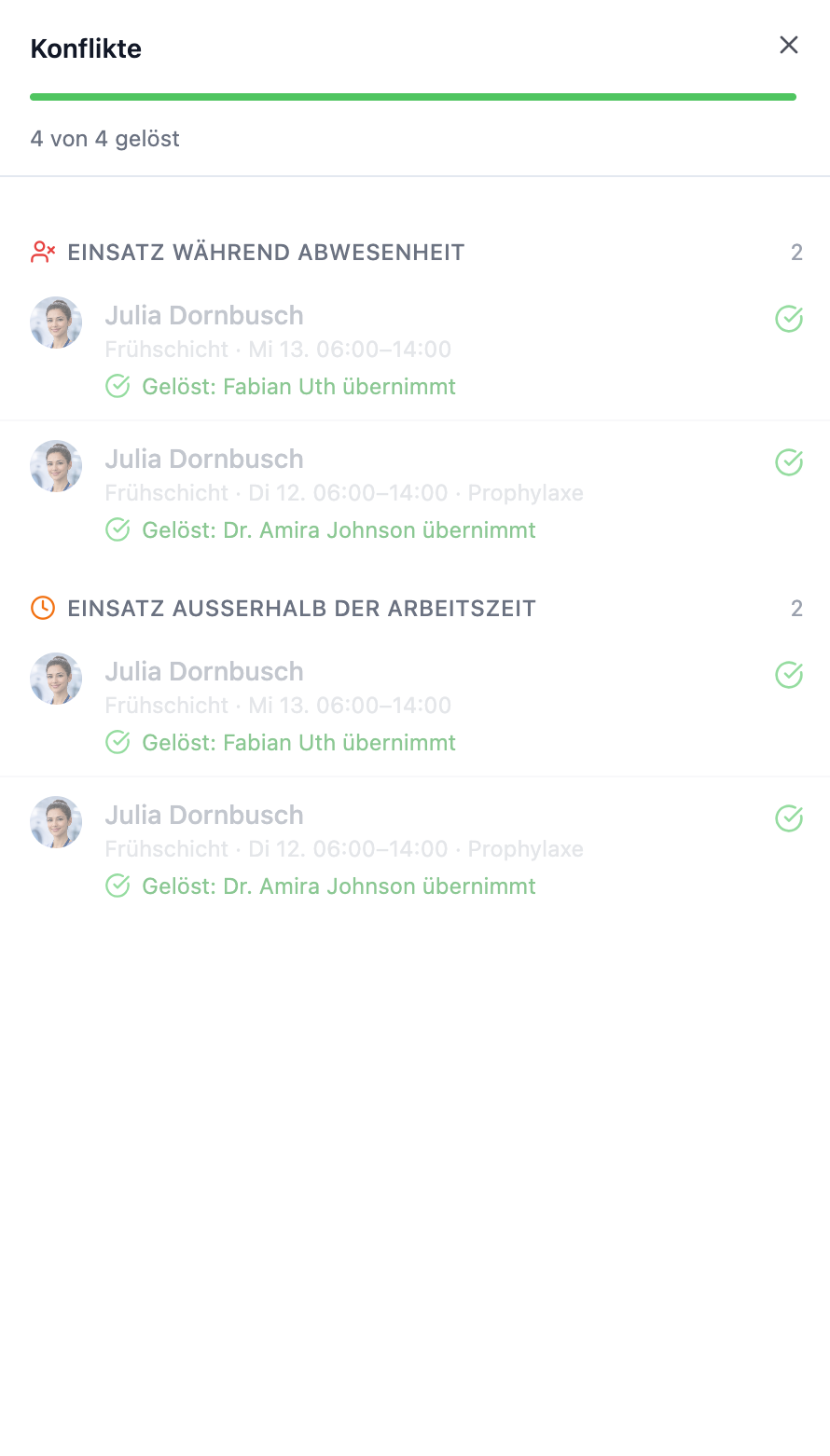
Practical Examples
Situation: Lisa was assigned to the Wednesday morning shift, but she's on vacation that week.
Steps:
- Click the red warning button in the week header
- The Automatic Conflict Resolver opens and shows Lisa's conflict under Absence
- Click Solve all
Result: The resolver automatically finds an available replacement (e.g. Maria) and assigns her to the shift. Lisa is replaced by Maria, and the conflict gets a green check.
Situation: Max has reported sick and is assigned to three shifts. You want to organize the replacement yourself.
Steps:
- Click the red warning button in the week header
- The Automatic Conflict Resolver shows all three of Max's conflicts under Absence
- Click Remove all
Result: Max is removed from all three shifts. The shifts remain unassigned – you fill them manually in the shift plan.
Situation: The current week has four conflicts: two double bookings, one absence, and one shift outside an employee's working hours.
Steps:
- Click Solve All Conflicts
- The resolver processes all conflicts one after another
- Three conflicts get a green check (with a hint about who takes over). One stays unchanged because no replacement is available
Result: The three resolvable conflicts are fixed. You handle the remaining one manually in the shift plan – for example, by adjusting the shift time, removing the employee, or consciously accepting the conflict.
Frequently Asked Questions
What happens when I click "Solve all"?
The Automatic Conflict Resolver looks for an available replacement for each conflict and assigns it. Successful resolutions are marked with a green check. Conflicts without an automatic solution stay unchanged in the list and must be handled manually.
What happens when I click "Remove assignments"?
The affected employees are removed from the conflicting shifts. The shifts remain unassigned – you can then assign replacements yourself.
What happens when I click "Delete shifts"?
The entire shifts are permanently deleted from the shift plan. This only affects the selected (checked) conflicts.
Can I choose which conflicts to resolve?
Yes. When you have multiple conflicts, you can deselect individual conflicts by clicking them. The actions will then only apply to the selected conflicts.
Can I choose who takes over a shift?
Yes. Click Remove assignments to remove the affected employees, then manually assign the desired replacement in the shift plan. The Solve all button, on the other hand, picks the replacement automatically.
Are employees with their own conflicts picked as a replacement?
No. The resolver only picks employees who have no conflict of their own in the same time slot (not absent, not double-booked, not unavailable). This way, resolving one conflict never creates a new one.
Can I skip or ignore a conflict?
Yes. You don't have to resolve every conflict in the Automatic Conflict Resolver. Just close the panel – unresolved conflicts remain as warnings in the shift plan but don't block anything (see Rule System).
Summary
| Aspect | Details |
|---|---|
| Availability | Premium plan with planning rules enabled |
| Opening | Red warning button in the shift plan's week header |
| Resolution | Solve all – automatically finds a replacement. Remove assignments – removes employees without replacement. Delete shifts – permanently deletes the shifts. |
| Resolvable conflict types | Double booking, absence, unavailability, working hours |
| Behavior | Warnings only, no blocking – unresolved conflicts stay visible as hints |
Use the Automatic Conflict Resolver at the end of your planning – right before you publish the week's shift plan. This way, you make sure all auto-resolvable conflicts are fixed and you can focus on the remaining cases.