Weekly Templates
Weekly templates are a Plus feature. With the Basic plan, you can create and test one weekly template. With Plus or Premium, unlimited templates are available.
With weekly templates, you can save an entire week with all shifts and employee assignments as a template. This template can then be applied to any other week – ideal for recurring schedules.
Finding the Feature
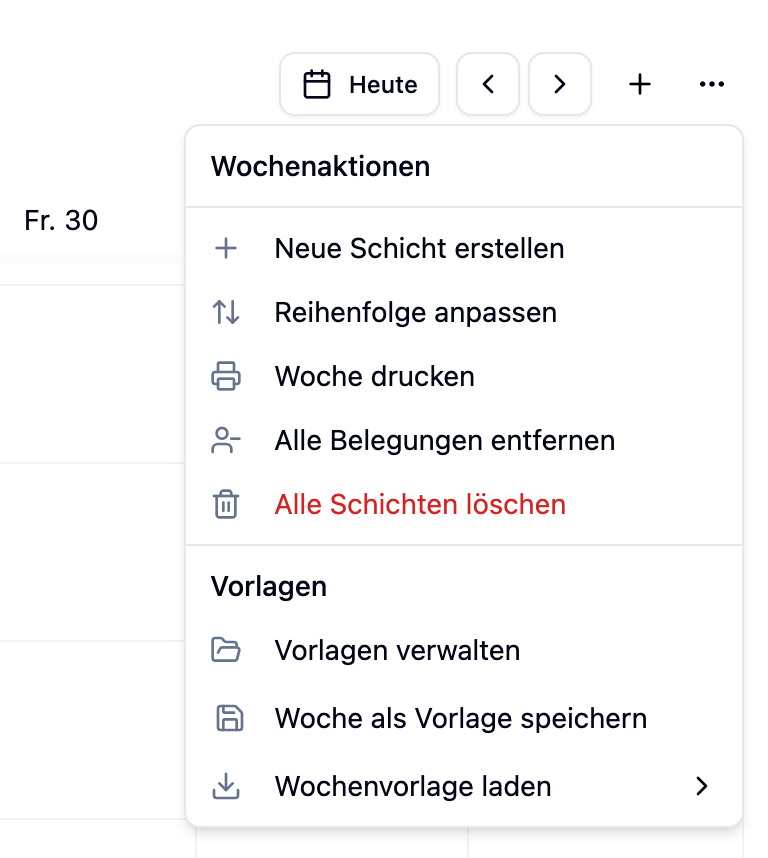
You can find weekly templates in the shift plan through the week menu:
- Go to Shift Planning in the main menu
- Select the desired shift plan
- Click on the three-dot menu (⋯) in the week view
- In the Templates section, you'll find:
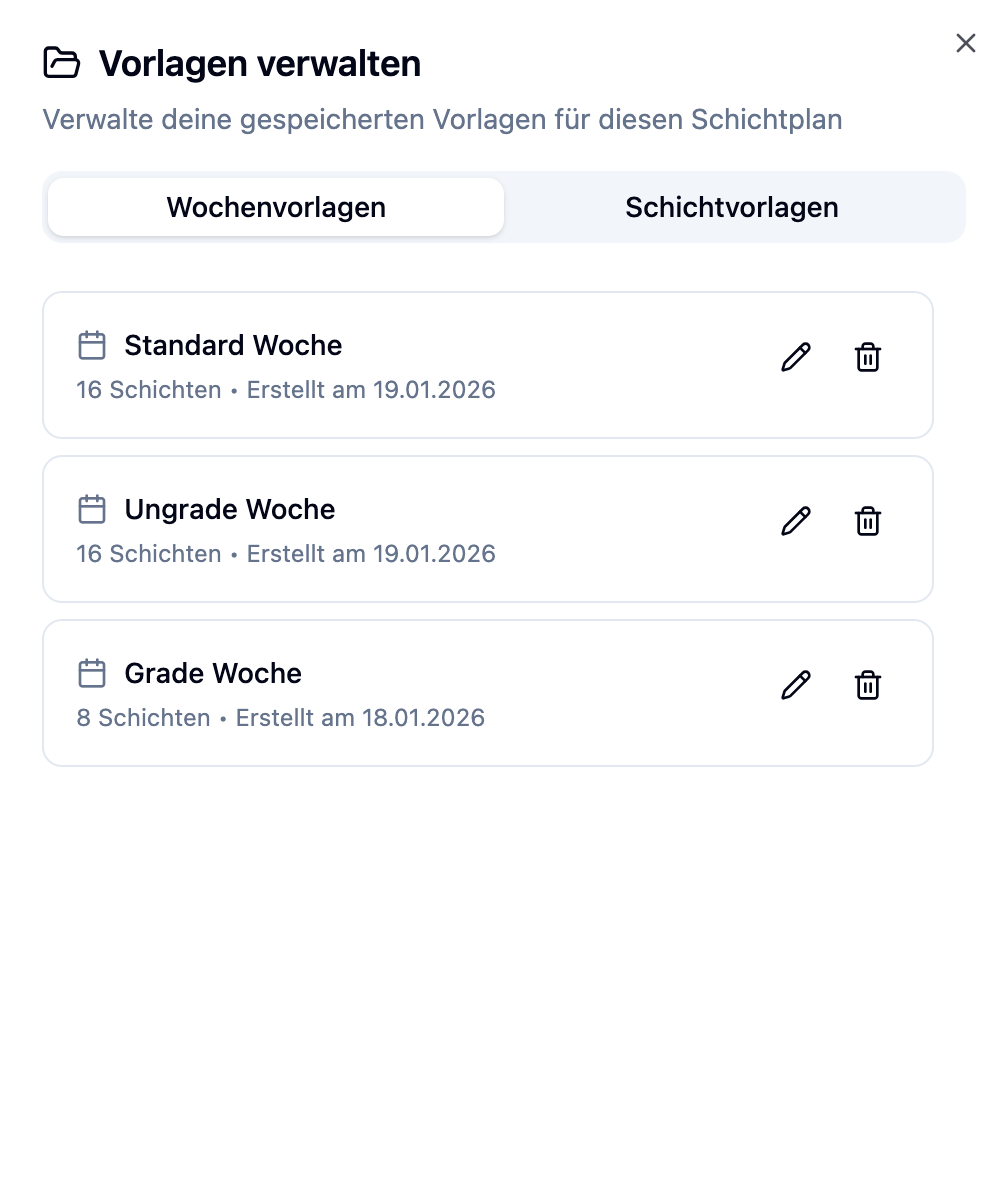
- Manage Templates – View, edit, or delete all templates
- Save Week as Template – Save the current week as a new template
- Load Weekly Template – Apply an existing template to the current week
Creating a Weekly Template
To create a weekly template, you need a week with shifts already set up.
Step-by-Step
- Set up your week with all desired shifts
- Assign employees to the shifts that you want to save in the template
- Open the week menu (⋯)
- Click on Save Week as Template
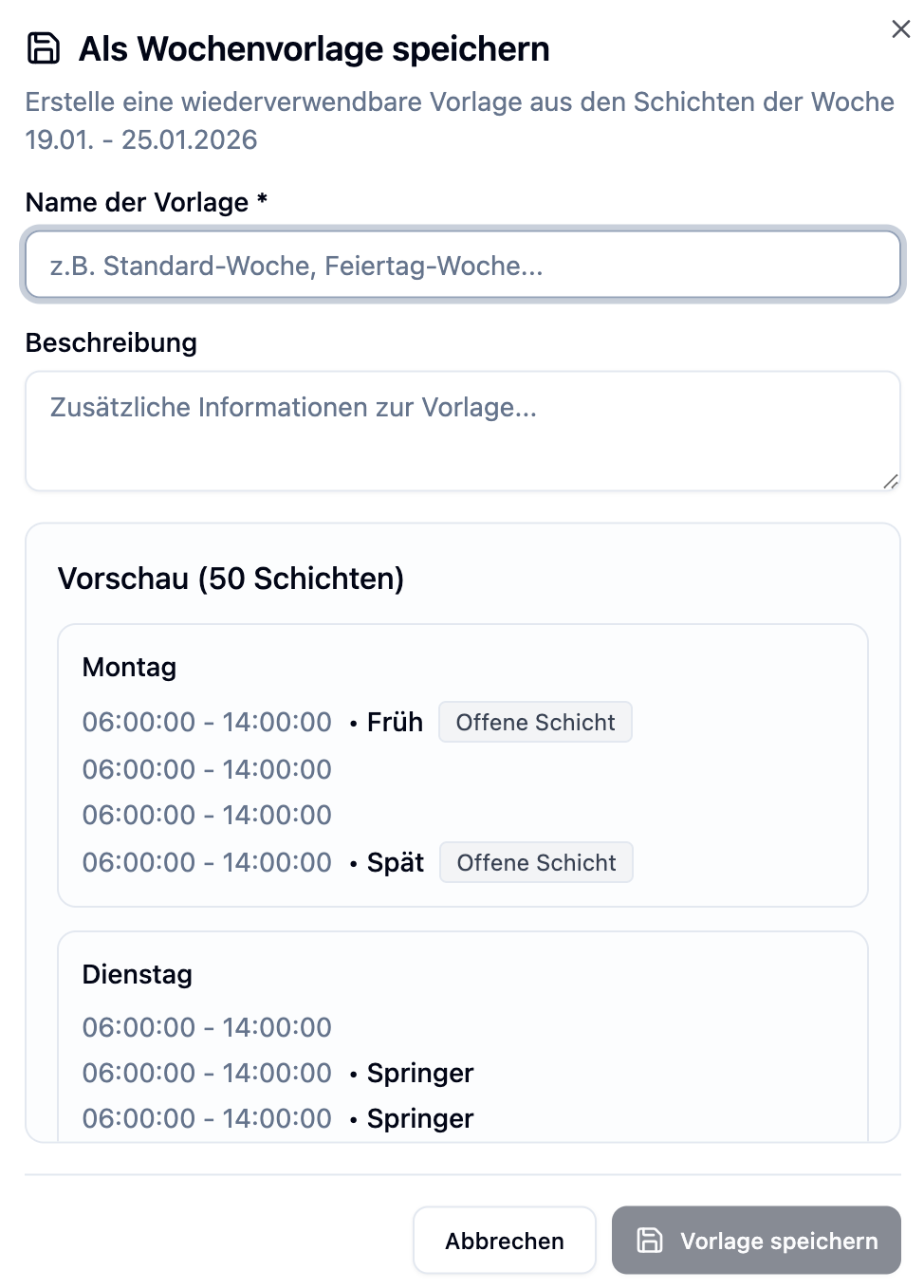
- Enter a name for the template (required)
- Optional: Add a description
- Review the preview of included shifts
- Click Save
What Gets Saved?
The following information is stored in the template:
| Element | Description |
|---|---|
| Shifts | All shifts of the week with weekday, start and end time |
| Departments | The assigned department for each shift |
| Employees | All assigned employees per shift |
| Title & Description | If set for the shift |
| Required Staff | The number of required employees |
| Open Shift | Whether the shift is marked as "open" |
You can also create a template without employees. Simply set up the shifts without assigning anyone. This gives you a basic structure that you can flexibly staff after applying.
Applying a Weekly Template
Step-by-Step
- Navigate to the week where you want to apply the template
- Open the week menu (⋯)
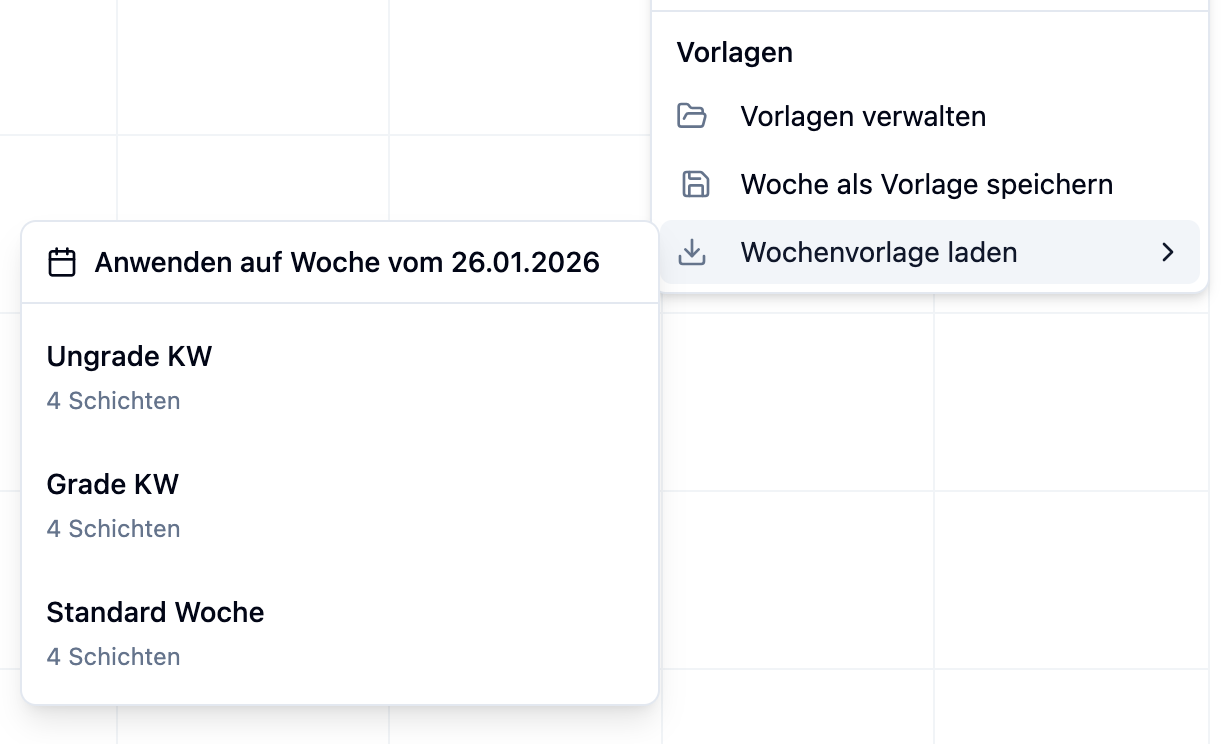
- Click on Load Weekly Template
- Select the desired template from the submenu
- The template will be validated and applied
Weekly templates do not replace existing shifts in the week. The shifts from the template are added to the already existing shifts.
If you want to completely fill a week with a template, first delete all existing shifts via "Delete All Shifts" in the week menu.
Resolving Conflicts with Weekly Templates
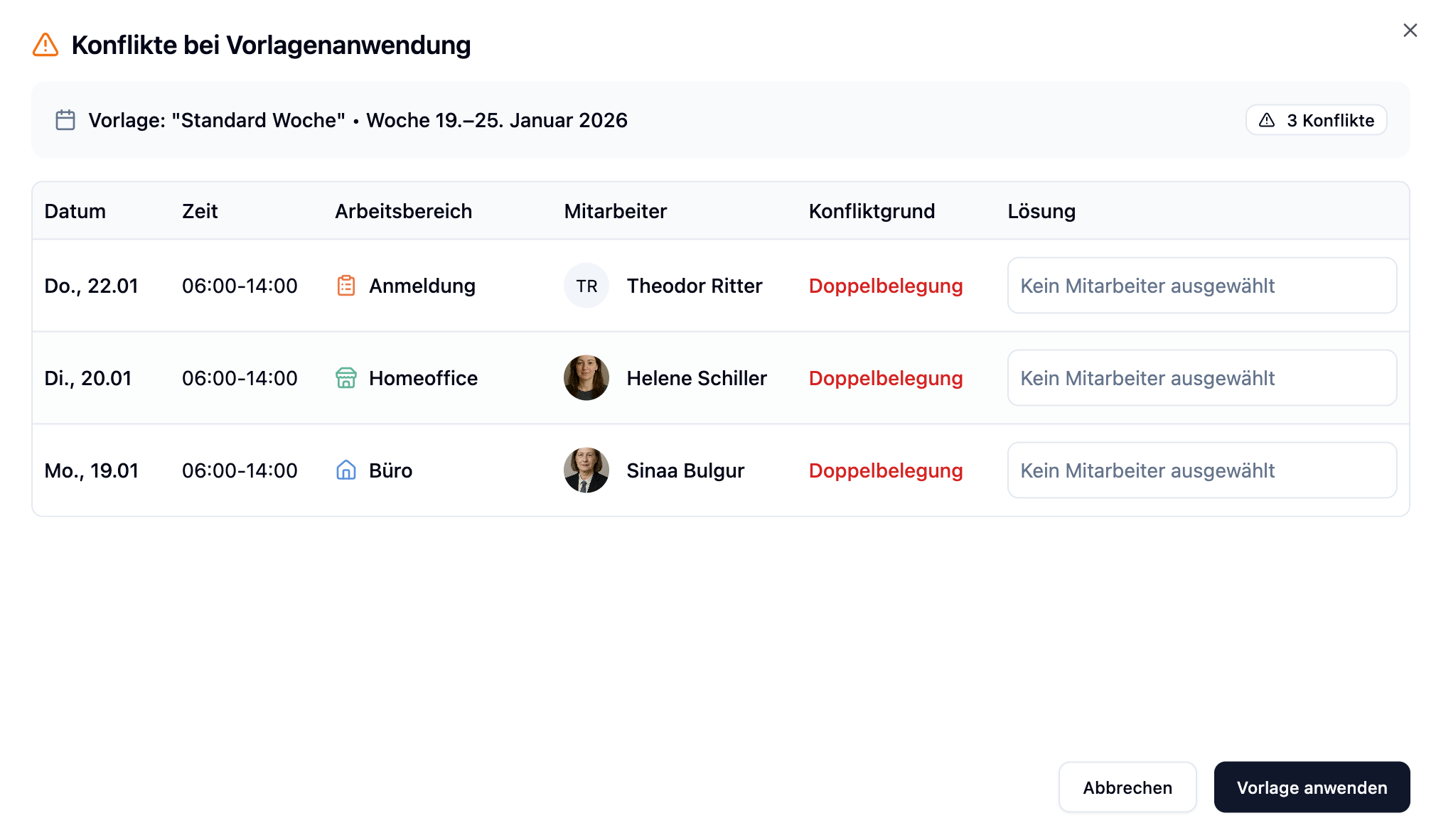
The conflict dialog with detailed resolution options is only available in the Premium plan. In Basic and Plus, templates are applied directly.
When applying a template, conflicts may occur – for example, when an employee already has another shift on a day or has vacation scheduled.
When Does the Conflict Dialog Appear?
The overlay appears when one of the following conflicts is detected:
| Conflict Type | Description |
|---|---|
| Absence | Employee has an absence on this day (e.g., vacation) |
| Unavailability | Employee has marked themselves as unavailable |
| Double Booking | Employee is already assigned to another shift |
Resolution Options
For each conflict, you can choose one of the following solutions:
| Option | Description |
|---|---|
| Replace Employee | Select another available employee from the list |
| Remove Employee | The shift will be created without this employee (remains open). Also used automatically if you don't select a replacement employee. |
Conflicts that you don't manually resolve are automatically handled with "Remove Employee". You can focus on the critical conflicts and let the rest be resolved automatically.
Managing Weekly Templates
Editing Templates
You can change the name and description of an existing template:
- Open the week menu (⋯)
- Click on Manage Templates
- Click the edit icon next to the template
- Change name and/or description
- Click Save
The shifts of a template cannot be directly edited. To create a template with different shifts:
- Apply the existing template to an empty week
- Edit the shifts as desired
- Save the week as a new template
- Delete the old template if needed
Deleting Templates
- Open Manage Templates
- Click the delete icon next to the template
- Confirm deletion in the dialog
Practical Examples
Dr. Schmidt's Practice has the same schedule every week with morning and afternoon consultations.
Approach:
- Set up the week completely with all shifts and employees
- Save as template "Standard Week"
- Each new week: "Load Weekly Template" → Select "Standard Week"
- Adjust individual shifts or employees as needed
Time saved: Instead of manually creating 20+ shifts, just one click.
Dr. Weber's Dental Practice needs a reduced schedule when a doctor is on vacation.
Approach:
- Create template "Normal Operations" with full team
- Create template "Vacation Coverage" with reduced staffing
- Apply the appropriate template depending on staff availability
Benefit: Quick switch between different staffing models.
Dr. Miller's Practice wants to define only the shift structure but staff flexibly.
Approach:
- Set up week with all shifts but without employee assignments
- Save as template "Basic Structure"
- For new week: Load template
- Manually assign available employees to shifts
Benefit: Flexible staffing with consistent structure.
Frequently Asked Questions
Are existing shifts overwritten?
No. Weekly templates add shifts, they don't replace existing ones. If you want to completely rebuild a week from a template, first delete all shifts via "Delete All Shifts" in the week menu.
Can I edit a template afterwards?
Only name and description can be directly edited. To change the shifts, apply the template to an empty week, edit it there, and save it as a new template.
What happens with conflicts without Premium?
In Basic and Plus, templates are applied without conflict checking. Employees are assigned even if conflicts exist. In these plans, manually check for overlaps.
How many templates can I create?
- Basic: 1 weekly template
- Plus: Unlimited
- Premium: Unlimited
Are employees saved too?
Yes! All employee assignments are saved in the template. When applying, the same employees are assigned to the shifts – provided there are no conflicts.
Summary
| Aspect | Details |
|---|---|
| Create Template | Set up week → Week menu → "Save Week as Template" |
| Apply Template | Week menu → "Load Weekly Template" → Select template |
| Saved Data | Shifts, departments, employees, times, titles |
| Behavior | Shifts are added, not replaced |
| Conflicts (Premium) | Overlay shows options: replace, remove, accept |
| Editing | Only name/description directly – shifts via recreation |
| Limits | Basic: 1 template, Plus/Premium: unlimited |
Create a separate template for each recurring schedule. Name them clearly (e.g., "Standard Week", "Holiday Staffing", "Summer Season"). This helps you quickly find the right template and saves time when planning.