Create Single Absence
As an administrator, you can record absences for individual employees. The system automatically calculates vacation days based on the absence category, the employee's working days, and holidays at the location.
Finding the Feature
You can create an absence in two ways:
Via the Absence Section
- Go to Absences in the main menu
- Click + Absence in the top right corner
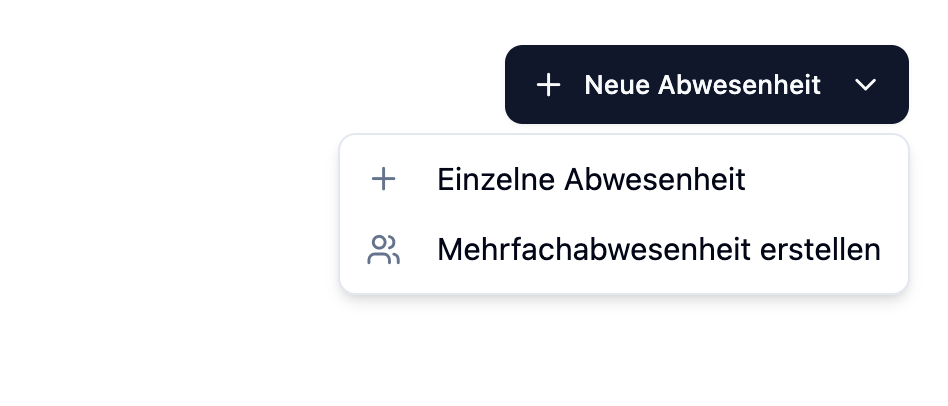
Via the Employee Profile
- Go to Employees in the main menu
- Click on an employee
- Switch to the Absences tab
- Click + Absence
Recording an Absence
Required Information
When creating an absence, you need to provide the following information:
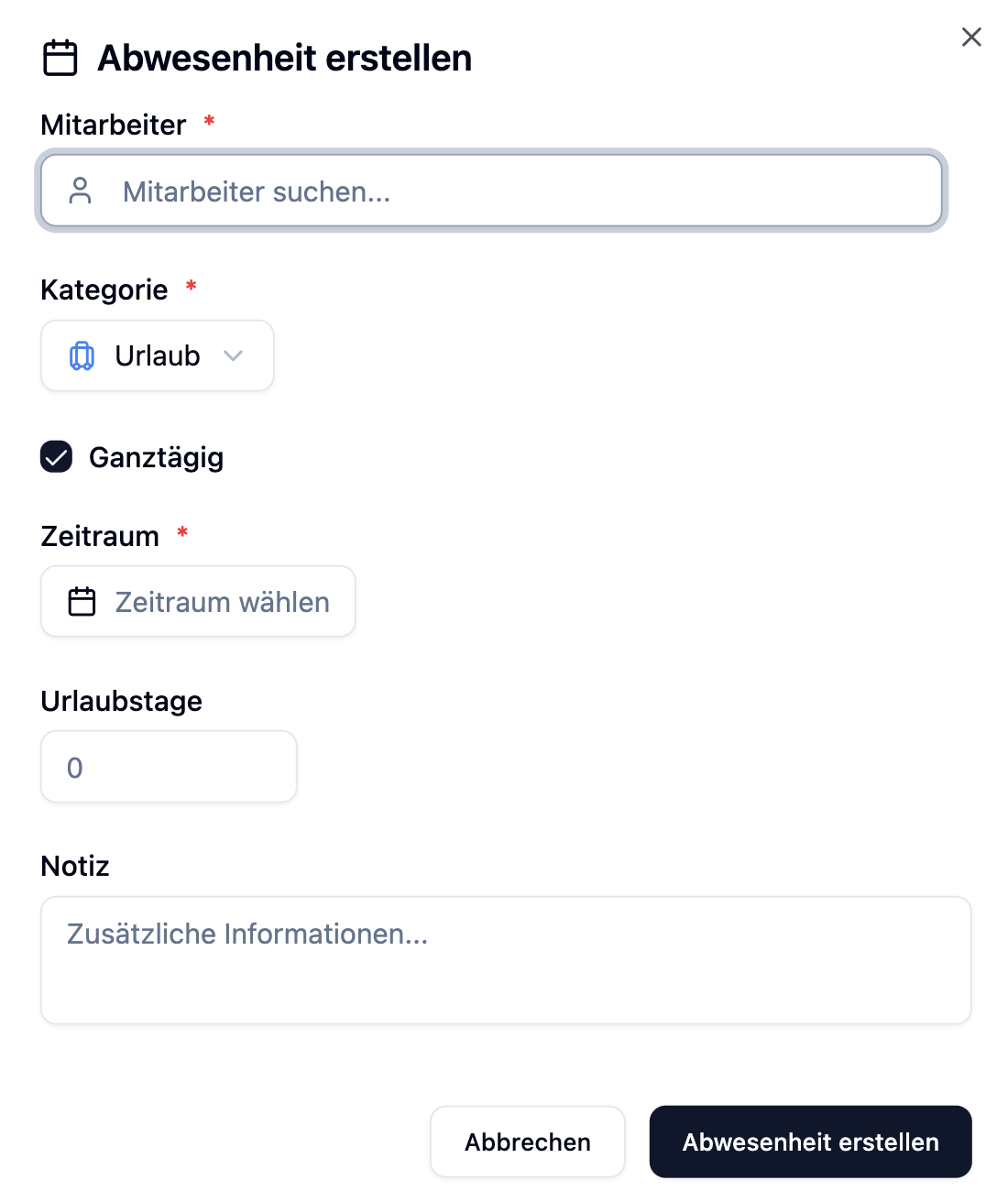
| Field | Description |
|---|---|
| Employee | Select the employee for whom the absence applies |
| Category | Choose the type of absence (e.g., vacation, sick leave) |
| Period | Select start and end date of the absence |
| All Day | All day absence or half day? |
| Notes | Optional remarks about the absence |
Absence Categories
The category determines whether vacation days are deducted from the vacation account. You choose from categories configured at the location.
| Setting | Vacation Days |
|---|---|
| Deduct vacation days: Yes (e.g., vacation, training) | Deducted from vacation account |
| Deduct vacation days: No (e.g., sick leave, special leave) | No effect on vacation account |
You can customize the available absence categories under Manage. See Absence Categories.
All Day vs. Half Day
You have two options for creating an absence:
| Option | Description | Period | Vacation Days |
|---|---|---|---|
| All Day | Full working days | Can span multiple days | Full days (minus weekends/holidays) |
| Half Day | Only part of a day | Only possible on a single day | Always 0.5 vacation days |
All Day Absence
For an all-day absence, you can select a period of one or more days. Vacation days are calculated automatically.
Half Day (not all day)
When you disable "All Day":
- The absence applies to a single day only
- Fields for start and end time appear
- Regardless of the entered times, this day always counts as 0.5 vacation days
A half day always counts as 0.5 vacation days – whether you enter 2 hours or 6 hours. The times only serve as information about when the employee is absent.
Overlapping Absences from Colleagues
When creating an absence, the system automatically shows if colleagues from the same work areas are also absent during the selected period. This information is visible to both employees when requesting an absence and administrators when creating one. This helps identify potential staffing shortages early.
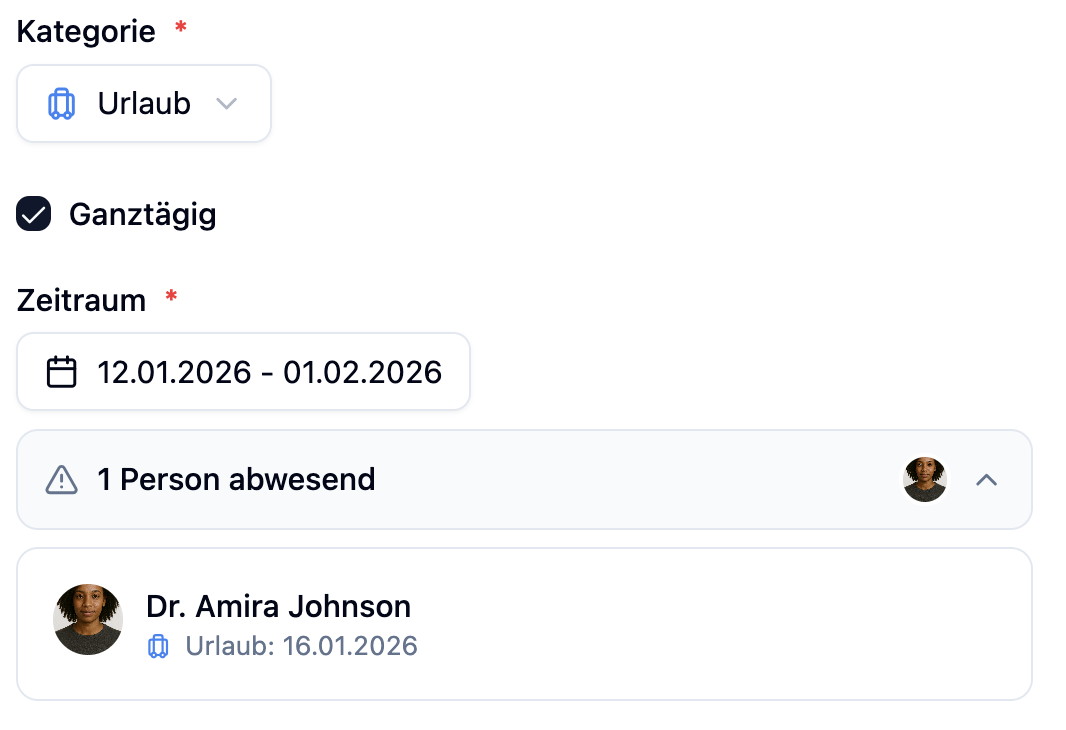
The display shows:
- Names of colleagues with overlapping absences
- The period of their absence
- Only colleagues who are assigned to the same work areas
Use this information to ensure enough employees are available for shift planning before approving an absence.
Vacation Day Calculation
The system calculates vacation days automatically. You can see the calculated days directly in the dialog.
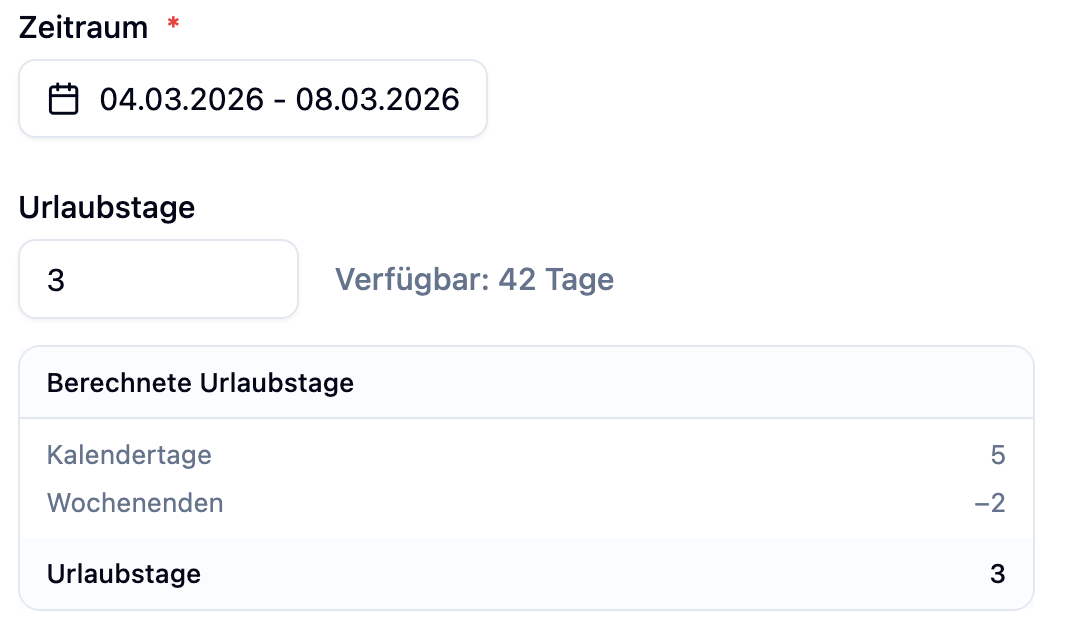
How Are Vacation Days Calculated?
The calculation considers several factors:
| Factor | Description |
|---|---|
| Total Days | All calendar days in the selected period |
| Weekends | Saturdays and Sundays are subtracted |
| Holidays | Holidays at the employee's location are subtracted |
| Working Days | For employees with fixed working hours, only their working days are counted |
Calculation with Fixed Working Hours
When an employee has fixed working hours configured, the system uses these instead of the standard work week (Mon-Fri):
Anna only works Monday through Thursday.
Absence: January 13 (Monday) to January 17 (Friday)
| Calculation | Without Fixed Working Hours | With Fixed Working Hours |
|---|---|---|
| Counted Days | Mon, Tue, Wed, Thu, Fri = 5 days | Mon, Tue, Wed, Thu = 4 days |
Friday is not counted because Anna doesn't work on that day.
Manual Adjustment
As an administrator, you can manually override the calculated vacation days:
- Click the edit icon next to the vacation days
- Enter the desired number (in 0.5 increments)
- The manual entry overrides the automatic calculation
Manual adjustment is helpful for special cases, e.g., when special arrangements apply.
Approval Status
The status of an absence depends on who creates it:
| Created by | Default Status |
|---|---|
| Administrator | Directly Approved |
| Employee | Pending (needs to be approved) |
As an administrator, you can change the status when creating or later via the Absence Management.
Frequently Asked Questions
Why are fewer vacation days calculated than expected?
The calculation considers:
- Weekends (Saturday + Sunday)
- Holidays at the employee's location
- The configured working days for employees with fixed working hours
Check the calculation details in the dialog to see which days were subtracted.
Can I record an absence for the past?
Yes, you can also record absences retroactively. This is useful, for example, to add sick days after the fact.
What happens with overlapping absences?
The system warns you if an absence already exists for the same period. You can still create the new absence, but should check if this is intended.
Summary
| Aspect | Description |
|---|---|
| Access | Via "Absences" in main menu or employee profile |
| Category | Determines whether vacation days are deducted |
| Vacation Days | Automatic calculation, manually adjustable |
| Working Days | Employee's fixed working hours are considered |
| Holidays | Location-specific holidays are subtracted |
| Status | Admin-created absences are directly approved |
Before creating an absence, check if the employee has fixed working hours configured. This ensures that vacation days are calculated correctly.