Creating Bulk Absences
Bulk absences are a Premium feature. You need a Premium subscription to use this feature.
With bulk absences, you can create absences for multiple employees at once. This is particularly useful for office closures, company holidays, or team events where the entire team or a group of employees will be absent at the same time.
Finding the Feature
- Go to Absences in the main menu (left sidebar)
- Click the + Absence button in the top right
- Select Create bulk absence from the dropdown menu
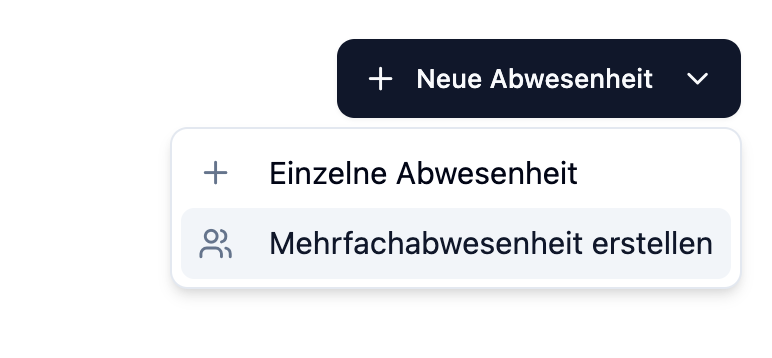
The Absences menu item is only visible to administrators. The "Create bulk absence" feature additionally requires a Premium subscription.
Configuration
In the bulk absence dialog, you provide the following information:
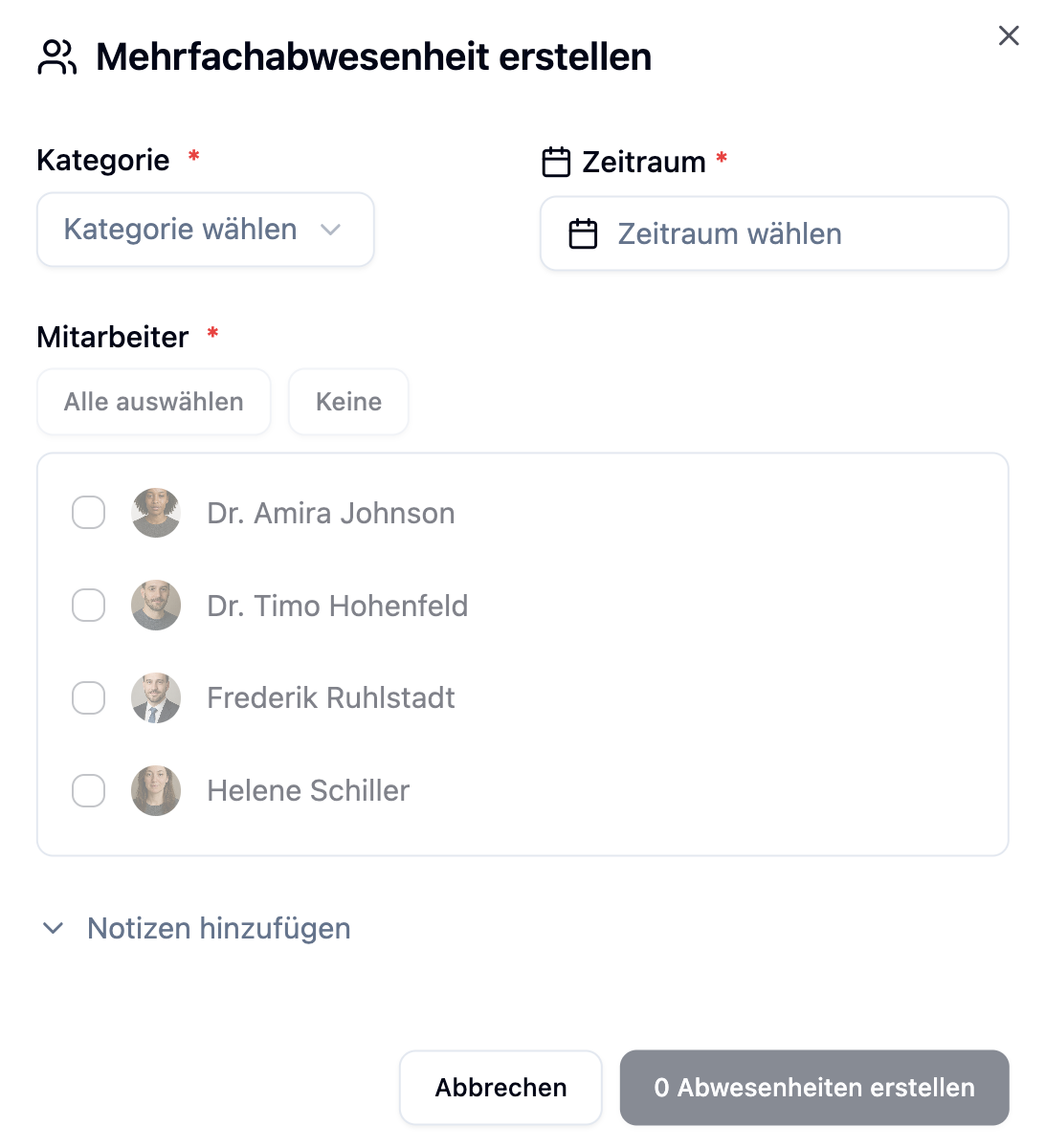
| Field | Description | Required |
|---|---|---|
| Category | Type of absence (e.g., Vacation, Company Holiday) | Yes |
| Period | Start and end date of the absence | Yes |
| Employees | Selection of affected employees | Yes |
| Notes | Optional remarks (max. 1000 characters) | No |
Selecting a Category
Choose the appropriate absence category from the dropdown. The category determines whether vacation days are deducted from the vacation balance:
| Category Setting | Effect |
|---|---|
| Deduct vacation days: Yes | Vacation days are deducted from the balance |
| Deduct vacation days: No | No effect on vacation balance |
You can customize available absence categories under Administration. See Absence Categories.
Selecting Employees
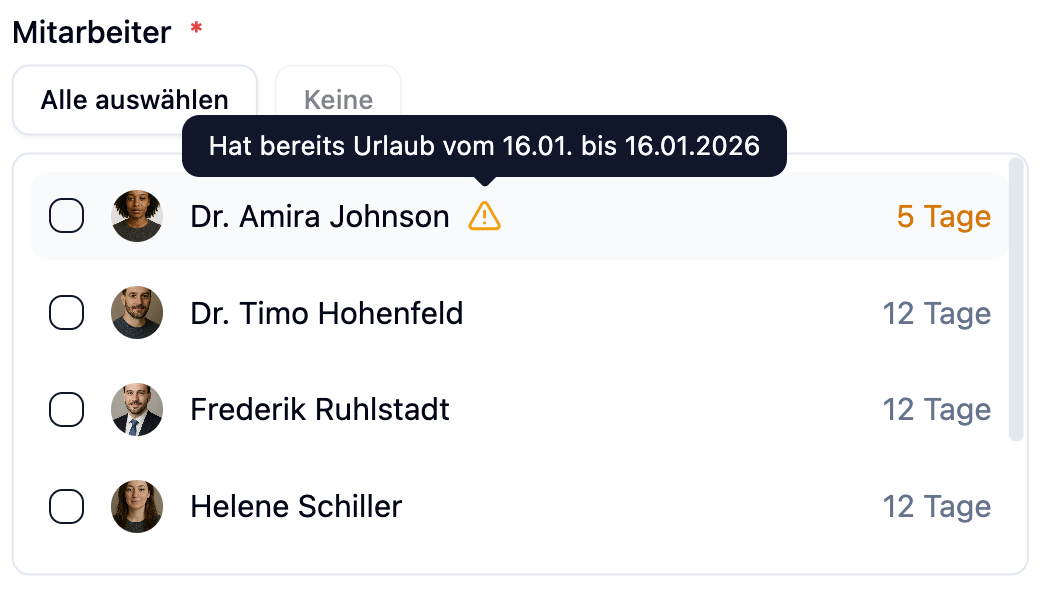
The employee selection shows all active employees in your account:
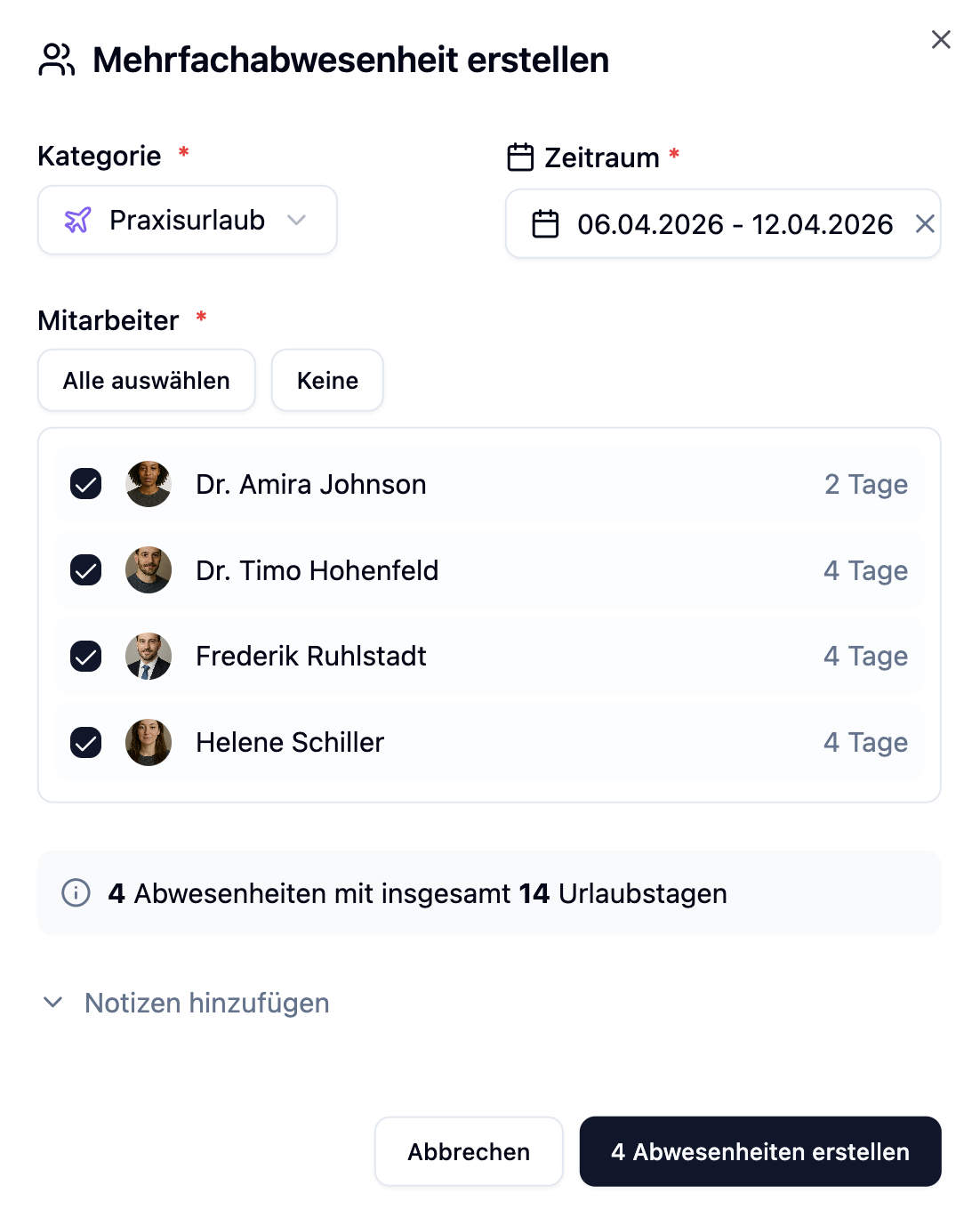
| Feature | Description |
|---|---|
| Checkboxes | Select or deselect individual employees |
| Select all | Selects all employees at once |
| None | Resets the selection |
| Vacation days display | Shows calculated vacation days per employee |
| Conflict warning | Indicates if an employee already has an absence in the period |
Only active employees are shown in the list. Archived or inactive employees cannot be selected.
Vacation Day Calculation
The system automatically calculates vacation days individually for each selected employee. You can see the calculated days directly in the employee selection.
How Are Vacation Days Calculated?
The calculation considers several factors per employee:
| Factor | Description |
|---|---|
| Total days | All calendar days in the selected period |
| Weekends | Saturdays and Sundays are deducted |
| Holidays | Public holidays at the employee's location are deducted |
| Working days | For employees with fixed working hours, only their working days are counted |
Individual Calculation Per Employee
Since each employee can have different working days and locations, the system calculates vacation days individually:
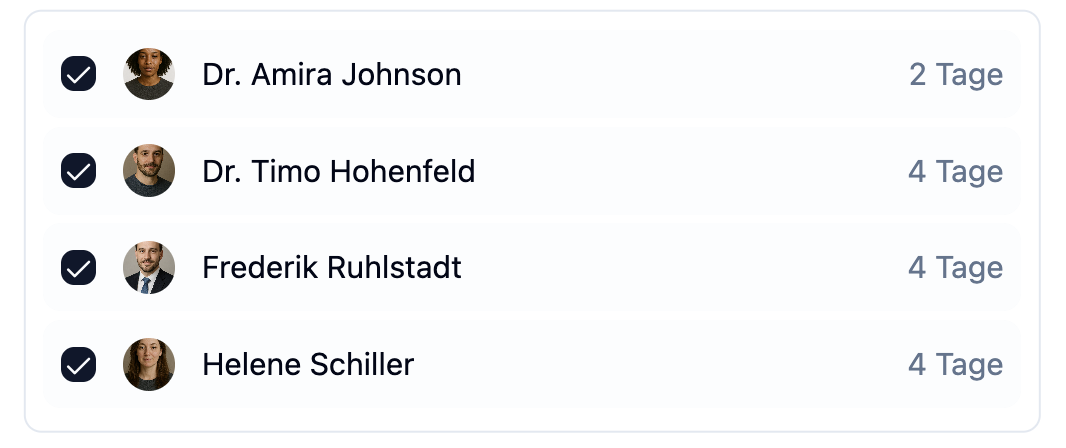
Office closure: December 23 (Monday) to January 3 (Friday)
| Employee | Working days | Holidays | Calculated vacation days |
|---|---|---|---|
| Anna (Mon-Fri) | Mon-Fri | Dec 25, Dec 26, Jan 1 | 7 days |
| Max (Mon-Thu) | Mon-Thu | Dec 25, Dec 26, Jan 1 | 5 days |
| Lisa (Tue-Sat) | Tue-Sat | Dec 25, Dec 26, Jan 1 | 6 days |
Although everyone has the same period, vacation days differ due to individual working hours.
Calculation Logic in Detail
The vacation day calculation follows this logic:
- Count calendar days: All days from start to end date
- Deduct non-working days:
- For employees without fixed working hours: Saturdays and Sundays
- For employees with fixed working hours: All days configured as "Off"
- Deduct holidays: Only holidays that fall on a working day and apply at the employee's location
Conflict Detection
The system automatically checks whether selected employees already have an absence in the chosen period.
| Display | Meaning |
|---|---|
| Yellow warning | The employee already has an absence in this period |
| Details | "Already has [Category] from dd.MM. to dd.MM.yyyy" |
The warning is just a hint. You can still select the employee if the additional absence is intended.
Practical Examples
Scenario: A medical practice closes between Christmas and New Year. All 5 employees should receive vacation at the same time.
Configuration:
| Field | Value |
|---|---|
| Category | Office Closure |
| Period | Dec 23 - Jan 3 |
| Employees | All 5 employees |
Calculation for each employee:
| Employee | Working hours | Vacation days |
|---|---|---|
| Dr. Smith | Mon-Fri | 7 days |
| Ms. Johnson | Mon-Fri | 7 days |
| Mr. Williams | Mon-Thu | 5 days |
| Ms. Brown | Tue-Fri | 5 days |
| Mr. Davis | Mon-Fri | 7 days |
Effects:
- 5 absences are created simultaneously
- Each employee receives their individually calculated vacation days
- All absences are immediately approved
Scenario: A company plans company holidays for 2 weeks in August. Only full-time employees are affected.
Configuration:
| Field | Value |
|---|---|
| Category | Company Holiday |
| Period | Aug 4 - Aug 18 |
| Employees | 8 selected full-time employees |
| Notes | Company holidays 2025 |
Calculation:
- 10 working days (Mon-Fri, 2 weeks)
- Assumption of Mary holiday (Aug 15) is deducted if it applies at the location
- Result: 9-10 vacation days depending on location
Effects:
- 8 absences are created
- Vacation days are calculated based on location-specific holidays
- The note "Company holidays 2025" is saved for all entries
Scenario: The entire team participates in a full-day training. Vacation days should not be deducted.
Configuration:
| Field | Value |
|---|---|
| Category | Training (without vacation deduction) |
| Period | Mar 15 - Mar 15 (1 day) |
| Employees | All team members |
| Notes | Team training: First Aid Course |
Effects:
- Absences are created, but no vacation days are deducted
- Employees are marked as absent in the shift schedule
Approval Status
All absences created via bulk absences are immediately approved. Unlike single absences requested by employees, there is no "Pending" status.
| Creation Method | Status |
|---|---|
| Bulk absence (Admin) | Directly Approved |
| Single absence (Admin) | Directly Approved |
| Single absence (Employee) | Pending (needs approval) |
Frequently Asked Questions
Why do different employees have different vacation days?
Vacation days are calculated individually per employee. Differences arise from:
- Fixed working hours: Employees with a 4-day week have fewer vacation days than full-time employees
- Location holidays: Public holidays can vary by state/location
Can I add individual employees afterwards?
No, adding employees afterwards is not possible. Create a new bulk absence for additional employees or use the Single Absence feature.
What happens if an employee already has vacation in the period?
You'll see a yellow warning for this employee. You can still select them - an additional absence will be created. However, check if this is intended.
Can I manually adjust vacation days?
Manual adjustment is not possible for bulk absences. Vacation days are calculated automatically. For individual adjustments, use the Single Absence feature or edit the absence afterwards in the Absence Management.
Summary
| Aspect | Description |
|---|---|
| Access | Premium feature, administrators only |
| Use case | Office closures, company holidays, team events |
| Vacation calculation | Individual per employee based on working hours and location |
| Holidays | Location-specific, automatically considered |
| Working hours | Fixed working hours are individually considered |
| Status | All absences are immediately approved |
| Conflict detection | Warning for existing absences |
Use bulk absences for all situations where multiple employees are absent at the same time. This saves time and ensures that vacation days are calculated correctly for each employee. Before creating, check if all affected employees have fixed working hours configured - this gives you more precise calculations.