Manage Absences
In the Absences section, you as an administrator have full visibility over all vacations, sick days, and other absences of your employees. You can approve or reject requests and keep track of vacation balances.
Finding the Feature
- Go to Absences in the main menu (left sidebar)
The Absences menu item is only visible to administrators.
View Modes
You have two options for displaying absences:
| View | Description | When to use? |
|---|---|---|
| List View | Tabular overview with all details and filter options | For approvals and detailed analysis |
| Calendar View | Monthly calendar with visual display of all absences | For quick overview of time periods |
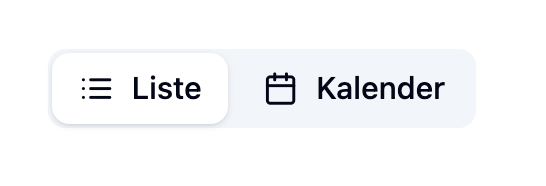
Switch between views using the buttons in the top right corner.
List View
The list view is your main tool for managing absences.
Quick Filters (KPIs)
At the top of the page, you'll see two quick filter cards with key metrics:

| Quick Filter | Description |
|---|---|
| Pending Requests | Shows the number of absences waiting for approval. Click to show only these. |
| Upcoming Absences | Shows the number of absences in the next 30 days. Click to show only these. |
Click on a quick filter card to immediately see the corresponding absences. This helps you quickly find all open requests waiting for your approval.
Advanced Filters
Below the quick filters, you'll find additional filter options:

| Filter | Function |
|---|---|
| Search | Search by employee name |
| Category | Filter by absence type (e.g., Vacation, Sick Leave) |
| Status | Filter by approval status (Pending, Approved, Rejected) |
| Date Range | Filter by date (start and end date) |
Use the Reset Filters button to clear all active filters.
Absence List
The table displays all absences with the following information:
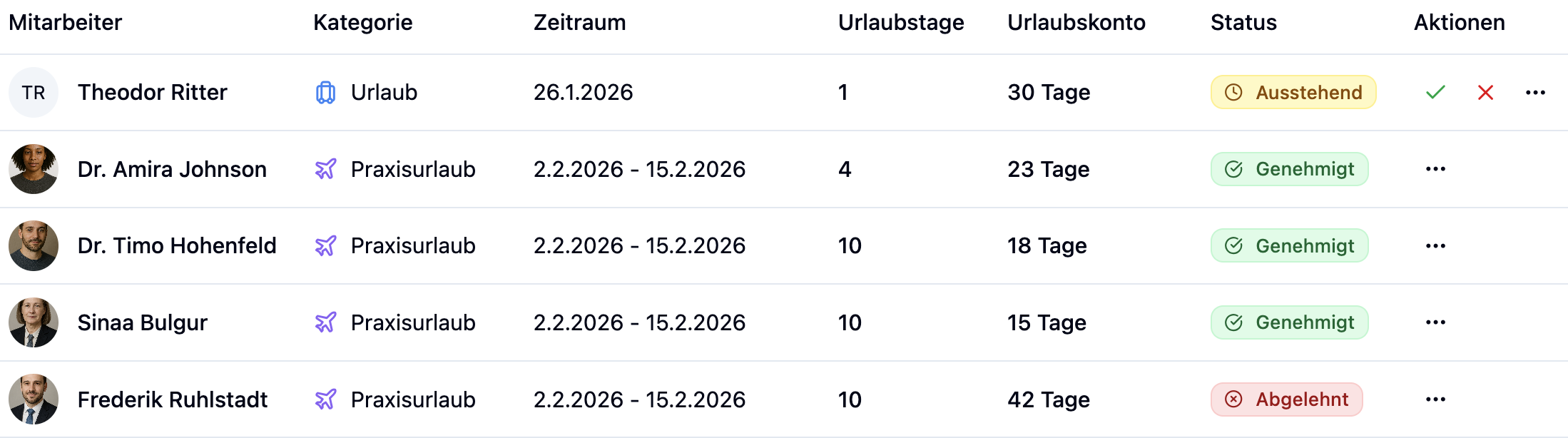
| Column | Description |
|---|---|
| Employee | Name and profile picture of the employee |
| Category | Type of absence (e.g., Vacation, Sick Leave, Training) |
| Date Range | Start and end date of the absence |
| Vacation Days | Number of vacation days this absence consumes |
| Vacation Balance | Remaining vacation balance after this absence |
| Status | Approval status with color coding |
| Actions | Buttons for approving/rejecting |
Status Display
Each absence has a status:
| Status | Color | Meaning |
|---|---|---|
| Pending | Yellow | Waiting for approval |
| Approved | Green | Has been approved |
| Rejected | Red | Has been rejected |
Approving and Rejecting Absences
Approving Pending Requests
For absences with Pending status, you'll see two action buttons:

| Button | Function |
|---|---|
| ✓ Green Checkmark | Approve absence |
| ✕ Red X | Reject absence |
Rejecting Approved Absences
Already approved absences can also be rejected afterwards:
- Click on the Three-dot menu (⋮) in the Actions column
- Select Reject
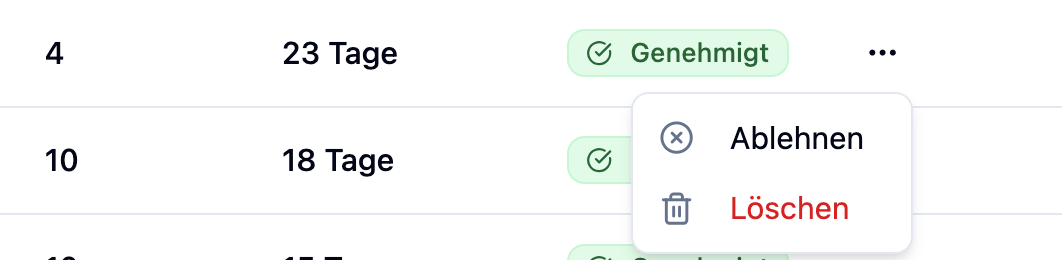
You can change the status of an absence as follows:
- Pending → Approved or Rejected
- Approved ↔ Rejected (can be switched at any time)
Once processed, a request cannot be set back to "Pending".
Calendar View
The calendar view provides a visual overview of all absences in a month. You can sort employees and edit absences directly.
→ Find all details on the Absence Calendar page.
Frequently Asked Questions
Why don't I see the "Absences" menu item?
The Absences section is only accessible to administrators. If you don't have admin access, contact your administrator.
What does "Vacation Balance" mean in the list?
The Vacation Balance column shows the employee's remaining vacation allowance for the current year after this absence is deducted. This allows you to see at a glance how many vacation days the employee still has available.
Can I approve multiple absences at once?
Currently, you need to approve each absence individually. Use the "Pending Requests" quick filter to quickly find all open requests and process them one by one.
What happens when I reject an approved absence?
The absence is set to "Rejected" and the vacation days are credited back to the employee's vacation balance.
Why are some absences immediately approved?
The status depends on who created the absence:
- Employee creates absence: Status is always Pending and must be approved by an administrator.
- Administrator creates absence: Status is immediately Approved.
Summary
| Feature | Description |
|---|---|
| Two View Modes | List view for details, calendar view for overview |
| Quick Filters | Pending requests and upcoming absences with one click |
| Advanced Filters | Filter by employee, category, status, and date range |
| Vacation Days & Balance | See vacation usage and remaining balance per absence |
| Status Changes | Approve, reject, or change status at any time |
Regularly check the pending requests using the quick filter. This ensures that employees receive timely feedback on their vacation requests.