Planner Dashboard
The Planner Dashboard is your central hub in medishift. Here you can see at a glance what's happening today, which absence requests are awaiting your approval, and which shifts still need to be filled.
Finding the Dashboard
After logging in, you will automatically be redirected to the dashboard. You can access it at any time via the Start menu item in the main navigation.
The dashboard differs depending on user role. As a planner or administrator, you see the Planner Dashboard with management functions. Employees see a simplified personal dashboard: My Dashboard.
Dashboard Overview
The Planner Dashboard displays three main areas:
| Widget | Description |
|---|---|
| Daily Timeline | All of today's shifts in a horizontal time view |
| Pending Absence Requests | Requests awaiting your approval |
| Open Shifts | Open shifts with available spots that employees can sign up for themselves |
Desktop View
On larger screens, the dashboard is displayed in two columns:
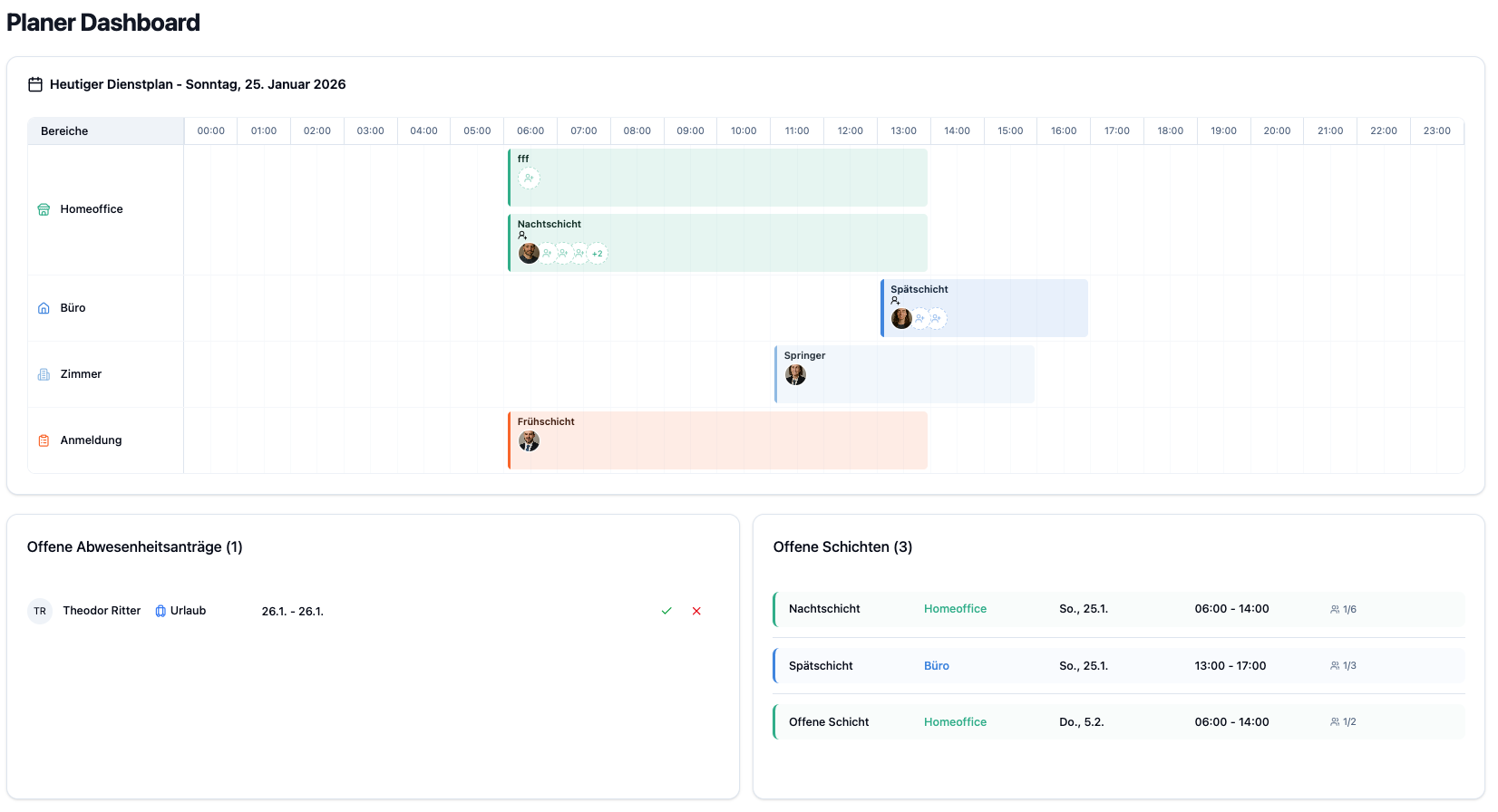
- Top: Daily Timeline (full width)
- Bottom left: Pending Absence Requests
- Bottom right: Open Shifts
Daily Timeline
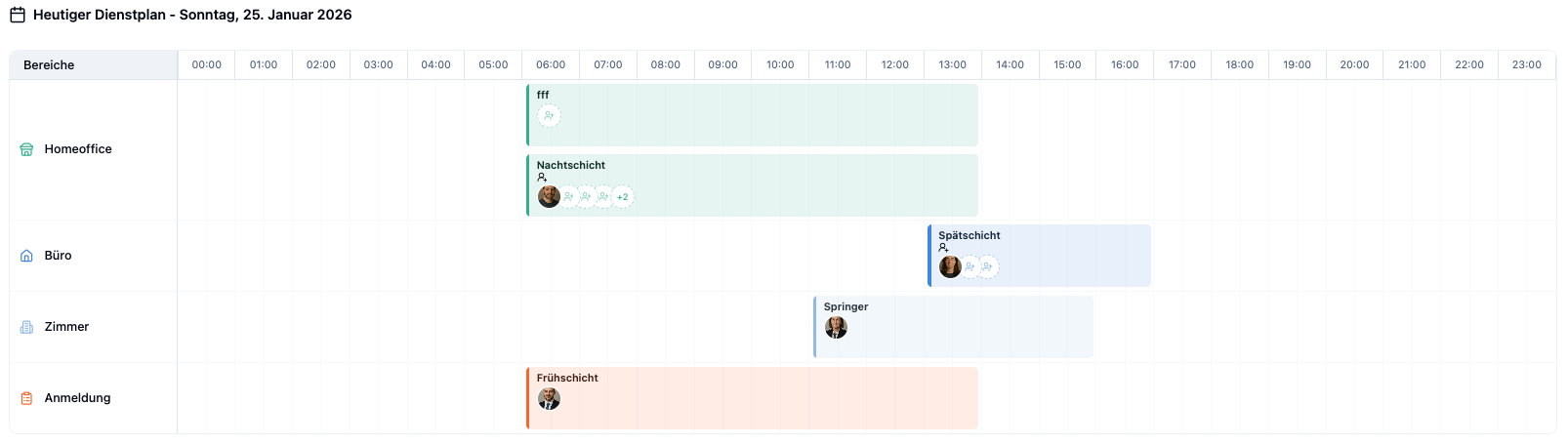
The Daily Timeline shows you all of today's shifts in a clear horizontal display.
Features
| Element | Description |
|---|---|
| Time Axis | Horizontal axis from 00:00 to 23:59 with 30-minute intervals |
| Department Rows | Each department has its own row |
| Shift Cards | Show time period, employee name, and department |
| Color Coding | Each department has its own color for better distinction |
Navigation
- Horizontal Scrolling: Move through the day to see earlier or later shifts
- Auto-Scroll: The view automatically scrolls to the current time (around 6:00 AM) when loading
The Daily Timeline is ideal for getting a quick overview in the morning: Who's working today? When do shifts start and end? Are all areas covered?
Pending Absence Requests
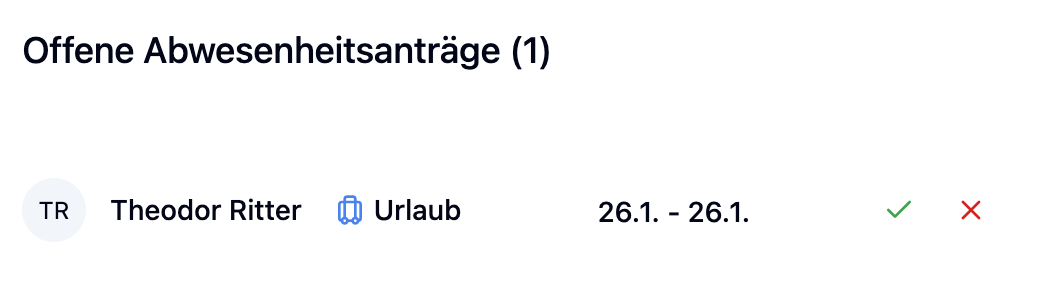
This widget shows all absence requests awaiting your approval.
Displayed Information
For each request, you can see:
| Information | Description |
|---|---|
| Employee | Name and avatar of the requester |
| Category | Type of absence (e.g., Vacation, Sick) with icon |
| Period | Start and end date of the absence |
Actions
You can process requests directly from the dashboard:
| Action | Description |
|---|---|
| Approve | Green button with checkmark – approves the request immediately |
| Reject | Red button with X – rejects the request |
| Open Details | Click on the request opens the editing overlay for more options |
Scenario: Lisa has submitted a vacation request for next week.
- The request appears in the "Pending Absence Requests" widget
- You see: Lisa Schmidt – Vacation – Jan 13 - Jan 17
- Click the green Approve button
- The request disappears from the list and Lisa is notified
Result: The vacation is approved and will be considered in the shift schedule.
Open Shifts
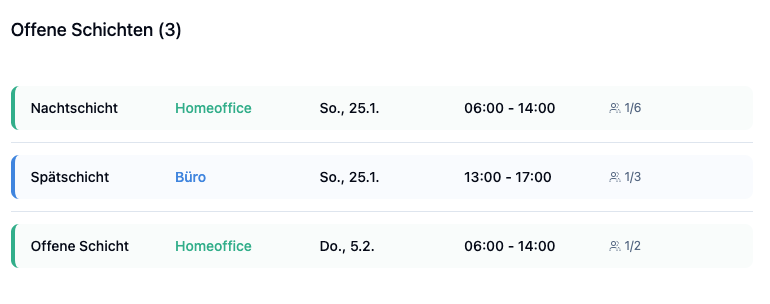
The "Open Shifts" widget shows all open shifts that employees can sign up for themselves. Open shifts are shifts where you have enabled the "Employees can sign up" option – they are not simply unstaffed shifts, but explicitly released for self-registration.
Displayed Information
| Information | Description |
|---|---|
| Shift Title | Name or description of the shift |
| Department | Which area the shift takes place in |
| Date & Time | When the shift starts and ends |
| Capacity | How many positions are filled/open (e.g., "2/3") |
Click on a shift to open the editing dialog – here you can also add metadata.
Scenario: The morning shift on Monday is configured as an open shift and still needs one more employee.
- The shift appears in the widget: Morning Shift – Reception – Mon, 08:00 - 16:00 – 1/2
- Click on the shift
- The editing dialog opens
- Select an available employee from the dropdown
- Save the change
Result: The shift is now fully staffed (2/2) and disappears from the list.
Note: Employees can also sign up for this shift themselves – that's the main purpose of open shifts.
Interactions & Actions
From the Planner Dashboard, you can complete many tasks directly without switching to other areas:
| Task | How? |
|---|---|
| Approve absence | Green button in the "Pending Absence Requests" widget |
| Reject absence | Red button in the "Pending Absence Requests" widget |
| Edit absence | Click on the request opens overlay with details |
| Edit open shift | Click on open shift → open editing dialog |
The dashboard is designed for daily quick checks. Start your day here to:
- Process pending requests
- Check open shifts
- Overview the day's schedule
For more extensive planning work, switch to the Shift Schedule.
Frequently Asked Questions
Why don't I see the Planner Dashboard?
The Planner Dashboard is only visible to users with the Planner or Administrator role. As an employee, you see the Employee Dashboard. Contact your administrator if you need planning access.
How many requests are displayed at most?
The widget shows up to 50 pending absence requests. For more requests, switch to Absence Management to see all of them.
Is the data automatically updated?
Yes, the widgets update automatically at regular intervals. You can also manually reload the page to see the latest data.
What does the capacity display mean for open shifts?
The display "2/3" means: 2 of 3 required positions are filled. So 1 more employee is still needed.
Summary
| Widget | Function | Direct Actions |
|---|---|---|
| Daily Timeline | Overview of all today's shifts by department | Click shift → edit |
| Pending Absence Requests | Pending approvals | Approve, Reject, Open details |
| Open Shifts | Shifts for employee self-registration | Edit open shift |
Use the Planner Dashboard as your daily starting page. A quick glance in the morning immediately shows you if there are open tasks – requests to process or shifts to fill. This way you stay on top of things and can react quickly.