My Dashboard
My Dashboard is your personal home page in medishift. Here you can see at a glance your upcoming shifts, your working hours for the week, your vacation balance, and apply for open shifts.
Finding the Dashboard
After logging in, you will be automatically redirected to the dashboard. You can access it anytime via the Home navigation item in the main menu.
medishift distinguishes between two dashboard types:
| Role | Available Dashboards |
|---|---|
| Employee | My Dashboard only |
| Planner / Administrator | My Dashboard + Planner Dashboard |
As a planner you have access to both dashboards:
- My Dashboard: To see your own shifts if you are scheduled yourself
- Planner Dashboard: For administrative tasks like approving absences and managing shifts
Dashboard Overview
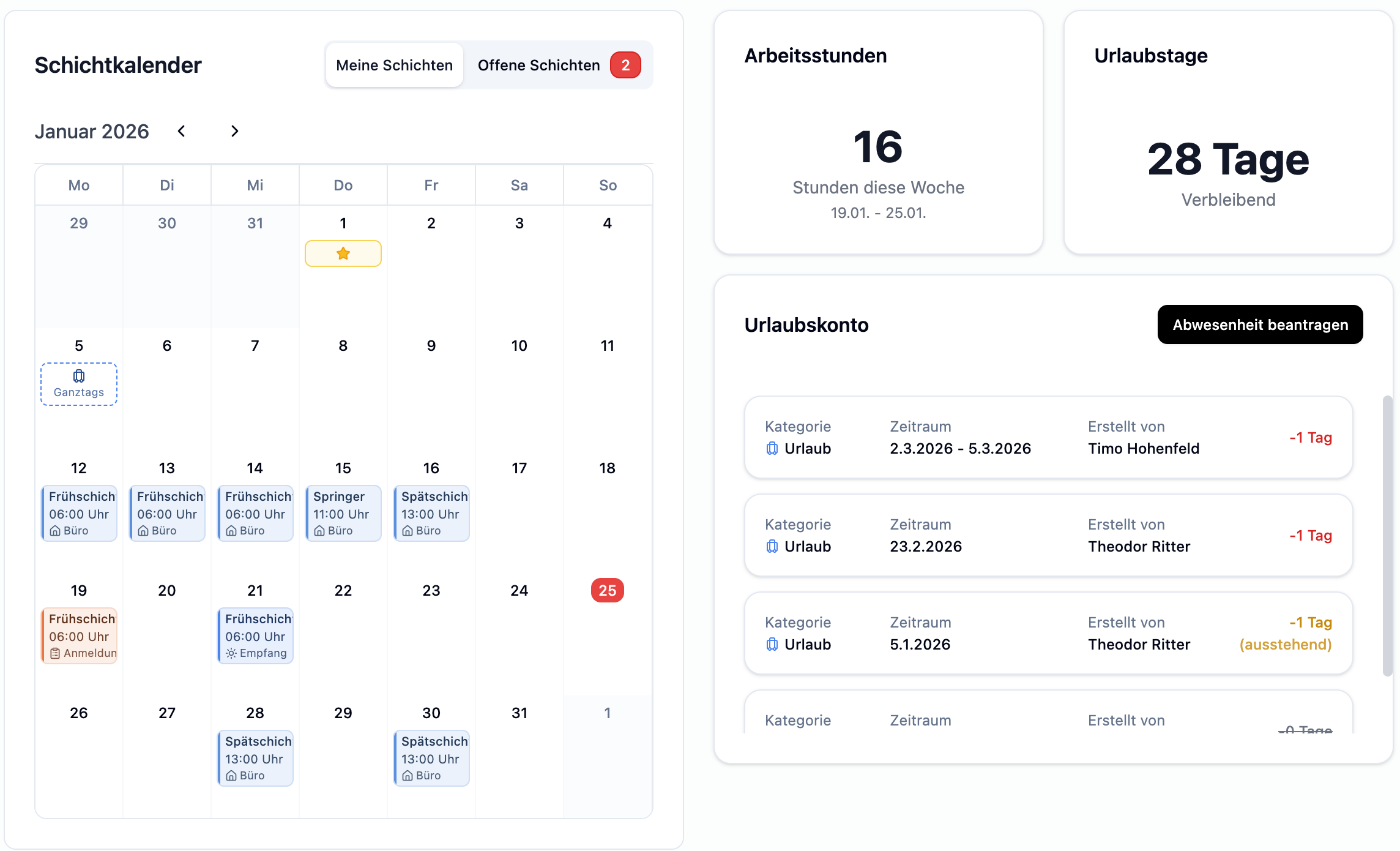
My Dashboard is divided into two columns:
| Area | Description |
|---|---|
| Shift Calendar (left) | Monthly view with your shifts and absences |
| Info Cards (right) | Working hours, vacation days, and vacation account |
Desktop View
Shift Calendar
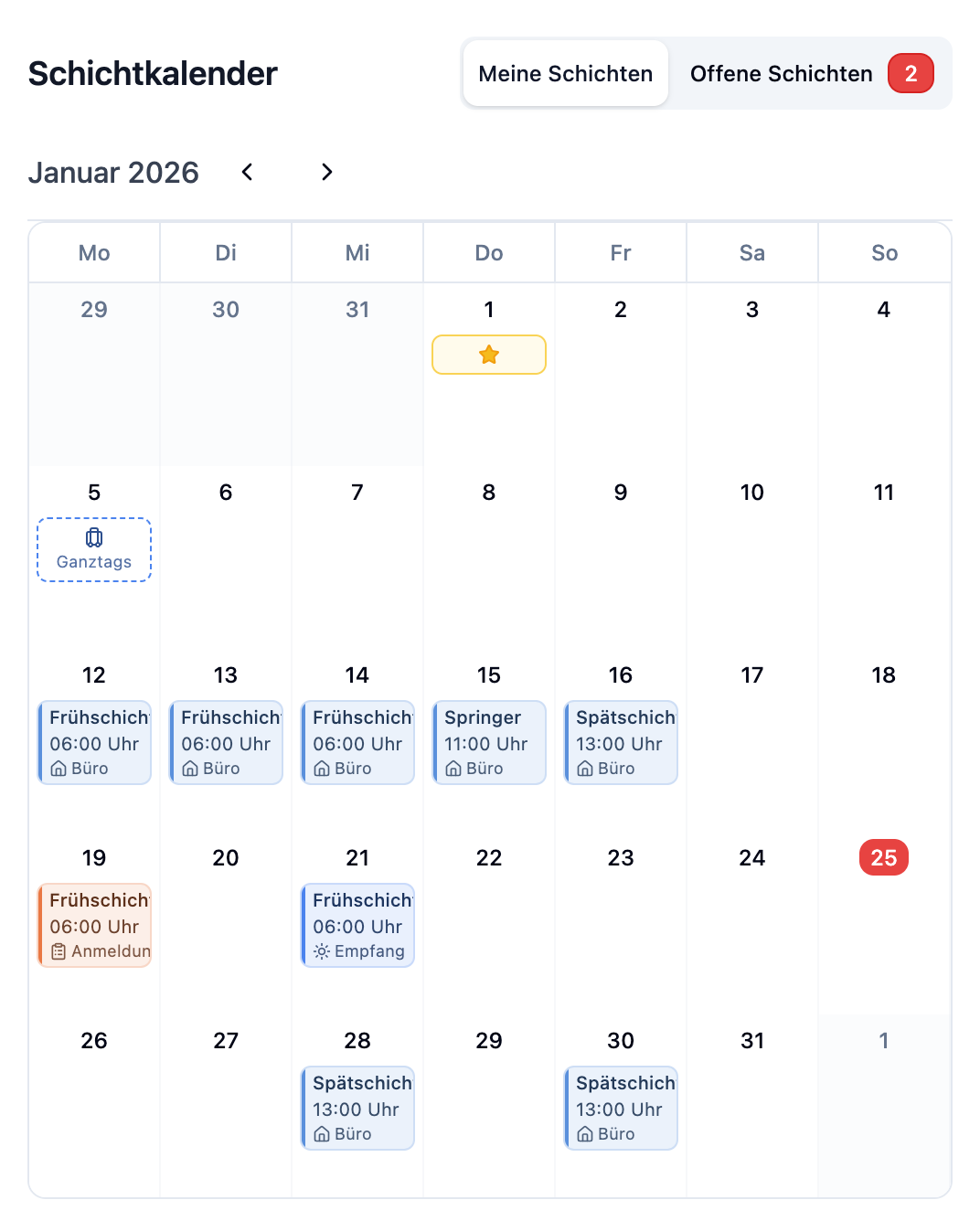
The shift calendar shows all your shifts and absences in a clear monthly view.
Switching Views
Using the toggle button at the top, you can switch between two views:
| View | Description |
|---|---|
| My Shifts | Shows only shifts assigned to you |
| Open Shifts | Shows available open shifts you can apply for |
Next to "Open Shifts" you'll see a number indicating how many open shifts are currently available. This way you can immediately see if there are new opportunities.
Calendar Functions
| Element | Description |
|---|---|
| Month Navigation | Use the arrows to switch between months |
| Shift Entries | Show title, time, and department |
| Absences | Displayed with category color and icon |
| Holidays | Special days are highlighted |
Color Coding
- Shifts: Displayed in the color of the associated department
- Absences: Displayed in the color of the absence category (e.g., vacation, sick)
Working Hours Card
This card shows your total working hours for the current week.
| Information | Description |
|---|---|
| Hour Count | Sum of all planned shift hours this week |
| Period | Current calendar week (Monday to Sunday) |
The hours are automatically calculated from your assigned shifts.
Vacation Days Card
This card shows how many vacation days you still have available.
| Information | Description |
|---|---|
| Remaining Days | Number of vacation days still available in the current year |
| Display | "X days remaining" or "1 day remaining" |
Vacation Account Card
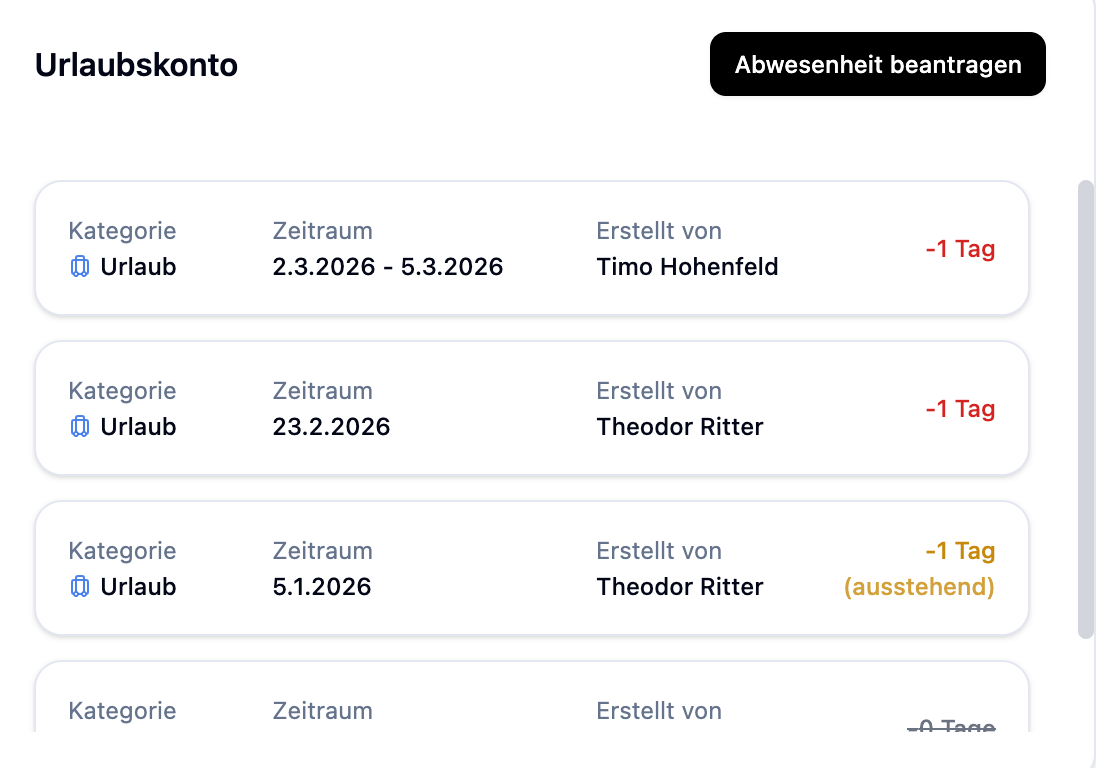
The vacation account gives you a detailed overview of your vacation balance and all absences.
Displayed Entries
The card combines two types of entries:
| Entry Type | Description |
|---|---|
| Bookings | Vacation balance changes (+ or -), created by admin |
| Absences | Your requested or recorded absences |
Absence Status
Each absence has a status, visible by the color of the days display (on the right side of the card):
| Status | Display | Meaning |
|---|---|---|
| Pending | Yellow | Request is waiting for approval |
| Approved | Red | Days are deducted from vacation balance |
| Rejected | Gray, crossed out | Request was rejected, no impact |
Requesting an Absence
Using the "Request Absence" button, you can submit a new request directly:
- Click on "Request Absence"
- Select the category (e.g., Vacation, Special Leave)
- Enter start and end date
- Optional: Add a note
- Click Save
The request will then appear with "Pending" status and must be approved by a planner.
Scenario: You want to take vacation from July 14th to 18th.
- Click on "Request Absence"
- Select "Vacation" as the category
- Enter: July 14 to July 18
- Click Save
Result: The request appears with yellow "Pending" status. You will be notified once it is approved or rejected.
Editing Pending Requests
As long as a request has not yet been approved, you can edit it:
- Click on the entry with "Pending" status
- Change the date, category, or note
- Click Save
Open Shifts
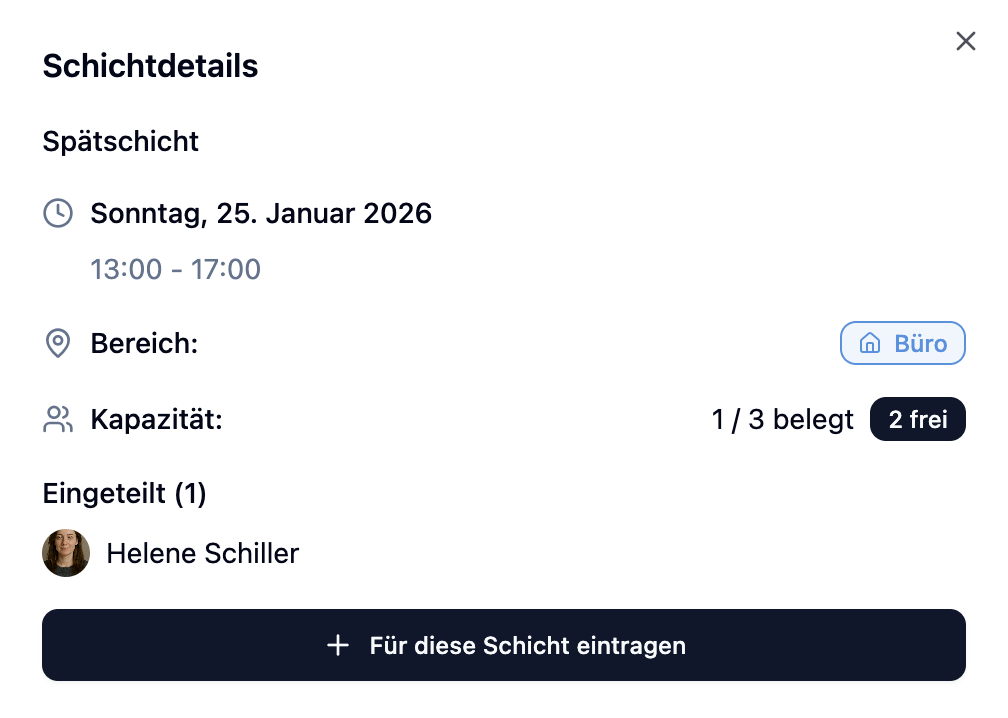
Open shifts are shifts that employees can sign up for themselves. You only see open shifts from departments you are assigned to.
Finding Open Shifts
- Switch to the "Open Shifts" view in the calendar
- Or scroll down to the Open Shifts list
Displayed Information
| Information | Description |
|---|---|
| Shift Title | Name or designation of the shift |
| Department | Which area the shift takes place in (with color coding) |
| Date & Time | When the shift starts and ends |
| Capacity | How many spots are filled/available (e.g., "1/3") |
Applying for a Shift
- Find an open shift that fits your schedule
- Click the "Apply" button
- You will be automatically signed up for the shift
Scenario: The morning shift on Monday at reception is still looking for employees.
- The shift shows: Morning Shift – Reception – Mon, 08:00 - 16:00 – 1/2
- Click "Apply"
- You receive confirmation: "You have been successfully signed up"
Result: The shift now appears in your calendar under "My Shifts".
Status Indicators
| Status | Meaning |
|---|---|
| Apply | The shift still has open spots – you can sign up |
| Signed Up | You are already signed up for this shift |
| Full | All spots are filled – no more applications possible |
Frequently Asked Questions
Why do I see My Dashboard?
As an employee, My Dashboard is your only dashboard view. As a planner or administrator, you have access to both dashboards – My Dashboard for your own shifts and the Planner Dashboard for administrative tasks.
Why don't I see any open shifts?
You only see open shifts from departments you are assigned to. If no shifts are displayed:
- There are currently no open shifts in your departments
- Or no open shifts have been created yet
Contact your planner if you have questions.
How long does it take for my vacation request to be approved?
That depends on your planner. You will receive a notification once the request has been processed. You can check the status anytime in the vacation account card.
Can I withdraw from a shift?
After you have signed up for an open shift, self-withdrawal is not possible. Contact your planner if you cannot work an assigned shift.
Is the data automatically updated?
Yes, the dashboard updates automatically at regular intervals. You can also manually reload the page to see the latest data.
What does the capacity display mean for open shifts?
The display "1/3" means: 1 of 3 required spots is filled. So 2 more employees are still needed.
Summary
| Widget | Function | Actions |
|---|---|---|
| Shift Calendar | Monthly overview of your shifts and absences | Switch between "My Shifts" and "Open Shifts" |
| Working Hours Card | Shows planned hours for the current week | Display only |
| Vacation Days Card | Shows remaining vacation days | Display only |
| Vacation Account Card | Detailed overview with bookings and absences | Request absence, edit pending requests |
| Open Shifts | Available shifts for self-signup | Apply for shifts |
Use the dashboard as your daily home page. A quick glance shows you:
- When your next shifts are
- How many hours you're working this week
- Whether there are open shifts you can sign up for
- The status of your vacation requests
This way you stay on top of your work schedule and don't miss any opportunities.